Trade Platforms — Quotex
1. Selecting Quotex in UI
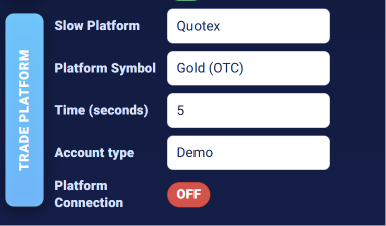
To use Quotex as the trading platform, open Webclicker Panel and set:
Slow Platform = Quotex API
2. About Quotex

Quotex is an online digital options trading platform that allows users to predict whether an asset’s price will rise or fall within a selected time period.
The platform offers:
– Forex currency pairs, cryptocurrencies, commodities and indices.
– Demo accounts with virtual funds and real trading accounts.
– Trading charts, indicators and market signals.
– Fixed-expiration trades with predefined payouts.
3. Required settings for Quotex
Before pressing START, configure the following settings:
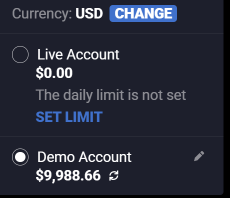
– Quotex Account Type — Demo or Real.
– Trade Symbol — for example, `EUR/USD`, `Gold (OTC)` .
– Lot / Quantity — trade investment amount, not Forex lots. Minimum amount supported by the agent is 1.
– Quotex Expiry Time — option expiration in seconds (minimum 5 seconds).
The selected account type must match the account currently active in Quotex.
4. START flow for Quotex
When the user clicks START with Slow Platform = Quotex :
1. WC UI saves the current settings.
2. The UI sends the start command to the local WP Agent.
3. The agent launches Chrome and opens the Quotex login page.
4. The user signs in manually, completing email verification or CAPTCHA if required.
5. The agent detects the authorized Quotex trading page.
6. The agent attaches to the browser session.
7. The agent connects to the platform’s WebSocket and verifies the account, balance and active trades.
8. Once preparation is complete, Platform Connection becomes ON, and automated trading can begin.
5. Quotex platform preparation
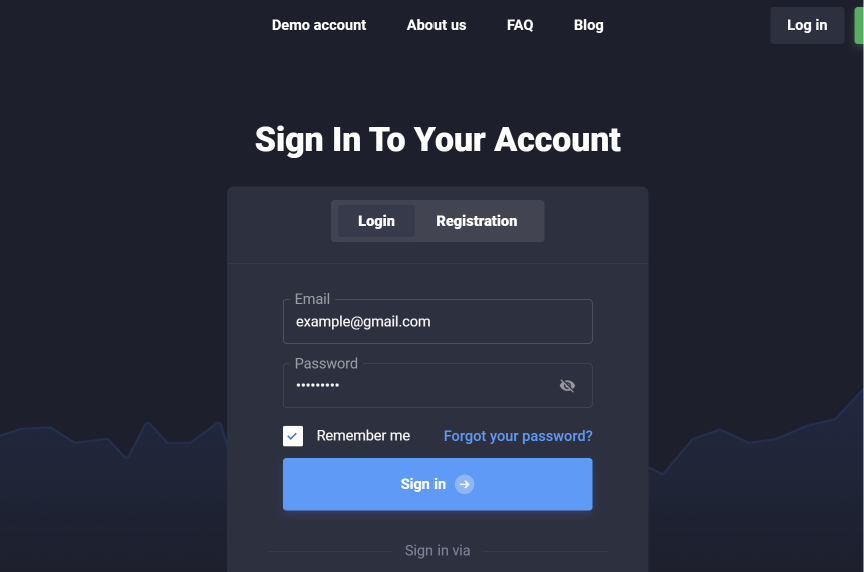
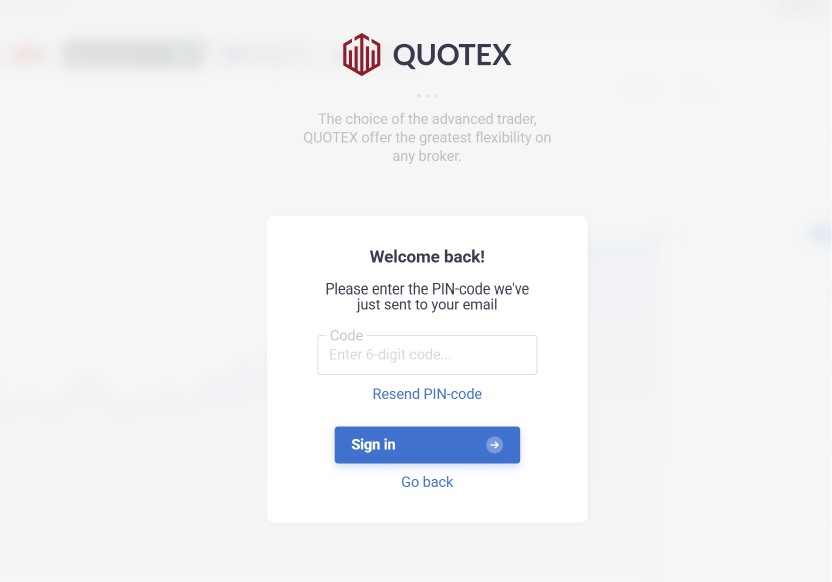
Manually choose account type (real/demo)
After successful manual login, the agent automatically:
– Detects the authenticated trading session.
– Verifies the selected Demo or Real account.
– Establishes the WebSocket connection.
– Retrieves the account balance.
– Loads supported trading instruments.
– Verifies existing open options.
– Prepares trade submission and broker confirmation handling.
Open chart that you will be trade manually
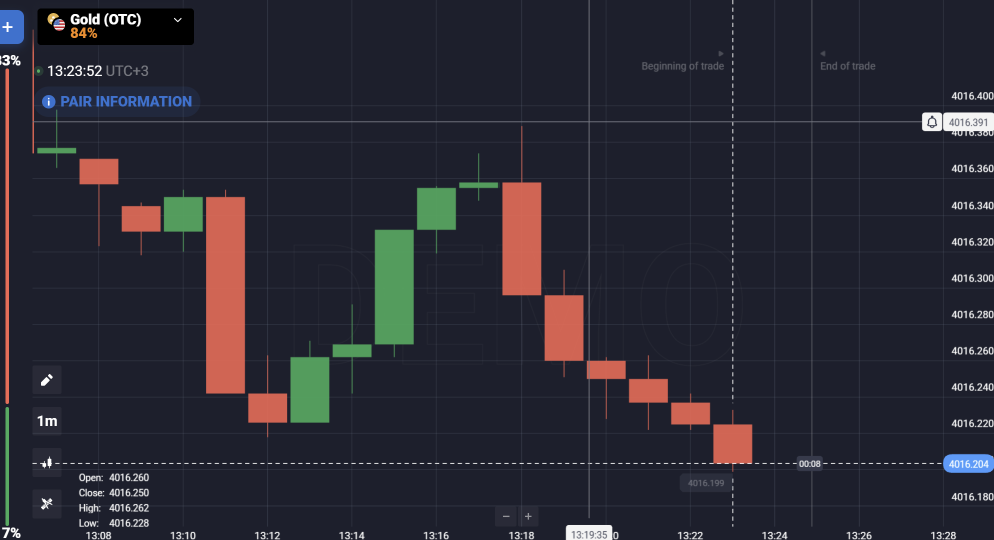
Keep the Chrome window open while Webclicker is running.
6. How the agent opens trades on Quotex
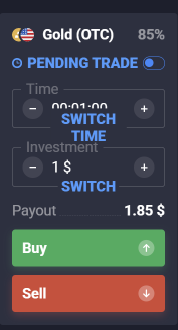
The agent supports two trading directions:
BUY → CALL (UP) — predicts that the asset price will rise.
SELL → PUT (DOWN) — predicts that the asset price will fall.
The agent sends the selected symbol, investment amount and expiration time to Quotex.
Quotex operates in strict single-trade mode within Webclicker. A new trade cannot be opened while another option remains active or unresolved.
7. How the agent closes trades on Quotex
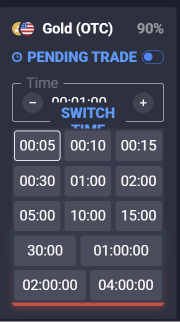
Quotex uses fixed-expiration digital options.
– Trades automatically expire after the selected expiration period.
– The agent waits for the broker’s trade result.
– The result is recorded as WIN, LOSS or DRAW when reported by the broker.
– The agent updates the trade history and account balance.
Important: A Close command waits for expiration and settlement. It does not manually close the option before expiration.
minimum expiration time 5 seconds
Pressing STOP closes the agent’s Chrome session but does not cancel an option already submitted to Quotex.
8. Common Quotex issues
– Chrome opens but Platform Connection remains OFF — the trading session or WebSocket connection is not ready. Complete login and ensure the trading page has loaded.
– QUOTEX_BROWSER_LAUNCH_FAILED — Chrome could not start. Check the browser installation and folder permissions.
– QUOTEX_NOT_READY — the agent has not completed platform initialization or the connection was lost.
– QUOTEX_ACCOUNT_MISMATCH — the selected Demo/Real account differs from the account active in Quotex.
– QUOTEX_UNKNOWN_SYMBOL — the entered Trade Symbol is not recognized. Check the exact symbol and OTC suffix.
– QUOTEX_OPEN_UNCONFIRMED — the agent did not receive reliable broker confirmation of the trade. Check the Quotex trade history before attempting another order.
– QUOTEX_PREVIOUS_TRADE_UNRESOLVED — a previous trade is still pending or its result has not been confirmed. New trades remain blocked.
– QUOTEX_EXISTING_OPEN_OPTIONS — an active option already exists. Wait until it expires.
– QUOTEX_INSUFFICIENT_BALANCE — the account balance is insufficient for the selected investment amount.
– QUOTEX_WS_UPGRADE_FORBIDDEN — the WebSocket connection was rejected. Restart the session and verify that Quotex is accessible.