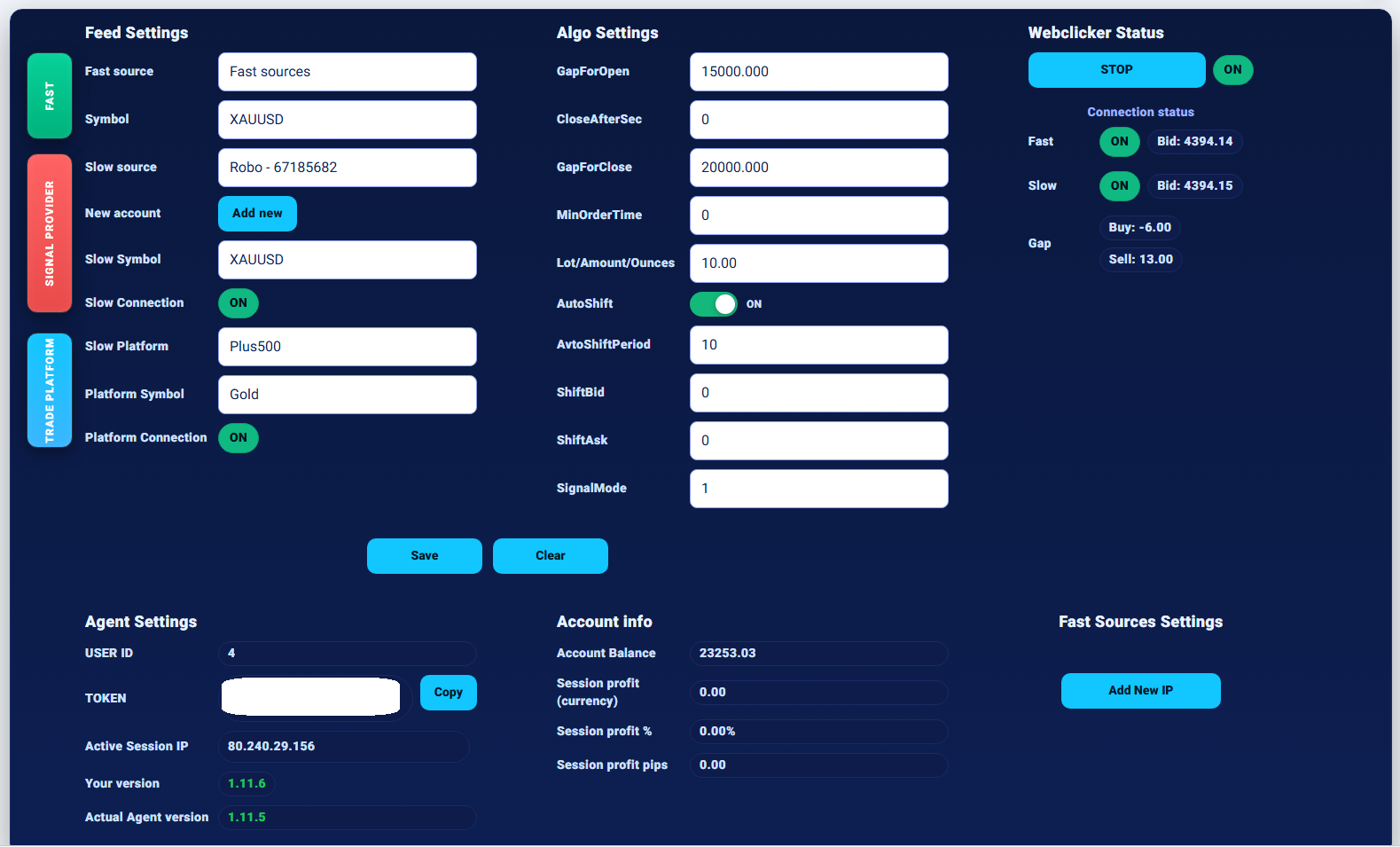
UI Settings
Feed Settings
Fast source — selection of the fast quote source. If the standard `FAST_SOURCES` mode is used, the system works via a shared fast feed; if a specific account is selected, the corresponding MT connection is used.
Symbol — symbol for the fast feed.
Slow source — selection of the slow quote source or signal account from saved M4/M5 connections.
New account / Add new — button to navigate to the page for adding a new M4/M5 account.
Slow Symbol — symbol for the slow platform or slow feed, e.g., `XAUUSD`.
Slow Platform — selection of the trading platform where trades will be opened and closed.
Platform Symbol — symbol or instrument name for the web platform.
Platform Login — login for the web platform. Can be an email or trading login depending on the platform. Stored per platform.
Platform Password — password for the web platform. Displayed as a password input with a show/hide toggle. Stored per platform.
Universal Clicker / Setup Coordinates — special block for `Universal Clicker` mode. The Setup Coordinates button starts capturing BUY / SELL / CLOSE coordinates, which are then saved in user settings.
Universal Coordinates — displays the current Universal Clicker coordinates status. Shows `Not configured` if not set.
Universal wait duration — delay in milliseconds between Universal Clicker actions. Used together with captured coordinates.
Platform Connection — indicator of the current connection status to the selected platform. Displays `ON/OFF` and updates after login attempts.
Algo Settings
GapForOpen — trade opening threshold.
CloseAfterSec — auto-close timer in seconds. Disabled if `<= 0`.
GapForClose — gap-based closing threshold.
MinOrderTime — minimum order lifetime in seconds. The system should not close the order before this time has passed, even if a close condition appears earlier.
Lot/Amount/Ounces/Invest — trade volume.
AutoShift — enables automatic compensation of the average price offset between the fast and slow feeds. When enabled, the system subtracts the rolling average offset from the current raw gap, so trading signals react to deviations from the typical feed difference rather than to a permanent feed offset.
AvtoShiftPeriod — number of ticks used to calculate the AutoShift simple moving average (SMA). Default: 100 ticks. A larger value produces a smoother and slower-changing baseline; a smaller value adapts faster to changes in the feed offset.
ShiftBid — manual shift of the fast Bid price in points. It is applied when AutoShift is disabled: fastBid = fastBid + ShiftBid * Point. Default: 0.
ShiftAsk — manual shift of the fast Ask price in points. It is applied when AutoShift is disabled: fastAsk = fastAsk + ShiftAsk * Point. Default: 0.
SignalMode — selects the gap calculation mode :
SignalMode = 0 uses fastBid – slowBid for both Buy and Sell calculations.
SignalMode != 0 (default: 1) uses cross Bid/Ask prices: Sell = fastAsk – slowBid, Buy = fastBid – slowAsk. When AutoShift is enabled, the corresponding rolling average is subtracted from these raw gap values.
Webclicker Status
The Webclicker Status block shows the current system state.
START / STOP — main control button. Commands to the agent.
Clicker Status ON/OFF — overall system status indicator.
Fast — shows fast feed status and last bid.
Slow — shows slow feed status and last bid.
Gap — shows calculated gap for Buy and Sell.
Save / Clear
Save — saves FEED, ALGO, and credentials.
Clear — resets settings to defaults.
Agent Settings
USER ID — current user ID.
TOKEN — agent token .
Active Session IP — current public IPv4 address detected from the browser/RDP session. The backend automatically saves the browser-detected public IPv4. Proxy, Cloudflare, or invalid IP values are ignored. If no valid public IPv4 is detected, 0.0.0.0 can be shown.
Your version — installed agent version.
Actual Agent version — latest available version.
Update — triggers agent update (requires stopped Webclicker and online agent).
Account info
Account Balance — current balance.
Session profit (currency) — PnL in currency.
Session profit % — PnL percentage.
Session profit pips — PnL in pips.
It is important to take into account that not all platforms allow you to parse your balance, so not all platforms can display your balance.
Fast Sources Settings
The Fast Sources Settings is used to manage the IP list allowed for the shared Fast Sources feed.
Add New IP — opens the CHANGE MY IP LIST modal window.
Inside the modal:
Current IP — IP address to add or use as the new IP for replacement. By default, it can be filled from the detected Active Session IP.
IP list table — displays the current allowed IP list with columns Login and IP.
ADD IP — directly adds the entered IP address to the Fast Sources allowed IP list. If the input is empty, the system tries to use the detected current public IP.
CHANGE IP — used to replace an existing allowed IP with a new one.
IP change workflow:
- Click Add New IP in the Fast Sources Settings block.
- The modal opens and loads the current allowed IP list.
- Select the old IP from the table.
- Enter the new IP in the
Current IPfield. - Click CHANGE IP.
- The system sends a 4-digit verification code to the user email.
- Enter the verification code in the
ENTER THE VERIFICATION CODEmodal. - Click VERIFY.
- If the code is correct, the old IP is disabled and the new IP is added to the allowed Fast Sources IP list.
Additional Fast Sources IP rules:
Resend code — sends a new verification code. The resend button has a short countdown before it can be used again.
Change cooldown — IP change is limited to once every 5 minutes for the same user.
Invalid code — if the verification code is incorrect, the system shows an error and tracks failed attempts.
External server unavailable — if the Fast Sources IP server is unavailable, the UI shows an error message and the IP list may fall back to locally stored data.