Start / Stop
The START / STOP button is the main control button for the Webclicker algorithm.
When Webclicker is stopped, the button displays START and the status indicator shows OFF.
When Webclicker is running, the button displays STOP and the status indicator shows ON.
1. What the START button does
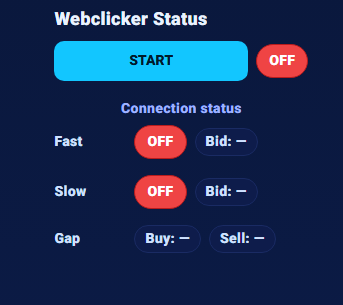
Before sending the start command, the interface automatically saves the current settings.
This is important because the algorithm must use the latest values from the panel.
Important : To ensure fast quotes work, make sure your fast feed plan is active and the IP address of the VPS server added to the allowed IP addresses for connection. You can add it using the Add IP button.
2. Required settings before START
Before pressing START, the user should make sure the required settings are filled in correctly.
The local WP Agent must be installed, running, and connected to the server. If the agent is offline, the UI can show the warning: Agent offline. Please switch ON agent.
Agent must be online
3. START process step by step
When the user clicks START, the process works like this:
1. The UI checks the current Webclicker status.
2. If Universal Clicker is selected, the UI checks that coordinates are configured.
3. The UI saves the current panel settings automatically.
4. The UI sends the START request to the agent.
5. The UI checks anti-duplicate and lock protection, so repeated clicks do not start duplicate jobs.
6. The UI resolves the selected platform, platform credentials, and instrument.
7. If the platform is already connected and ready, the backend immediately sets Webclicker as running.
8. The UI shows a loading overlay while the platform is loading.
9. When the platform becomes ready, the backend changes login state to `READY` and activates the algorithm.
10. The agent starts gap processing and begins updating Fast, Slow, and Gap status values.
4. What the user sees after START
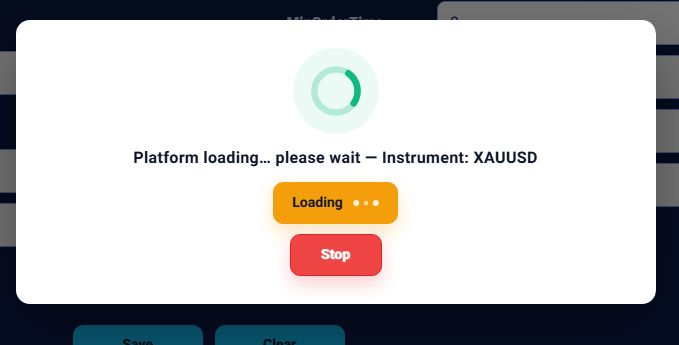
During platform loading, the UI can show a loading message such as Platform loading… please wait.
The START/STOP button can be temporarily disabled while the platform login state is `LOADING`.
When the platform becomes ready, the UI shows that the platform connection is ON and can display a success message such as Login successful. Platform Connection: ON. All indicators should be ON
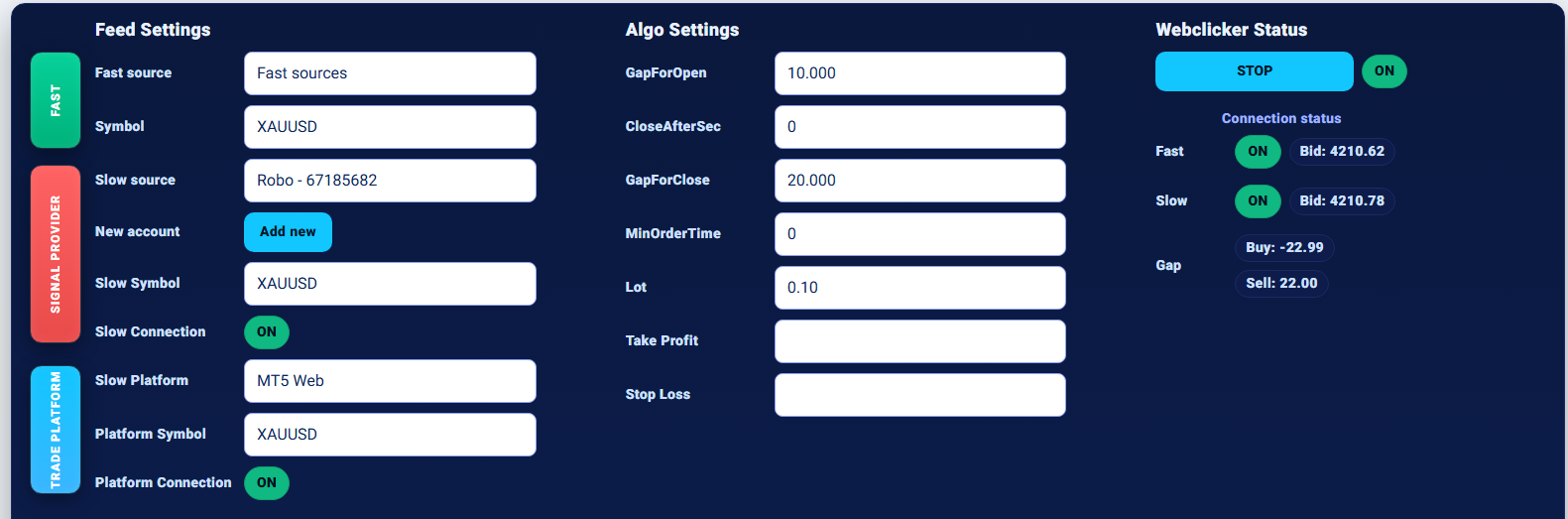
When the algorithm is running, the Fast, Slow, and Gap values are updated in the Webclicker Status block. If the agent gap engine is not running, these fields are reset to OFF and dashes.
5. What the STOP button does
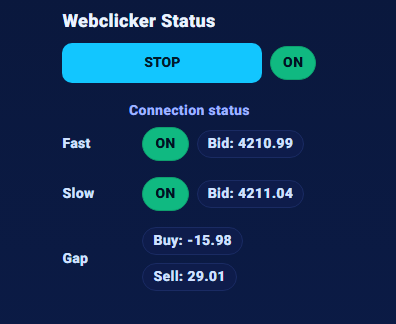
When Webclicker is running, the same button changes to STOP. Clicking STOP stops the algorithm and disconnects the active platform session from the UI side.
Before sending the stop request, the UI also saves the current settings.
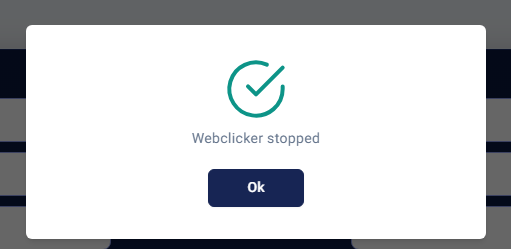
Important : Please note that stopping the lag and local agent may take some time. Therefore, after clicking the Stop button, you need to wait 5-10 seconds until you see an modal window indicating that the agent has been stopped.
6. Common START problems
- Agent offline (The WP Agent is not connected. Start the agent service or reinstall the agent if needed)
- Platform credentials are empty (For CMC or Exness, Platform Login and Platform Password must be filled in before START)
- Please configure coordinates (Universal Clicker is selected, but BUY / SELL / CLOSE coordinates were not configured. Open Universal Clicker setup and save coordinates first)
- GapForOpen must be > 0 (The opening gap threshold is empty or zero. Enter a positive value in `GapForOpen`)
- GapForClose must be > 0 (The closing gap threshold is empty or zero. Enter a positive value in `GapForClose`)
- Platform loading does not finish (The platform login did not reach READY state. Check platform login/password, browser window, internet connection, and agent logs)
- Fast or Slow status stays OFF (The algorithm may not be running, the agent gap engine may not have started, or quote data may not be available. Check Fast source, Slow source, symbols, and Orders LOG)