
Trade Platforms — Plus500
1. Selecting Plus500 in UI
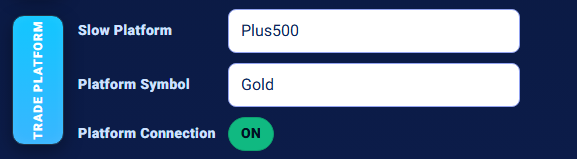
To use Plus500, open Webcliker Panel and set:
Slow Platform = Plus500
The Platform Symbol field is important.
Use the exact symbol or instrument name shown inside the Plus500 WebTrader.
Examples:
- EUR/USD
- Gold
- Bitcoin
Plus500 may use full instrument names instead of standard MetaTrader broker symbols.
For example:
- Gold may be displayed as Gold instead of XAU/USD
- Oil instruments may have names such as Oil or Brent Oil
2. About Plus500
Plus500 is a global multi-asset financial technology company founded in 2008.
The company operates proprietary online trading platforms and provides access to different financial products depending on the user’s country, account type, and regulated Plus500 entity.
Plus500 Ltd is publicly listed on the London Stock Exchange under the symbol PLUS and is a constituent of the FTSE 250 and STOXX Europe 600 indices.
Depending on the applicable region and account, Plus500 may provide access to:
- Forex CFDs
- Commodity CFDs
- Index CFDs
- Share CFDs
- ETF CFDs
- Cryptocurrency CFDs
- Options CFDs
- Share dealing
- Futures and options on futures in the United States
- Knockout Options in Japan
Instrument availability varies by country and by the regulated Plus500 subsidiary servicing the account. Plus500 operates through regulated entities supervised by authorities including the FCA, CySEC, ASIC, FMA, FSCA, MAS, DFSA and other regional regulators.
Please note that the Webcliker integration was created specifically for the Plus500 WebTrader CFD Platform.
The current integration supports instruments available through the Plus500 CFD trading interface, including:
- Forex
- Gold and other commodities
- Indices
- Stocks and ETFs
- Cryptocurrencies, where available
- Other supported CFD instruments
3. Platform Login and Password
Important: set English language
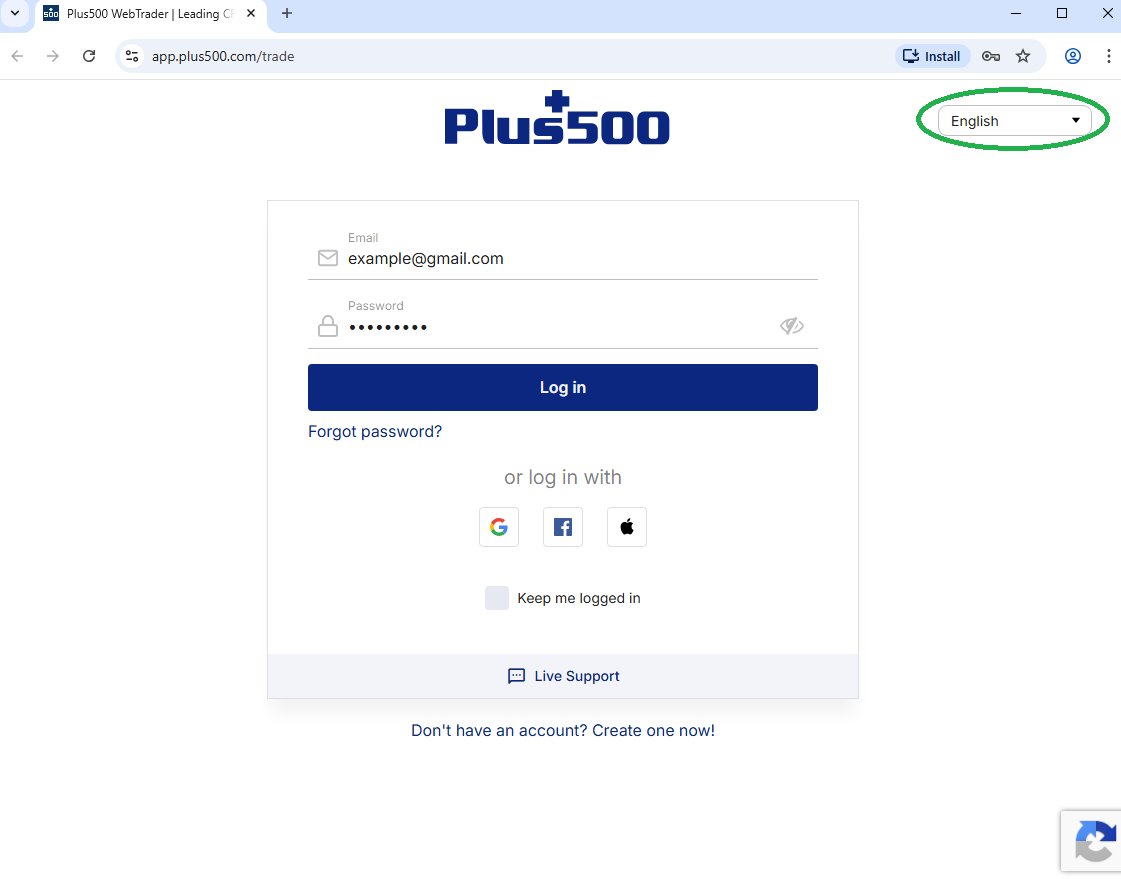
Open Plus500 in the Chromium window started by the WP Agent and log in manually.
Complete CAPTCHA, 2FA, email, SMS, or other security verification manually if requested. The agent does not enter login credentials or verification codes.
Before pressing START:
Accept cookies
Close popups
Select the required Demo or Real account
Keep the platform language set to English
Make sure the trading workspace is fully loaded
Check that the account has enough Available balance
If the Plus500 notification popup appears, the agent attempts to click Allow. Close or accept it manually if it remains visible.
4. Required Settings Before START
Check:
Slow Platform = Plus500
Platform Symbol is correct
Lot / Amount is correct
Gap open and close settings are correct
Correct Demo or Real account is selected
Market is open
The instrument is available for CFD trading
The account has enough Available balance
No popup blocks the platform
Important: Plus500 uses Amount / instrument quantity instead of MetaTrader Lot
Plus500 does not use the standard MetaTrader lot format in the WebTrader order ticket.
The meaning of Amount depends on the selected instrument.
Forex example
For a Forex pair such as EUR/USD:
Amount = 1,000
normally means a position based on 1,000 units of the base currency.
For EUR/USD, the base currency is EUR. Therefore:
EUR/USD Amount = 1,000
means exposure to approximately 1,000 EUR against USD.
It does not mean:
1,000 EUR of margin
1,000 EUR invested from the account
1,000 MetaTrader lots
The required margin is calculated separately by Plus500 according to the instrument price, leverage, account type, and applicable margin requirements.
For example, the order ticket may show:
Amount: 1,000 EUR
Required Margin: approximately €33.33
The exact margin may change depending on the account and current instrument conditions.
Gold example
For Gold, Plus500 commonly displays the amount in troy ounces.
Examples:
Amount = 1 may represent 1 troy ounce of Gold
Amount = 5 may represent 5 troy ounces
Amount = 10 may represent 10 troy ounces
The Amount unit depends on the instrument:
Forex: base-currency units
Gold: commonly troy ounces
Stocks: shares
Indices: contracts or units
Oil: barrels
Cryptocurrencies: coins or fractional quantities
Always check the unit, minimum amount, increment, leverage, and Required Margin shown in Plus500.
5. START Flow for Plus500
When START is pressed, the agent:
Opens Chromium with the saved Plus500 profile
Waits for manual login if required
Detects the trading workspace and Available balance
Receives the Platform Symbol
Opens the Trade screen
Searches for and selects the instrument
Opens the instrument panel and Trade tab
Enters the configured Amount
Checks that BUY and SELL controls are available
Platform Connection becomes ON only after the requested instrument and trading ticket are successfully prepared.
6. Plus500 Preparation
The agent automatically:
Detects the Plus500 WebTrader page
Waits for the workspace to load
Attempts to close the notification popup
Reads Available balance
Searches for the configured Platform Symbol
Selects the matching CFD instrument
Opens the Trade tab
Enters Amount
Checks BUY and SELL controls
Keeps the symbol and Amount prepared for the next signal
Login and all security verification remain manual.
7. Opening Trades
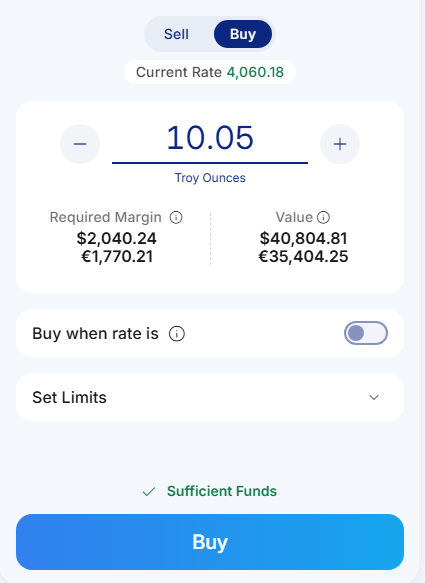
Plus500 supports
BUY / Long
SELL / Short
When an open signal is received, the agent:
Checks the browser, platform, symbol, and Amount
Re-prepares the ticket if required
Selects BUY or SELL
Clicks the matching order button
Checks Open Positions
Reads the position ID, opening price, side, and quantity
Confirms that the position was opened
The integration currently expects only one active Plus500 position for the configured Webcliker operation.
8. Closing Trades
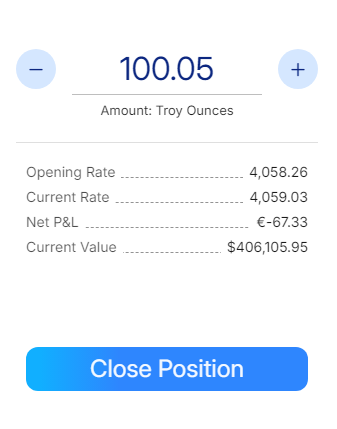
When a close signal is received, the agent:
Finds the matching position in Open Positions
Matches it by Plus500 position ID and side
Sends the close command
Waits until the position disappears from Open Positions
Checks Closed Positions
Verifies the position ID, side, opening price, and closing price
Reads Net P&L where available
Updates Available balance
Prepares the same symbol and Amount for the next signal
9. Common Plus500 Issues
Chrome opens with a manual login page
This is expected if the saved Plus500 session is missing or expired. Log in manually in the same Chromium window opened by the WP Agent. The agent does not enter login, password, CAPTCHA, 2FA, email verification, SMS verification, or other security information.
Platform Connection does not become ON
The agent did not prepare the Plus500 trading ticket. Make sure the workspace is fully loaded, Demo or Real mode is selected, the Trade screen is available, Platform Symbol is configured, the requested instrument is selected, the platform language is English, and no popup blocks the interface.
Login required or session expired
Complete login, CAPTCHA, 2FA, email, SMS, or other verification manually. Leave the Plus500 trading workspace open after verification.
Notification popup blocks the platform
The agent attempts to click Allow automatically. If the popup remains visible, accept or close it manually and make sure it no longer covers the trading controls.
Symbol not found
The Platform Symbol does not match a Plus500 search result. Use the exact instrument name shown in Plus500, for example EUR/USD or Gold.
Multiple instruments found
Plus500 may show the main CFD together with options, different expirations, or related products. Use the exact name of the required main CFD instrument.
Incorrect instrument selected
The agent clicked a search result, but the trading panel shows another product. Check the complete instrument name and make sure the selected product matches Platform Symbol.
Trade tab not opened
Plus500 opened the Info tab instead of Trade. Make sure the instrument panel is visible, the Trade tab exists, the language is English, and no popup covers the panel.
Amount input not found
The agent could not find the Amount field. Possible reasons include an inactive Trade tab, unopened instrument panel, market closure, unavailable instrument, popup, changed Plus500 layout, or selection of a non-standard CFD product.
Invalid Amount
Plus500 rejected the entered Amount. Check the minimum, maximum, increment, decimal format, quantity unit, Available balance, Required Margin, market status, and instrument availability. Plus500 Amount is not a MetaTrader lot.
Open failed: position not confirmed
The agent clicked BUY or SELL, but no matching position appeared in Open Positions. Check manually for insufficient balance, invalid Amount, market closure, suspended instrument, rejected order, confirmation popup, delayed response, connection problem, wrong instrument, or interface changes. Do not resend the order before checking Open Positions.
Position already open
The agent detected an active Plus500 position. Close the existing position before sending another open signal.
Close skipped: no matching position
The agent could not find the requested open position. Check Platform Symbol, position side, position ID, selected Demo or Real account, and whether the position was already closed.
Close failed: position not confirmed
The position did not disappear from Open Positions or appear correctly in Closed Positions. Check the market status, selected account, symbol, side, position ID, confirmation dialog, connection, response delay, and Plus500 closing interface.
Closed position information is incorrect
Closed Positions may update asynchronously. The agent verifies the exact position ID, side, opening price, and closing price instead of using only the newest row.
Insufficient balance or margin
Plus500 may reject the order when Available balance or margin is insufficient. Check Amount, Required Margin, leverage, current price, existing positions, and the selected Demo or Real account.
Market closed or instrument suspended
The instrument is not currently tradeable. Wait until the market opens or select another available CFD instrument.
Demo / Real mode mismatch
The agent does not automatically switch account mode. Select the correct Demo or Real account manually before pressing START.
Balance is not updated
Available balance may update with a delay after opening or closing. Wait several seconds and check the account status again.
Plus500 connection lost
The browser connection was interrupted. Check the internet connection, session status, Chromium window, browser tab, and other active Plus500 logins. Restart the Plus500 session and log in manually again.