
Trade Platforms — MEX / MultiBank
1. Selecting MEX in UI
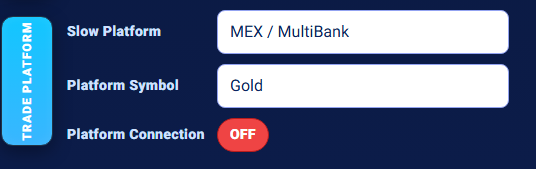
To use MEX / MultiBank, open Webcliker Panel and set:
Slow Platform = MEX
The Platform Symbol field is important.
Use the exact symbol or market name shown inside the MEX / MultiBank Web Trader.
Examples:
XAUUSD — Gold
EURUSD — EUR/USD
2. About MEX / MultiBank
MEX / MultiBank is part of MultiBank Group, a global financial derivatives broker established in 2005. MultiBank Group provides online trading services across markets such as Forex, Metals, Shares, Indices, Commodities, and Digital Assets.
The group serves international clients through its web and trading platforms and operates under multiple regulated entities across different jurisdictions.
3. Platform Login and Password
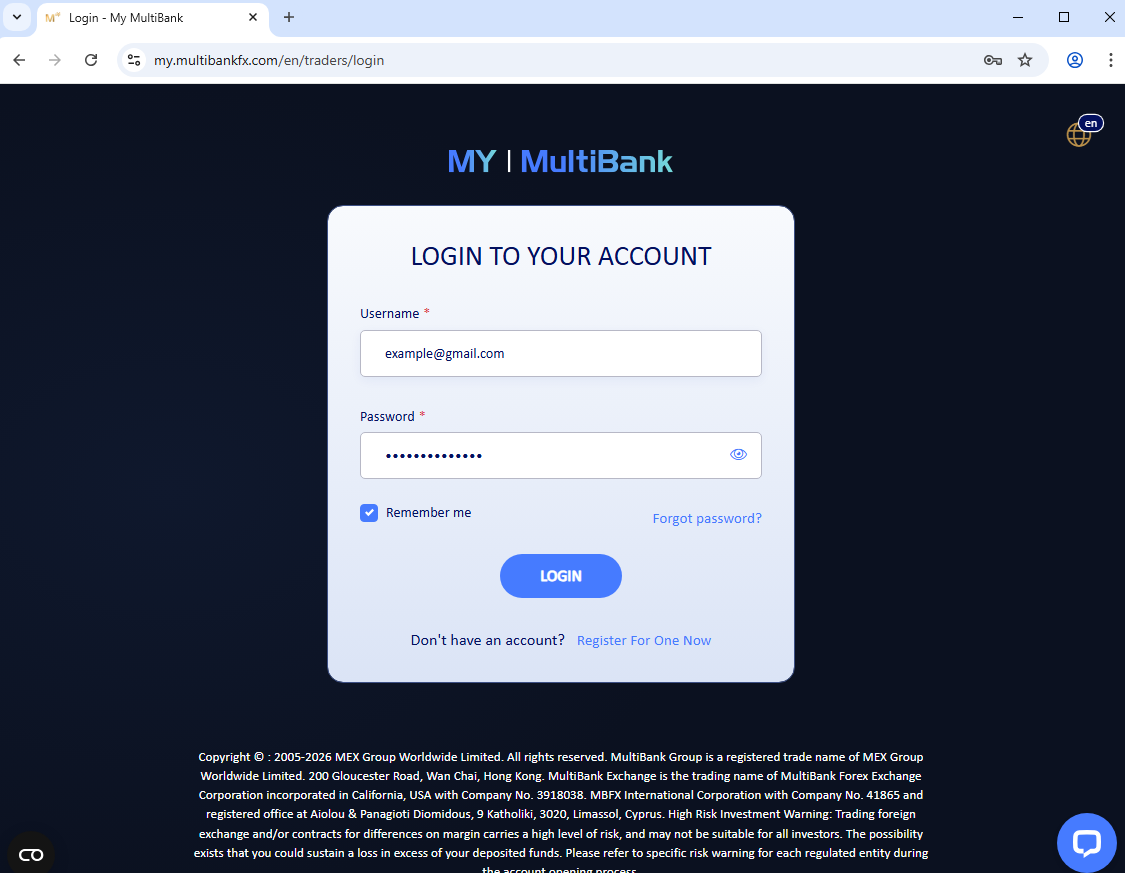
The user should login manually.
The agent does not enter the MEX / MultiBank login or password automatically.
The user should open the MEX / MultiBank Web Trader in the same Chrome window started by the WP Agent.
4. Required settings before START
Before pressing START, check:
Slow Platform = MEX
Platform Symbol is correct
Lot / Volume is correct
Gap open and close settings are correct
MEX / MultiBank Web Trader opens manually
The platform is available from the current VPS/IP country
5. START flow for MEX / MultiBank
When the user clicks START:
Webcliker saves the settings.
The UI sends the start command to the local WP Agent.
The agent opens a Chrome session for MEX / MultiBank.
The user logs in manually.
The agent waits until the Web Trader is loaded.
After the platform is ready, the agent prepares the symbol and volume for trading.
6. MEX / MultiBank preparation
During preparation, the agent:
detects the active MEX / MultiBank page;
checks that the Web Trader iframe is loaded;
waits until the terminal is ready;
hides the left navigation menu if possible;
opens Symbols search;
searches for the selected Platform Symbol;
opens the Market ticket;
sets Lots / Volume;
keeps the ticket ready for fast execution.
7. Opening trades
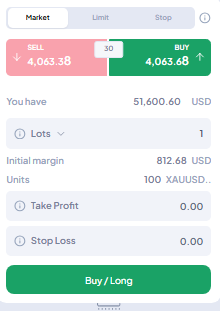
MEX / MultiBank supports:
BUY open
SELL open
When an open signal is received, the agent clicks the prepared Buy or Sell button and waits for platform confirmation.
The trade can be confirmed by execution message, position count, or new position row.
8. Closing trades
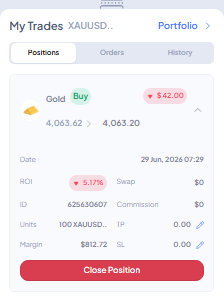
MEX / MultiBank supports:
Close BUY
Close SELL
When a close signal is received, the agent searches for the matching open position, clicks close, confirms if required, and waits until the position disappears.
After closing, the agent may read the updated balance and prepare the same symbol again.
9. Common MEX / MultiBank issues
Chrome opens with a manual login page
This is expected. The user should open the MEX / MultiBank Web Trader in the same Chrome window and sign in manually.
Platform Connection does not become ON
The agent did not detect the ready MEX / MultiBank terminal. Make sure the platform is fully loaded and shows Search Symbols, Market ticket, Buy / Sell buttons, Positions, and Balance.
Login required or session expired
If the page is on login or session-expired state, the agent keeps waiting for manual login. The user must sign in again manually.
Platform is not available / Error 403
The MEX / MultiBank Web Trader may be blocked for the current location, account region, or VPS IP. Use another allowed VPS/IP country.
Symbol not found
The value in Platform Symbol may not match the MEX / MultiBank market name. Use the exact symbol or market name shown inside the platform.
Ticket not opened
The agent could not find the market row or the trade ticket did not open. Check the Platform Symbol and make sure the interface is not blocked by popups.
Lots input not found
The trade ticket opened, but the agent could not find the Lots / Volume field. Restart the MEX session and let the agent prepare the ticket again.
Open failed: MEX_OPEN_NOT_CONFIRMED
The agent clicked Buy or Sell, but MEX / MultiBank did not confirm the trade. Check manually whether the position was opened.
Close skipped: no_matching_position
The agent could not find an open position matching the requested side and instrument.
Close failed: MEX_CLOSE_NOT_CONFIRMED
The agent clicked close, but the position did not disappear or the position count did not decrease.
Market closed
The selected MEX / MultiBank market is not tradeable at this time. Wait until the market opens again.
10. VPS / IP location warning
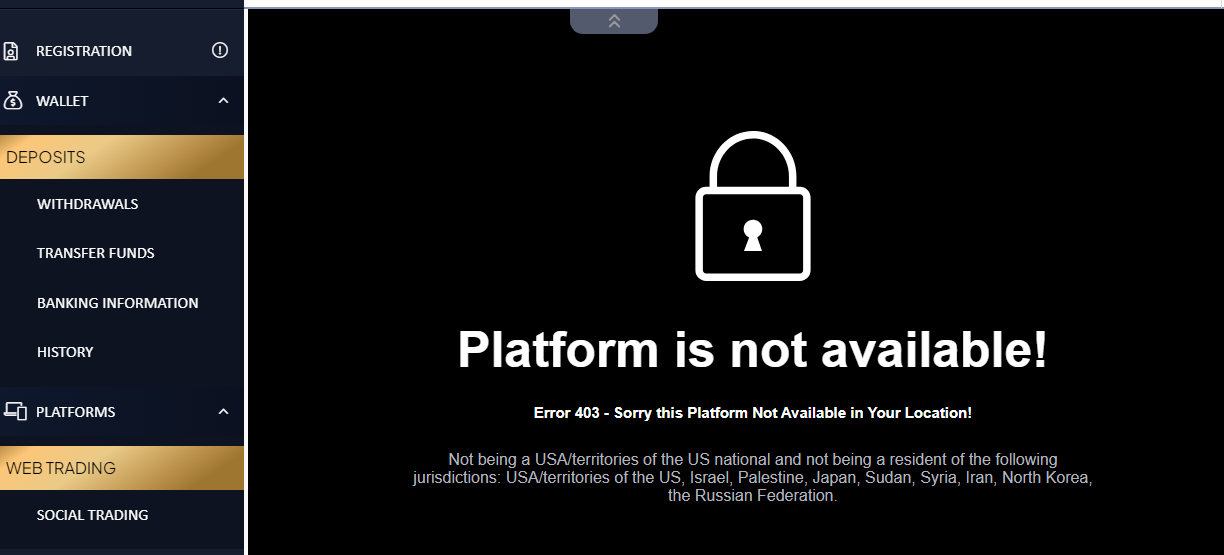
MEX / MultiBank Web Trader may not work from some countries or VPS IP locations.
According to the platform restriction message, access is not available for users from:
USA / US territories
Israel
Palestine
Japan
Sudan
Syria
Iran
North Korea
Russian Federation
Before running MEX / MultiBank on a VPS, test that the Web Trader opens without Error 403.
Use only VPS countries where the platform opens correctly (for example EU VPS Germany ,Italy ,Spain etc.)