
Trade Platforms — EXANTE
1. Selecting EXANTE in UI
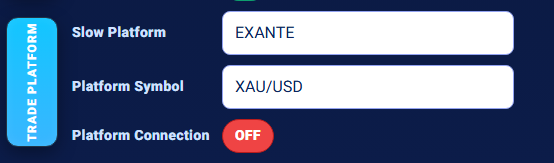
To use EXANTE, open Webcliker Panel and set:
Slow Platform = EXANTE
The Platform Symbol field is important.
Use the exact symbol or instrument name shown inside the EXANTE trading platform.
Examples:
- EUR/USD
- XAU/USD
EXANTE may show several instruments with similar names but different exchanges, currencies, instrument types, or expiration dates. Always select the exact required instrument.
The EXANTE agent can work with any symbol received from the Webcliker backend. It is not limited to one predefined instrument.
2. About EXANTE
EXANTE is a professional multi-asset broker and proprietary trading platform.
According to the official EXANTE website, the platform provides access to more than 2 million financial instruments across 50+ global markets through a single multi-currency account. Available markets include stocks, ETFs, currencies, bonds, futures, options, and commodities. EXANTE can be used through web, desktop, and mobile platforms.
Please note that the Webcliker EXANTE integration was created specifically for the EXANTE Web Platform.
3. Platform Login and Password
If EXANTE requests any verification, the user must complete it manually.
Inside the platform:
- Accept cookies
- Close all popup windows
- Select Demo or Live
- Check that the trading terminal is fully loaded
- Check that the account has enough balance or margin
EXANTE uses the same account credentials for Demo and Live environments.
Now open the Webcliker UI and click START.
4. Required Settings Before START
Before pressing START, check:
- Slow Platform = EXANTE
- Platform Symbol is correct
- Quantity is correct
- Gap open and close settings are correct
- Correct EXANTE account or subaccount is selected
- Correct Demo or Live mode is selected
- Selected instrument is available
- Market is open
- Account has enough balance or margin
- No popup window is covering the trading interface
The valid Quantity and minimum trading size may be different for currencies, stocks, futures, options, and other instruments.
5. START Flow for EXANTE
When the user clicks START:
- Webcliker saves the settings.
- The UI sends the start command to the local WP Agent.
- The agent opens Chrome with the saved EXANTE session.
- The agent waits approximately five seconds for the platform to load.
- The user logs in manually if required.
- The agent waits until the EXANTE trading terminal is ready.
- The agent activates the Instruments search field.
- The agent enters the Platform Symbol received from the backend.
- The agent selects the matching instrument.
- The agent selects the Market order type and sets Quantity.
6. EXANTE Preparation
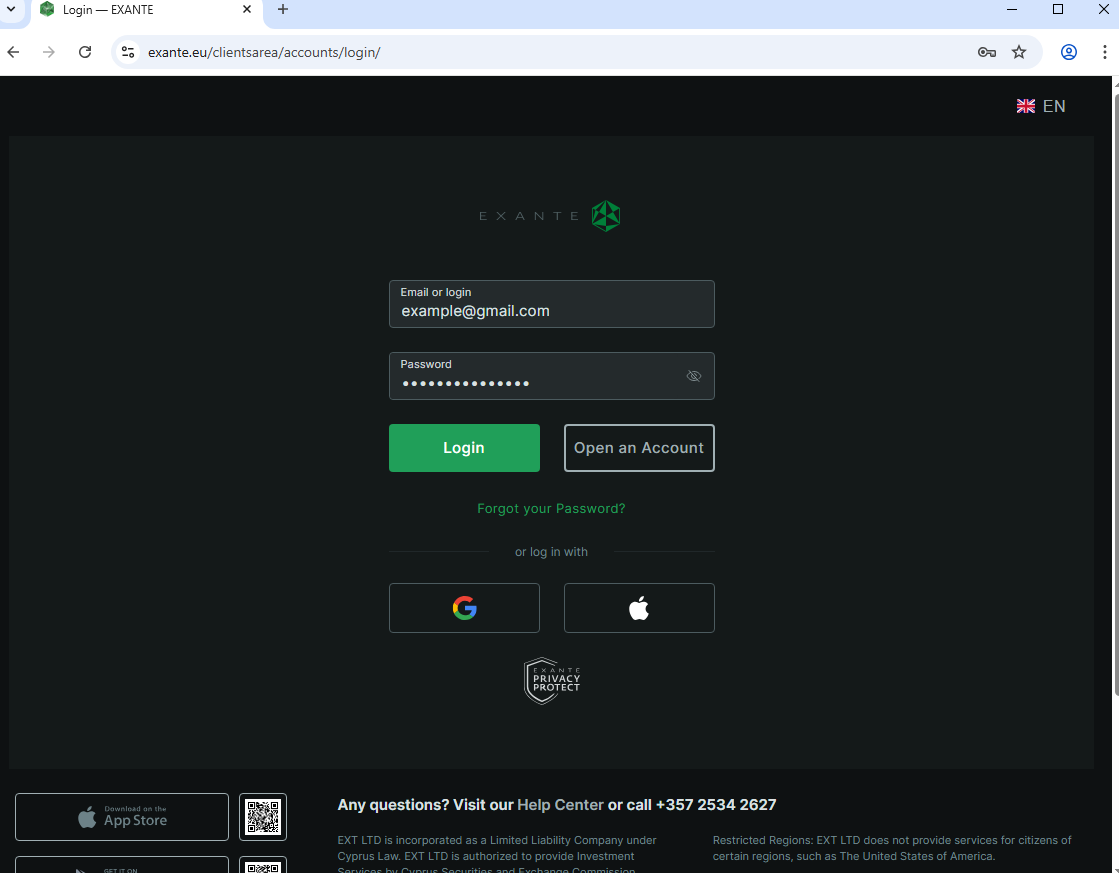
Please fill your email and password and Log in to platform manually .
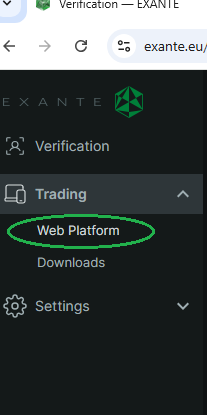
Open Web platform manually
During preparation, the agent automatically:
- Detects the active EXANTE Web Platform page
- Checks that the trading terminal is loaded
- Waits until Instruments and Order modules are ready
- Activates the Search field
- Clears the previous symbol
- Enters the Platform Symbol
- Selects the matching search result
- Checks that the correct instrument is selected
- Selects the Market order type
- Sets Quantity
- Checks that Buy and Sell buttons are available
- Keeps the order panel ready for fast execution
If several similar search results appear, the agent should prefer an exact symbol match.
For HFT usage, the symbol, Market order type, and Quantity must be prepared before the signal arrives.
When a new signal arrives, the agent should only click Buy or Sell without searching for the symbol or entering Quantity again.
7. Opening Trades
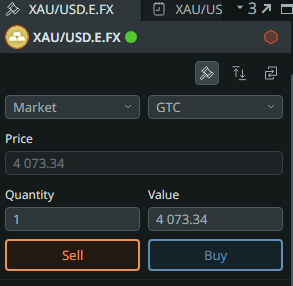
EXANTE supports:
- BUY / Long open
- SELL / Short open
When an open signal is received, the agent clicks the prepared Buy or Sell button and waits for EXANTE confirmation.
The trade can be confirmed by:
- Successful order status
- New position in Portfolio
- Position quantity increase
- Matching symbol and position side
- New execution or transaction record
If the order is rejected because of insufficient balance, insufficient margin, invalid Quantity, or a closed market, the agent should keep the selected symbol and Quantity prepared and wait for the next signal.
8. Closing Trades
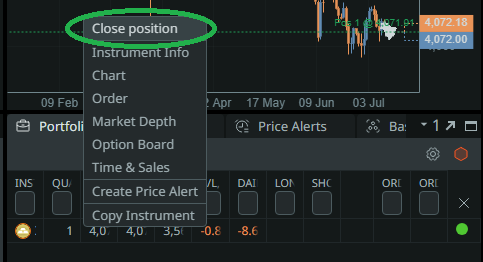
EXANTE supports:
- Closing a BUY / Long position
- Closing a SELL / Short position
When a close signal is received, the agent:
- Opens or checks the Portfolio area.
- Searches for the matching position.
- Checks the symbol and position side.
- Clicks the close-position button.
- Confirms the operation if required.
- Waits until the position disappears or its quantity decreases.
After closing, the agent prepares the same symbol, Market order type, and Quantity again.
9.Common EXANTE Issues
Chrome opens with a manual login page
This is expected if the EXANTE session is missing or expired. The user should log in to EXANTE manually in the same Chrome window opened by the WP Agent. The agent does not enter login, password, 2FA, CAPTCHA, or other security verification automatically.
Platform Connection does not become ON
The agent did not detect the ready EXANTE terminal. Make sure the platform is fully loaded and shows the Instruments search, selected instrument, Order module, Quantity field, Buy and Sell buttons, Portfolio area, and account information. Close any popup, tutorial, cookie notification, or risk-warning window.
Login required or session expired
If EXANTE shows a login page, session expired message, 2FA request, CAPTCHA, or security confirmation, the agent keeps waiting for manual action. The user must sign in again manually and leave the trading platform open.
Symbol not found
The value in Platform Symbol does not match an EXANTE search result. Use the exact symbol shown inside EXANTE. Check the spelling, slash, dot, dash or space characters, exchange, currency, instrument type, and contract expiration. Example: use EUR/USD if this is how the symbol is displayed inside EXANTE.
Multiple instruments found
EXANTE may show several instruments with similar names. Check the complete symbol, exchange, currency, instrument type, and expiration date. Use the exact instrument name shown inside EXANTE whenever possible.
Incorrect instrument selected
The agent clicked a search result, but the Order module still shows the previous instrument. Check manually which instrument is displayed in the Order module. The selected instrument must match the Platform Symbol before the agent prepares or sends an order.
Order panel not opened
The agent found the instrument but could not detect the Order module. Make sure the platform is fully loaded, the Order module is visible, and the interface is not blocked by popups, tutorials, cookie notifications, risk warnings, or other EXANTE windows. Also check that the browser zoom and window size have not been changed.
Quantity input not found
The Order module opened, but the agent could not find the Quantity field. Restart the EXANTE session and let the agent prepare the order panel again. Possible reasons include an incorrect instrument, collapsed Order module, popup covering the field, changed EXANTE interface, incorrect browser zoom, or incorrect window size.
Invalid Quantity
EXANTE rejected the entered Quantity. Possible reasons: the Quantity is below the minimum, does not match the allowed increment, decimal Quantity is not supported, the Quantity is too large, or the account has insufficient funds or margin. Check the instrument trading conditions manually.
Open failed: EXANTE_OPEN_NOT_CONFIRMED
The agent clicked Buy or Sell, but EXANTE did not confirm the trade. Check manually whether the position was opened. Possible reasons: insufficient balance or margin, market closed, invalid Quantity, instrument not tradeable, order confirmation popup appeared, EXANTE rejected the order, platform response was delayed, internet connection problem, or the EXANTE interface changed.
Close skipped: no_matching_position
The agent could not find an open position matching the requested symbol and side. Check whether the position is still open, whether the correct Demo or Live mode is selected, whether the correct account or subaccount is active, whether the position symbol matches the Platform Symbol, and whether the position was already closed.
Close failed: EXANTE_CLOSE_NOT_CONFIRMED
The agent clicked Close, but the position did not disappear or the position size did not decrease. Check manually whether the position is still open in the Portfolio and Orders areas. Possible reasons: confirmation popup appeared, market closed, EXANTE rejected the closing order, wrong account or subaccount selected, symbol mismatch, position side mismatch, platform response was delayed, or the EXANTE interface changed.
Insufficient balance or margin
If the account does not have enough balance or margin, EXANTE may reject the order. In this case the agent should keep or restore the selected symbol, Market order type, and Quantity so it can process the next valid signal.
Demo / Live mode mismatch
EXANTE has separate Demo and Live modes. The agent does not automatically switch between them. Before pressing START, the user must manually select the correct mode in the EXANTE Web Platform. The Demo/Live selector is shown in the platform toolbar.
Market closed
The selected EXANTE instrument is not tradeable at this time. Wait until the relevant exchange opens again or select another available instrument.
Browser layout changed
Do not change the browser zoom, enable automatic translation, change the platform language, collapse required trading modules, leave popup windows open, or open several EXANTE trading tabs. Restart the EXANTE browser session if the platform layout becomes incorrect.