Your shold register at Web Portal my.westernpips.com for buy and get westernpips license.
Registration Guide can find here.
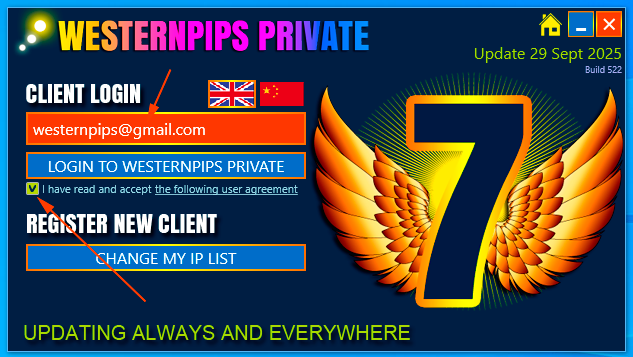
After starting Westernpips Private 7 application you will see login screen. To continue work you need to accept user agreement and enter your registered email adress:
License IP activation
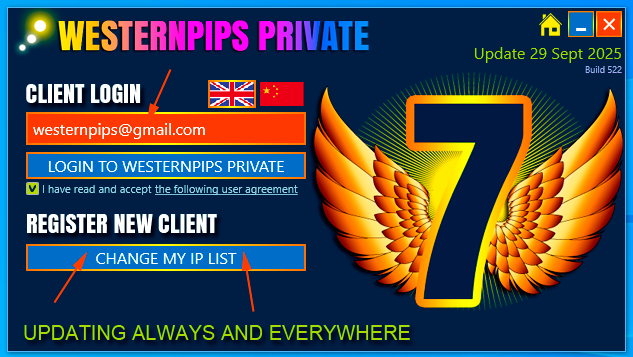
You need to choose your client login, type it in the field “Client Login” and press the button “Change my ip list”:
Next you will see “Change My Ip List ” Window:
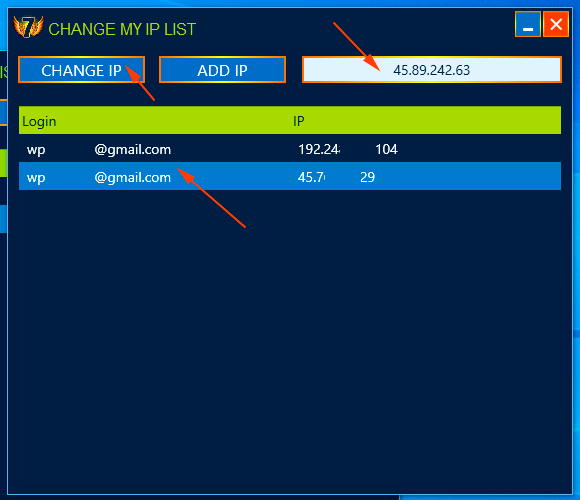
How to Add New IP or Change your license IP read here
Note: Westernpips Private 7 software is licensed to work only from one permanent IP address with same login. If your IP address will changed (you buy new VPS) you need to reactivate your license for new IP by “Change My Ip List ” Window.
When you add and activate your IP you can login to Westernpips Private 7 application.
Logging In
To login to Westernpips Private 7 you need to type your login and press “Login To Westernpips Private” button:
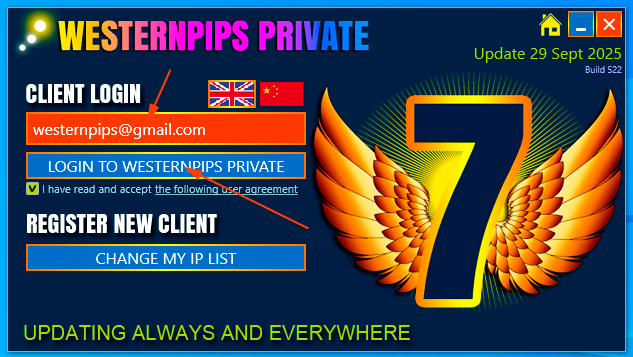
After successfull login you will see the main window of Westernpips Private 7.
In case of error you will see error message:
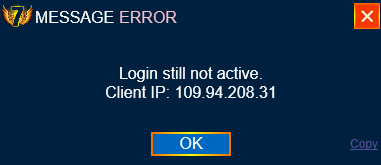
You need to contact your manager to solve problem or add your IP using “Change My Ip List ” Window.