The first One Leg Multi setup has five stages: record quotes without trading, read the Gap chart, measure your broker’s real execution with the minimum lot, test the set on the recorded quotes in the BackTester, then trade small and correct from the log. One Leg Multi is one of the strategies the Private 7 BackTester supports, so you can check levels on your own recorded data before risking money. Every setting mentioned links to its description in the One Leg Multi settings reference.
Before you start: what you need
- Private 7 licence with One Leg Multi and the strategy tab added with the + button.
- One or more fast feeds and one trading account added in Dashboard > Connections. Optionally a second account to use as Signal provider.
- A Windows VPS near the broker server: see system requirements and Forex VPS.
- A broker whose rules you have checked: see brokers that allow arbitrage.
Stage 1. Connect and record quotes without trading
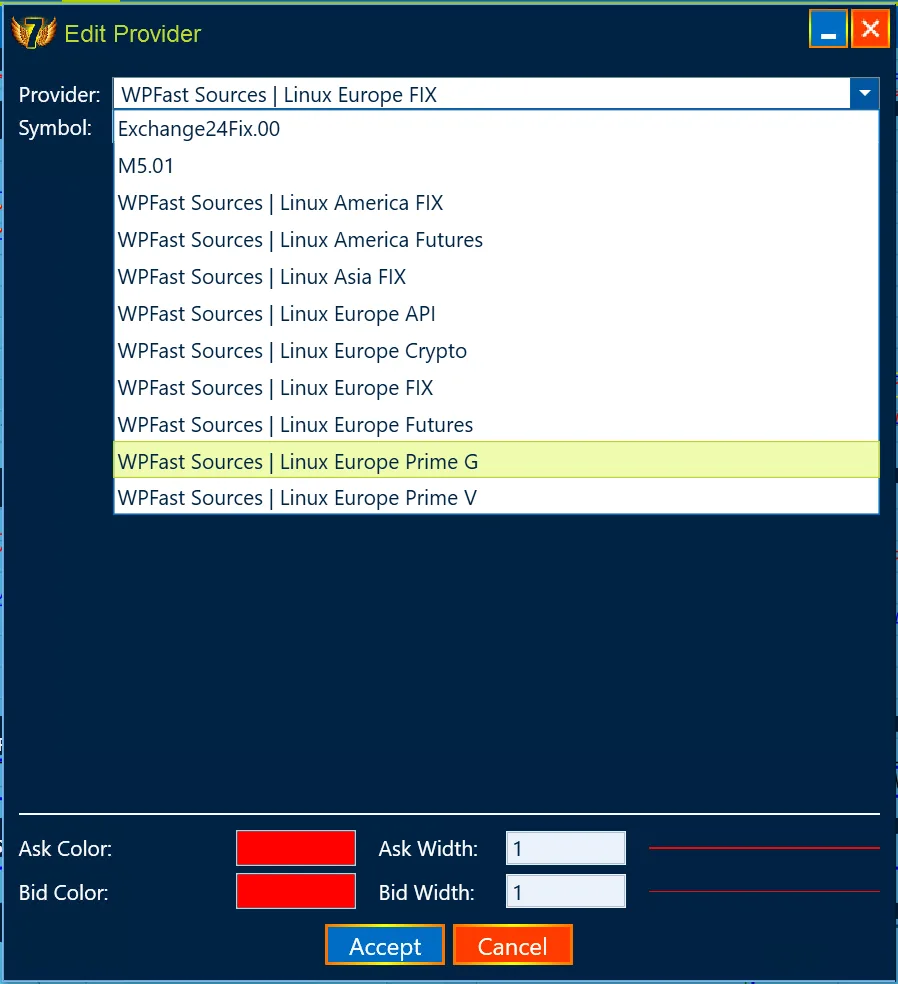
- Add the providers. Fast Providers: one or more feeds. Signal Providers: leave empty unless you want the gap measured on another account. Slow Providers: the trading account. Enter each symbol exactly as the provider names it.
- Set Digits. 5 for EURUSD, 3 for USDJPY, 2 for XAUUSD at 4062.22. All levels in points depend on it.
- Untick Long and Short. Without them the strategy shows quotes and the gap but does not trade.
- Tick View Chart and Save Trace to File and press Start. The log shows “logging in…” and then “logged in.”; nothing is calculated until every provider has sent a quote.
- Record full sessions. Let the tab run through active hours, ideally for several days. Each start creates a set of files in
C:\Program Files\Westernpips Private 7\.traces\OneLegMulti\<tab name>: an .xml with the settings, a .trace and one .ticks file per provider.
Stage 2. Read the Gap chart and choose Min Open Gap
The Gap chart shows, for every fast feed, how far its price is from the broker’s tradable price. Most of the time the gap moves in a narrow band of noise; the trading opportunities are the short peaks when a fast feed jumps and the broker has not followed yet.
- The spread is already inside the gap. Gap Buy = fast Bid − broker Ask and Gap Sell = fast Ask − broker Bid, so do not add the spread to Min Open Gap.
- Remove a constant offset. If the gap of a feed stays far from zero all the time, the providers quote at different levels. Turn on Use Auto Shift or set a manual shift so that the gap returns to zero between moves.
- Set Min Open Gap above the noise, so that only clear peaks trigger trades. Compare peaks of different feeds: any feed whose gap reaches the level can open a trade.
- Plan the exits. Choose TakeProfit, StopLoss and their modes, and decide whether you need Close Gap or a trailing stop.
Stage 3. Measure the broker’s real execution
The BackTester needs your broker’s execution time and slippage to give a realistic result. Measure them with a short live test:
- Set the minimum lot in Volume and tick View Orders.
- Allow trading (Long and/or Short), press Stop and Start and wait for 5–10 trades.
- Open the Orders tab and note the average open and close execution time in ms, the average open and close slippage in points and roughly what share of fills had zero slippage.
Stage 4. Test the set in the BackTester
- Open the backtest tab. Press + in the strategy tab bar and choose Backtest OneLegMulti. A tab named “OneLegMulti BACKTEST.NN” opens.
- Add the same providers as in the recorded session. In backtest mode the Edit Provider window has a Ticks Path field: press “…” and select the .ticks file of that provider from one recording. File names show the provider number: 0 = slow, 1, 2, … = fast feeds, 10 = signal. All files must come from the same recording time.
- Enter the execution you measured in the slow provider: Backtest open execution(ms), Backtest close execution(ms), Backtest open slippage(pt), Backtest close slippage(pt), Backtest open zero-slippage(%) and Backtest close zero-slippage(%). There are Position and Opportunity columns; for One Leg Multi trades the larger of the two values is used.
- Load or enter the set and press Start. The recorded quotes are replayed; the result appears in the log, on the chart and in the Orders tab.
- Change one parameter at a time. A practical order: Min Open Gap, then TakeProfit and StopLoss with their modes, then Close Gap, then trailing. Keep the version with the best profit per trade and total profit, not the one with the most trades.
- Check the set on other days. A set tuned on one recording should also work on the others; if it does not, it is fitted to noise.
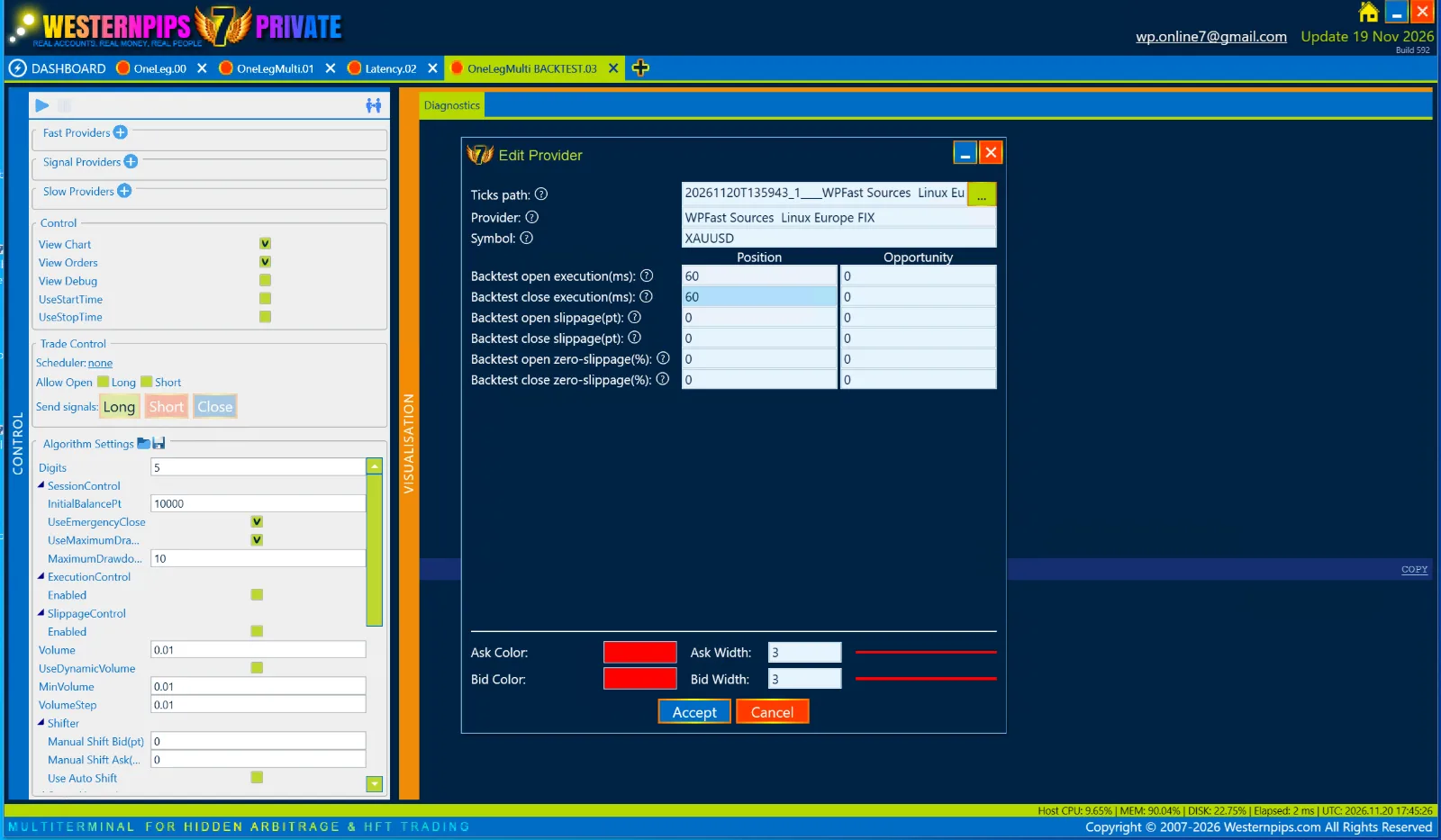
Important: enter the execution and slippage values in the slow (trading) provider. Values entered in a fast provider are ignored, and the backtest then fills every order instantly at the requested price.
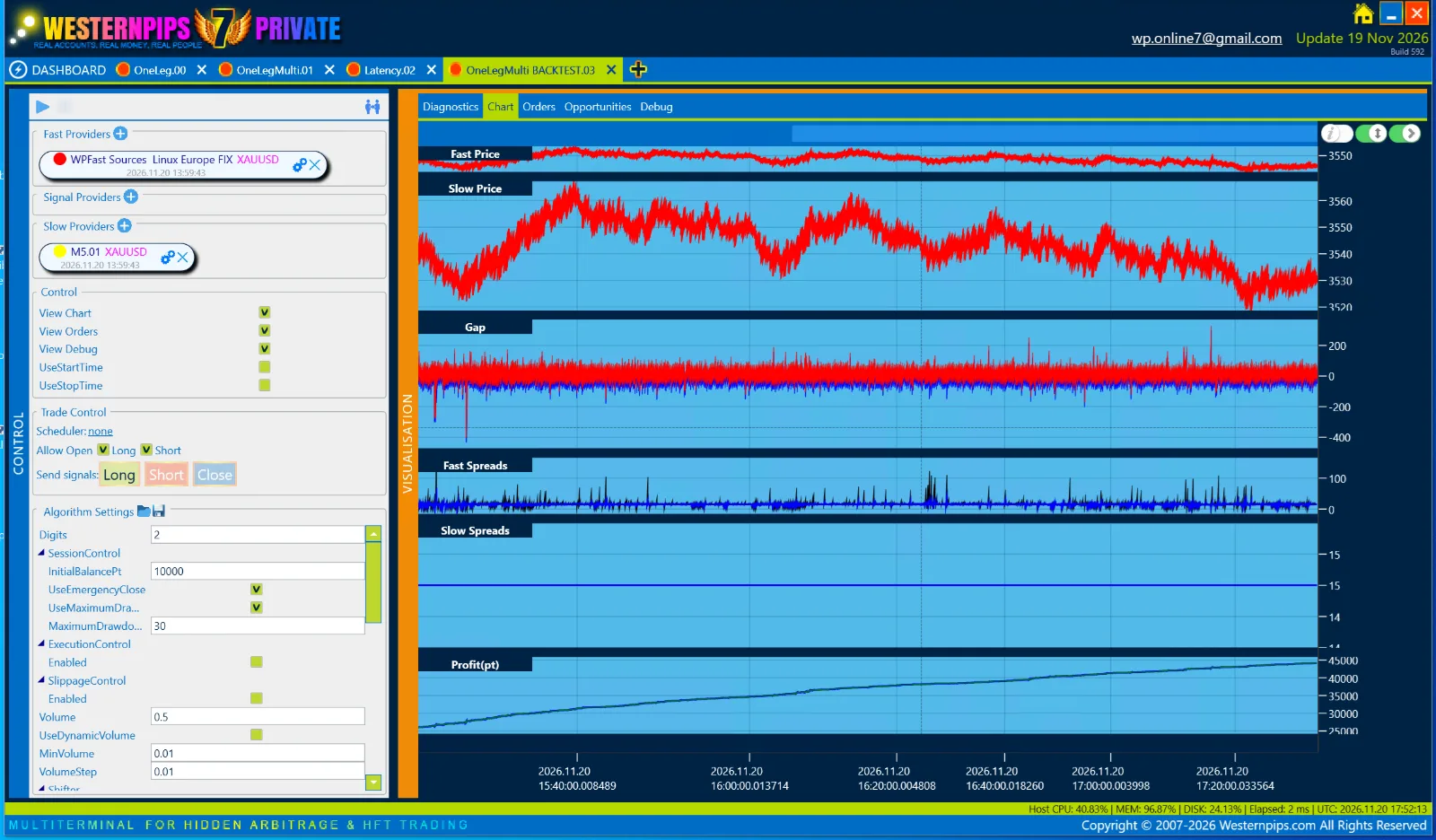
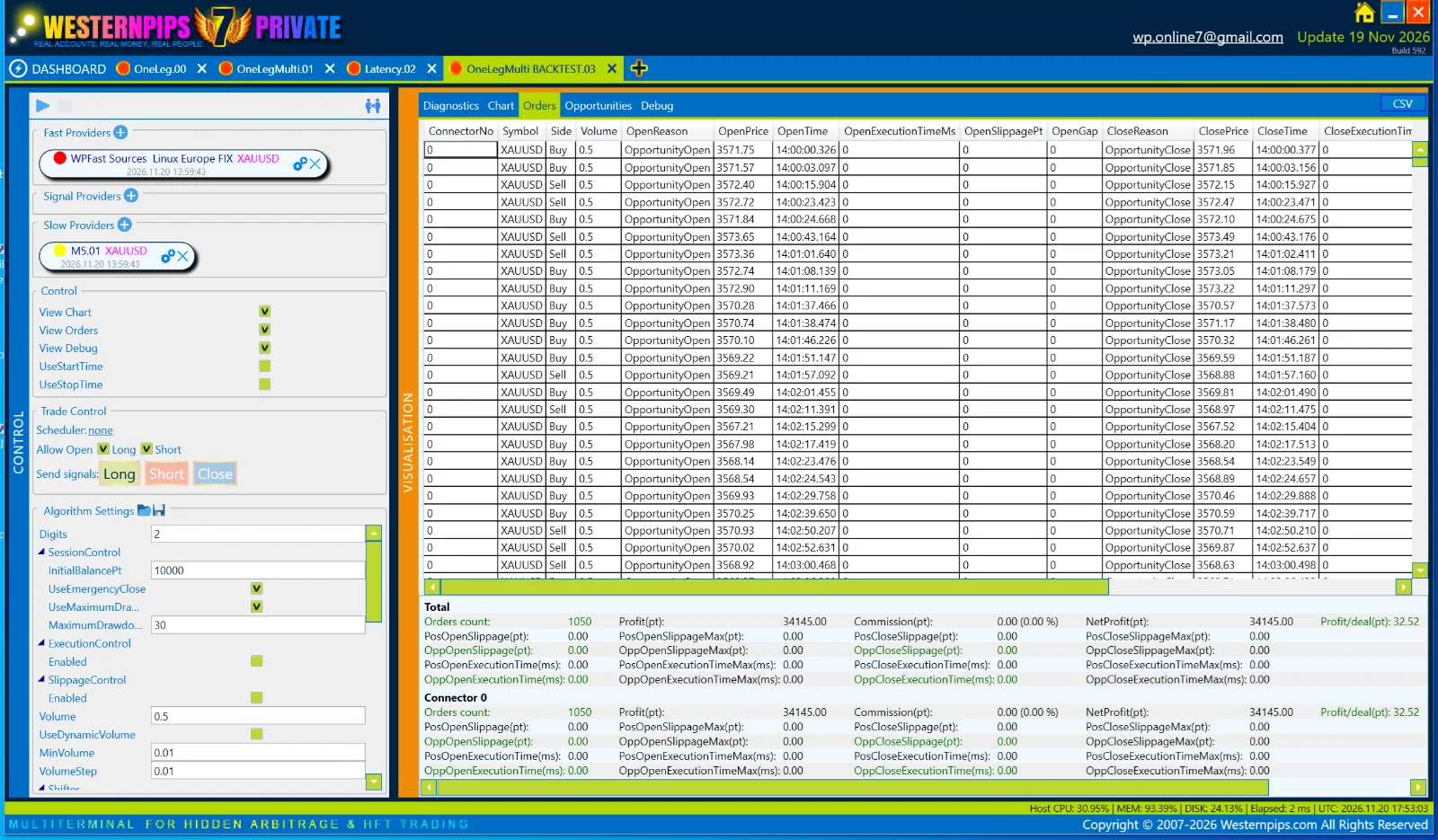
The XAUUSD example compares this backtest with live trading on the same quotes: the live result per trade was about a quarter lower, and it lists the execution values measured live.
How the BackTester simulates execution: an order is filled at the broker’s price on the first recorded tick after the execution delay; then a random extra slippage between 0 and the slippage you entered is applied, except in the zero-slippage share of trades. It does not show how the broker reacts to your orders, so always confirm the result live with the minimum lot. Parameter optimization (MultiBacktest) is not available for One Leg Multi in build 590.1: test variants one by one.
Replaying a session: the Analyzer item in the + menu opens a recorded .trace file and replays it with the settings that were active at that time. Use it to see exactly what the strategy saw around a trade.
More background on the workflow: BackTester guide.
Stage 5. Trade small and correct from the log
- Save the set with the disk icon in the Algorithm Settings header.
- Set protection. Keep SessionControl on: MaximumDrawdown(%) stops new entries after a drawdown in points from the session peak. Do not trade the same symbol on this account by hand while UseEmergencyClose is on.
- Trade the minimum lot and compare every OPEN OK / CLOSE OK line in the log with the broker terminal: same side, lot and prices.
- Correct one setting at a time. Many stop losses or large negative slippage usually mean Min Open Gap is too low for this broker; very few trades mean it is too high or a filter blocks entries.
- Raise the volume gradually, or switch to UseDynamicVolume when results are stable.
Next steps
- One Leg Multi XAUUSD example: set, trades and backtest
- One Leg Multi troubleshooting: problems and solutions
- One Leg Multi settings reference
- Edit Provider settings
- Slippage: what it is and how to reduce it
Risk warning. Trading Forex, CFDs and cryptocurrencies with leverage carries a high risk of losing money. Results depend on the broker, its execution and rules, latency and settings; no profit is guaranteed, and backtest results do not guarantee live results. Test on a demo account first. Read the full risk warning.