Strategy One Leg Multi
One Leg Multi – Trading on one slow broker using signals from several fast sources with the ability to maintain multiple positions simultaneously.
OneLegMulti is a one-sided arbitrage strategy implemented in the Westernpips Private 7 platform. It is designed to enter trades in a single direction (Buy or Sell) based on the price divergence between Fast and Slow (or Signal) quote providers. The strategy evaluates gaps between quotes, applies spread filters, calculates take profit and stop loss levels, and manages trade exits with trailing and reverse-gap logic.
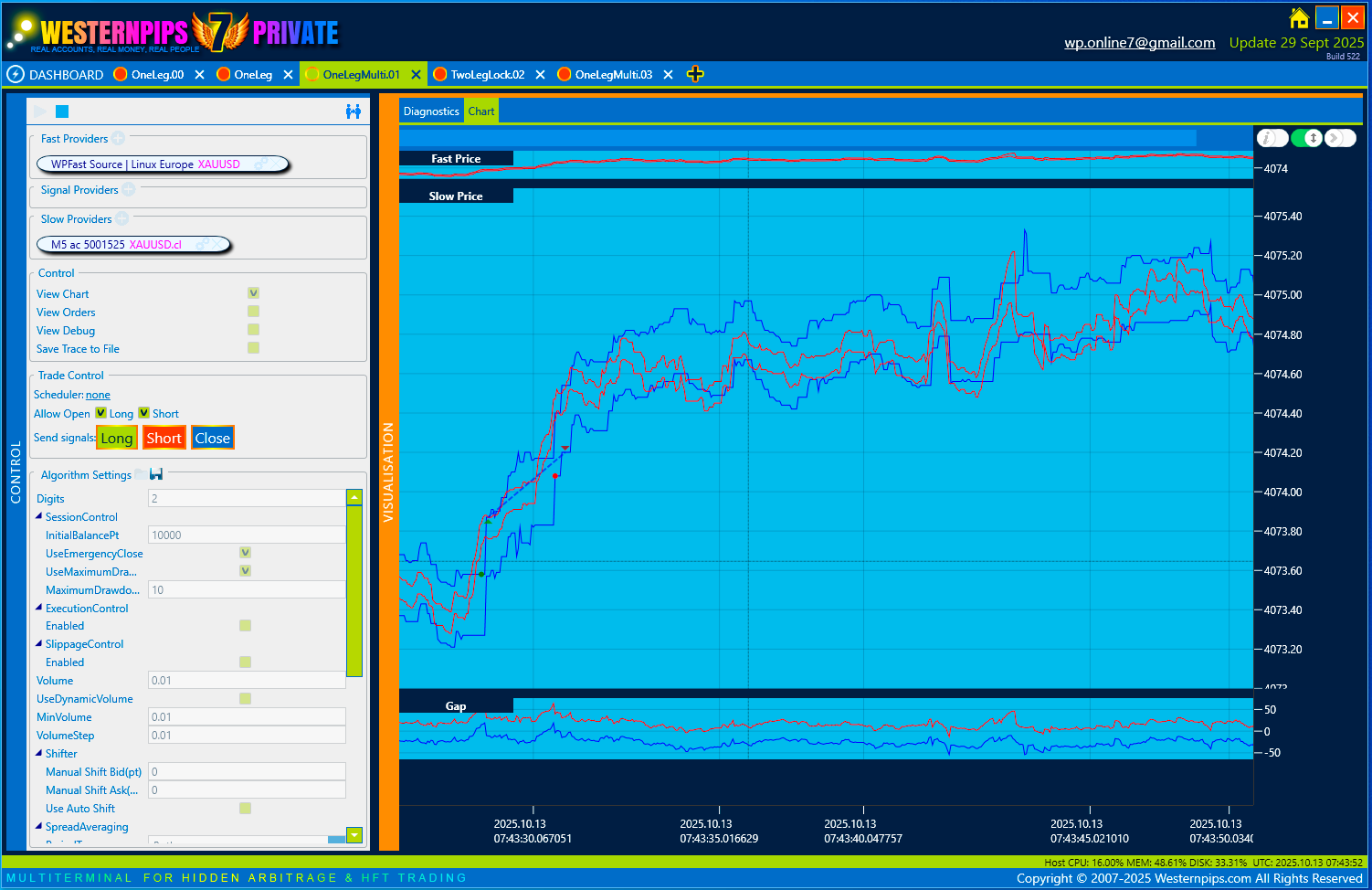
Fast Quotes Providers
The Fast Quotes Providers feature allows you to connect and use multiple fast data providers — including your own custom sources or WPFast Sources.
You can integrate a wide range of providers such as FIX connections, APIs, cTrader, or any broker’s M4/M5 terminal. The system works as a real-time quotes signal aggregator, intelligently selecting and using the fastest available data feed from all your connected providers.
This ensures that your trading platform always operates with the lowest possible latency and the most accurate, up-to-date quotes, giving you a true competitive edge in high-speed trading environments.
Signal Providers
In this section, you can add any broker accounts that you want to use for calculating GAP signals.
Please add a slow broker here — this account will be used only for signal calculation, not for executing trades.
All actual trades will be opened using the brokers you add in the Slow Providers section.
Slow Broker (Trading Account)
In the Slow Providers section, you need to add the broker account where actual trading will take place.
All algorithmic trades generated by the system will be executed on this account.
Only one slow broker account can be added here, as it serves as the main trading account that receives trade signals based on data from your connected fast providers or signal providers.
Step By Step OneLegMulti Algo Settings
1 Step
First, you need to select one or more Fast Quotes Providers and add your primary Slow Broker account — the broker where all trading operations will be executed.
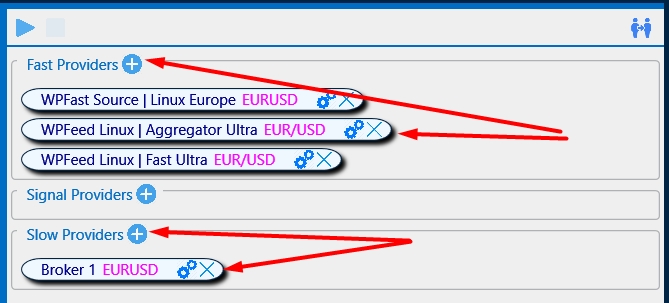
For add provider you shold click “+” button and you will see Edit Provider Window:
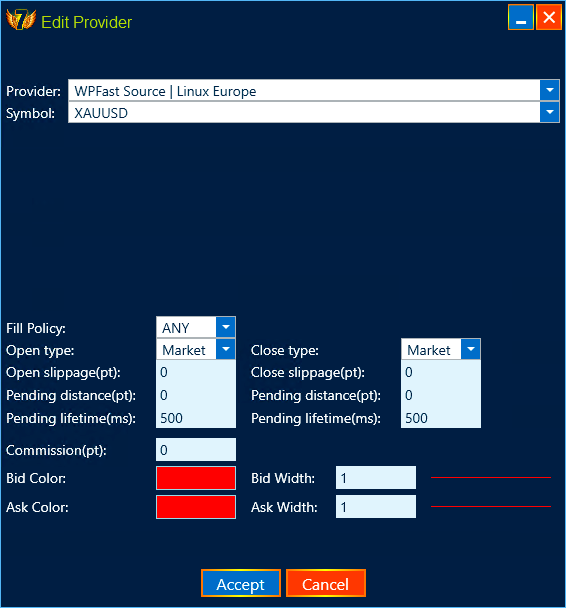
Here you shold select Fast/Signal/Slow Privider from list.
For add provider in this list please go to Dashboard>>>Connection and add provider here.
After that, specify the traded symbol (for example, EURUSD, XAUUSD, etc.).
This setup allows the system to correctly identify where to receive fast price data from and on which broker and instrument to execute trades.
Can read more about Edit Provider Settings here.
2 Step
Setting up “Control” options:
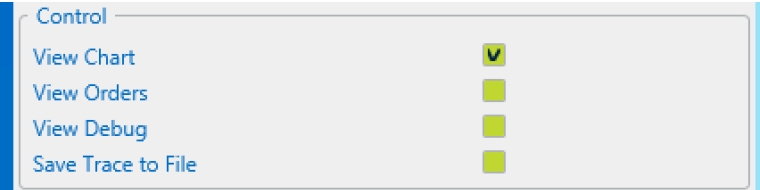
● View Chart – visual control of quotes on chart, open/close trades, slippages, price discrepancies, geps and profit/loss on the transaction.
● View Orders – display on chart of all executed orders.
● View Debug – displaying all the necessary information for in-depth analysis of all transactions
● Save Trace to File – saving quotes for further analysis in the folder (C:\Program Files\Westernpips Private 7\.traces\OneLegMulti).
Next you can use this files in BackTester.
To enable any item, check the box.
3 Step
Setting up “Trade Control” options:
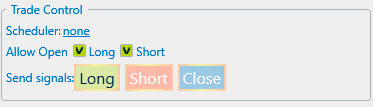
Scheduler – use Scheduler for trading. If none scheduler not using.
Allow Open – allow orders to be opened. This setting controls which new trades the algo is allowed to open. It doesn’t cancel existing positions; it only gates future entries based on direction.
Modes:
-
Both (Long & Short) (Recommended default)
The algo may open buy and sell orders when GAP conditions are met. -
Long
Only buy orders are permitted. All sell signals are ignored. -
Short
Only sell orders are permitted. All buy signals are ignored. -
None
Blocks all new entries. Position management (TP/SL/Trailing/BE) still works on open trades.
Send Signals – Buttons for manual open Long/Short Orders or close Position;
4 Step
Setting up the “Algorithm Settings:
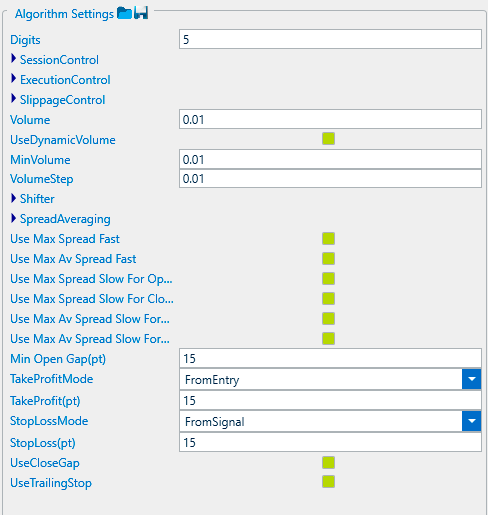
● upload/save a setfile with strategy settings
 – upload settings file;
 – save settings file;

● Digits – number of decimal places used by the trade broker’s price for this symbol (e.g., EURUSD = 5, USDJPY = 3, XAUUSD = 2–3);
Session Control
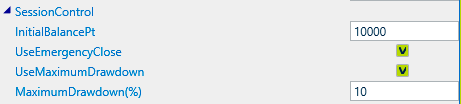
Session Control – read full guide about this settings block here.
⚙️ Settings Overview
| Setting | Type | Default | Description |
|---|---|---|---|
| InitialBalancePt | integer | 10 000 | Starting equity of the trading session in points, used as a base for drawdown calculations. |
| UseMaximumDrawdown | boolean | true | Enables automatic drawdown control. |
| MaximumDrawdown(%) | integer | 10 | Defines the maximum allowed drawdown percentage from the session’s highest equity. |
| UseEmergencyClose | boolean | true | Enables automatic emergency state when order desynchronization is detected. |
Exucution Control
Exucution Control – settings of the order execution speed control module; read full guide about this settings block here.
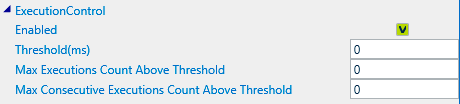
⚙️ Settings Overview
| Setting | Type | Default | Description |
|---|---|---|---|
| Enabled | boolean | true | Activates the latency control system. |
| Threshold (ms) | integer | 100 | Maximum safe execution time per order (milliseconds). |
| MaxExecutionCountAboveThreshold | integer | 10 | Total number of slow trades allowed during one session. |
| MaxConsecutiveExecutionsCountAboveThreshold | integer | 3 | Maximum number of consecutive slow executions tolerated before trading halts. |
Slippage Control
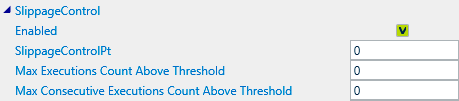
Slippage Control – settings of the order execution speed control module; read full guide about this settings block here.
⚙️ Settings Overview
| Setting | Type | Default | Description |
|---|---|---|---|
| Enabled | boolean | true | Enables the slippage monitoring and protection system. |
| SlippageControlPt | integer | 30 | Maximum allowed slippage per trade in points. |
| MaxExecutionCountAboveThreshold | integer | 10 | Total number of trades allowed to exceed the slippage limit during one session. |
| MaxConsecutiveExecutionsCountAboveThreshold | integer | 3 | Maximum number of consecutive trades with slippage above the limit before protection triggers. |
Volume & Dynamic Volume
⚙️ Settings Overview
| Setting | Default | Description |
|---|---|---|
| Volume | 0.01 | Fixed lot size when automatic calculation is disabled. |
| UseDynamicVolume | false | Turns on automatic calculation of lot size based on your account equity. |
| DynamicVolumeEquityDivider | 1400 | Defines how large the lot will be — smaller values make lots bigger, higher values make them smaller. |
| MinVolume | 0.01 | Minimum allowed lot size. |
| VolumeStep | 0.01 | The step used to round the calculated lot size. |
🔧 How It Works
When UseDynamicVolume is turned off, the program always opens trades with the same lot size that you set in the Volume field.
For example, if Volume = 0.10, every trade will be opened with 0.10 lots.
When UseDynamicVolume is turned on, the program automatically adjusts the lot depending on the balance of your account:
-
It checks your current account equity.
-
It divides this value by the number you set in DynamicVolumeEquityDivider — this defines how big or small the lot should be.
-
A small divider (for example, 1400) will create larger lots.
-
A large divider (for example, 5000–10000) will create smaller lots.
-
-
The program rounds the calculated lot to the nearest step you set in VolumeStep (for example, 0.01).
-
If the result is smaller than MinVolume, it will use the minimum lot instead.
💡 Example
If your account balance is 5 000 USD and you use
DynamicVolumeEquityDivider = 2 000,
then the system will set the lot to about 2.5 lots.
If your balance decreases, the lot will automatically become smaller.
If the balance grows, the lot will gradually increase.
✅ Recommendations
-
For safe trading, use
DynamicVolumeEquityDividerbetween 2 000 and 5 000. -
Set
MinVolume = 0.01andVolumeStep = 0.01. -
Keep UseDynamicVolume = true for real latency arbitrage to make your trades look natural and adapt to account growth.
Result:
The system automatically controls the lot size, making trading flexible, safe, and less detectable by brokers.
⚙️ Shifter Settings Overview
| Setting | Default | Description |
|---|---|---|
| AutoShift | true | Enables automatic shift calculation based on live spread difference between fast and slow feeds. |
| ManualShiftBid | 0.0 | Manual offset (in points) applied to the Bid side if AutoShift = false. |
| ManualShiftAsk | 0.0 | Manual offset (in points) applied to the Ask side if AutoShift = false. |
● Slots Count – the number of simultaneously traded combinations;
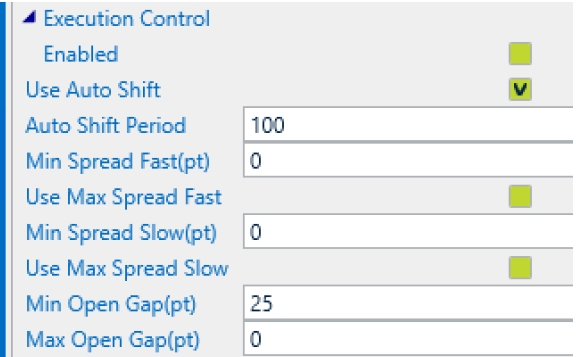
● Use Auto Shift – use automatic alignment of quotes between brokers; the price of the second broker is shifted and pulled up to the first;
● Manual Shift Bid(pt) – the number of points to shift the Bid price of the second broker
● Manual Shift Esc(pt) – the number of points to shift the Ask price of the second broker
● Use Max Spread Fast – use the maximum spread filter for a quick quote provider
● Min Spread Slow – use the minimum spread filter for a slow broker
● Min Open Gap – minimum gap in points for opening a deal on a slow broker
● Max Open Gap – maximum gap in points for opening a deal on a slow broker
● FastTickDirectionConfirmation – entry only if the direction of the last tick on the fast broker coincides with the direction of the transaction
● DecreaseGapsByFastSpread – reduce estimated gaps by the value of the current spread of the fast broker
● DecreaseGapsBySlowSpread – reduce calculated gaps by the value of the current spread of a slow broker
● TakeProfit(pt) – take profit in points
● StopLoss(pt) – stand-loss in points Order Duration(ms) – minimum order holding time in milliseconds
● SmartClose – a parameter that allows you to adjust the StopLoss and
– TakeProfit set based on the size of the Slippage in the current transaction. Calculation example:
– StopLoss estimated opening price = 500, Slippage = 60p, Gap = 50p, Stop Loss = 30p. The transaction opened at a price of 560 (estimated price + Slippage).
The calculation of Smart SL is carried out according to the following formula = 560 – (60(slippage)*2)-30(StopLoss). In this case, the Smart SL will be set at a price of 410.
– SmarTp calculation = Gap +Slippage, i.e. 50 + 60 = 110p from the opening price, i.e. it will work at a price of 560 +110 = 670.
●  -starting/stopping the strategy
●  – copying the strategy to a new tab