Trade Platforms — IQ Option
1. Selecting IQ Option in UI
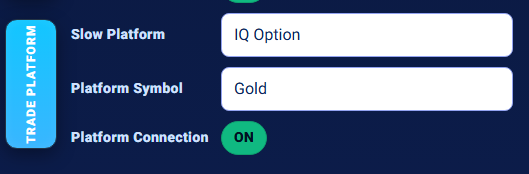
To use IQ Option, open Webcliker Panel and set:
Slow Platform = IQ Option
The Platform Symbol field is important.
Use the exact symbol or asset name shown inside the IQ Option trading platform.
Examples:
- EUR/USD
- GBP/USD
- Gold
IQ Option may use full asset names instead of standard broker symbols. For example, Gold may be displayed as Gold instead of XAU/USD.
The IQ Option agent can work with different asset types received from the Webcliker backend. It is not limited to one predefined instrument.
2. About IQ Option
IQ Option is an online multi-asset trading platform launched in 2013.
Depending on the account, country, and applicable restrictions, the platform may provide access to Forex, stocks, cryptocurrencies, commodities, indices, ETFs, CFDs, and options.
IQ Option offers a web trading platform and Practice and Real account modes.
Please note that the Webcliker integration was created specifically for the IQ Option Web Platform and its margin instruments.
The current integration supports:
- Forex
- Gold and other commodities
- Indices
- Stocks and ETFs
- Cryptocurrencies
3. Platform Login and Password
Important: set English language
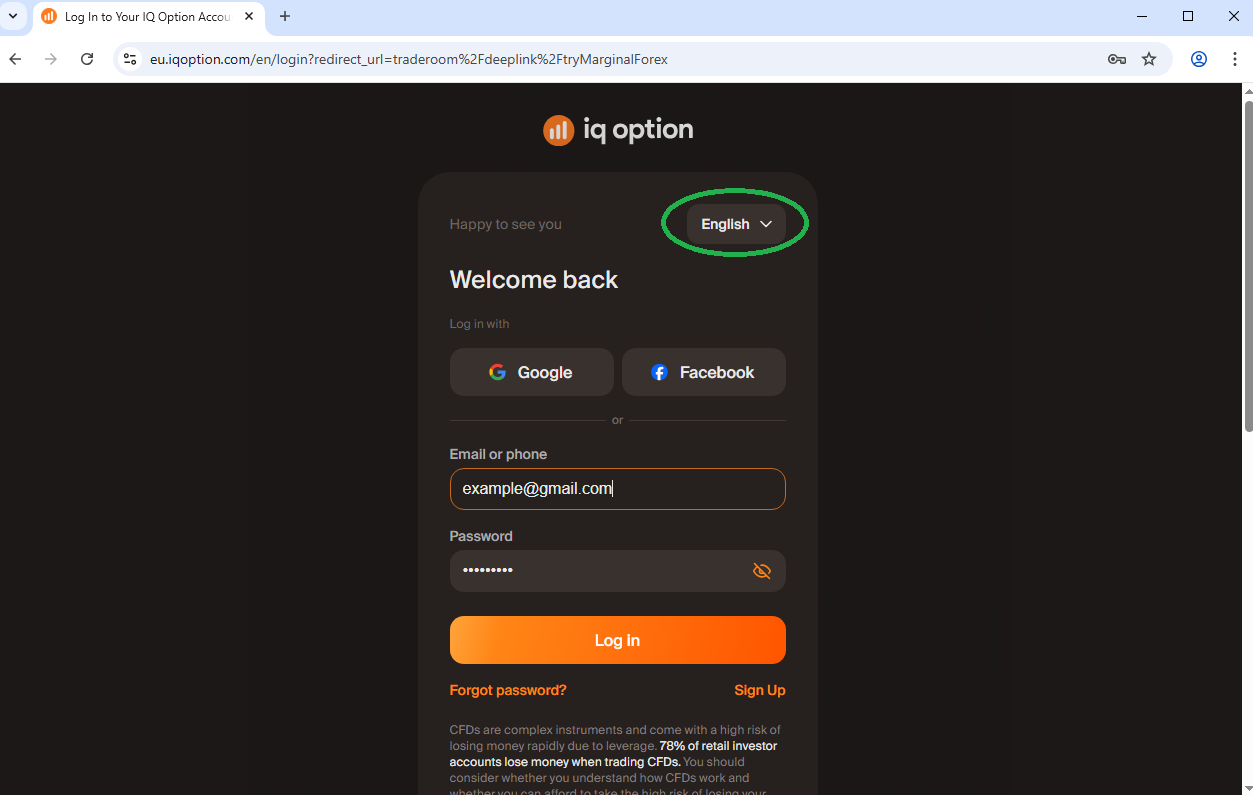
If IQ Option requests verification, the user should complete it manually.
Inside the platform:
- Accept cookies
- Close popup windows
- Complete CAPTCHA, 2FA, email, or SMS verification if requested
- Select the required Practice or Real account
- Check that the trading room is fully loaded
- Check that the account has enough available balance
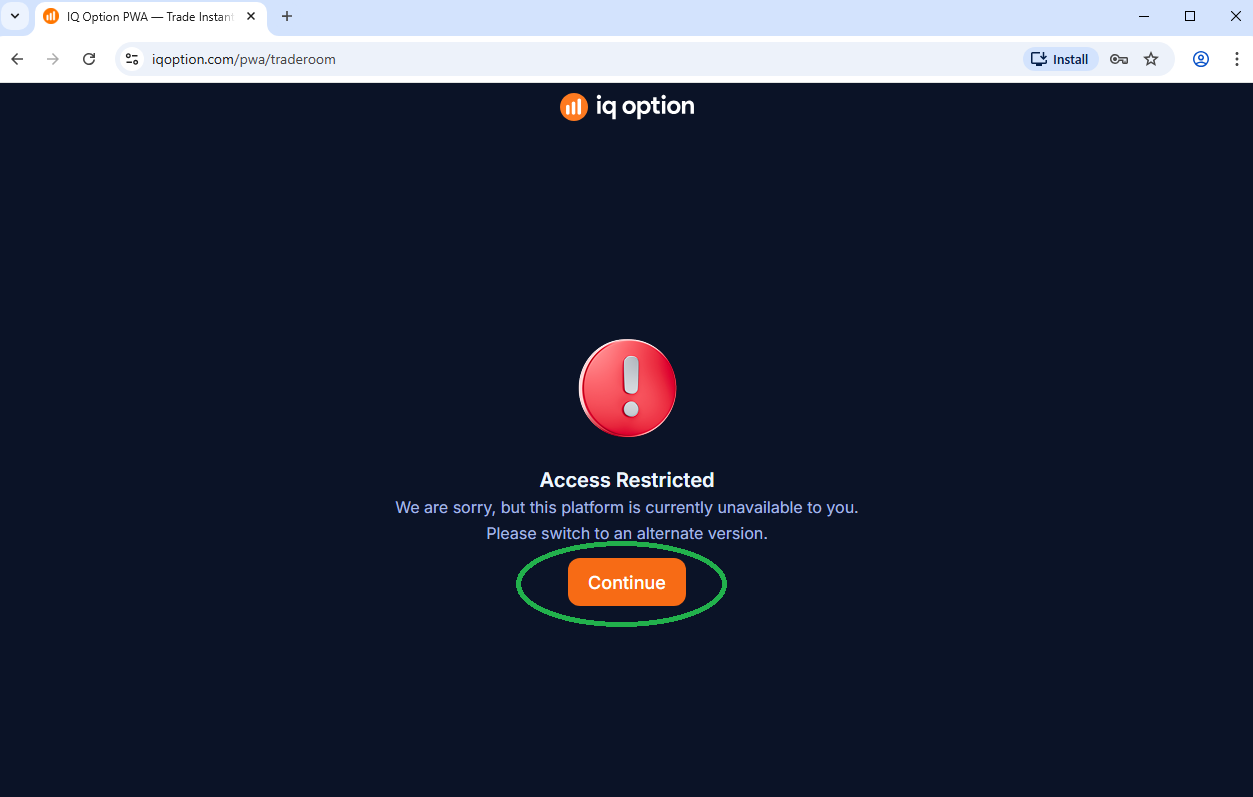
If you see Access Restricted ,don’t worry ,please click Continue , you will be redirect on available login page .
Now open the Webcliker UI and click START.
The agent does not enter login, password, CAPTCHA, 2FA, or verification codes automatically.
4. Required Settings Before START
Before pressing START, check:
- Slow Platform = IQ Option
- Platform Symbol is correct
- Invest is correct
- Gap open and close settings are correct
- Correct Practice or Real account is selected
- Selected asset is available for margin trading
- Market is open
- Account has enough available balance
- No popup window is blocking the platform
Important: IQ Option uses Invest instead of Lot
IQ Option uses Invest instead of the standard Lot value.
Invest is the amount of account currency allocated to the position.
Examples:
Invest = 1
Invest = 100
Do not interpret Invest as a MetaTrader lot size.
The minimum Invest amount and available leverage may differ between Forex, stocks, cryptocurrencies, commodities, indices, and other instruments.
5. START Flow for IQ Option
When the user clicks START:
- Webcliker saves the settings.
- The UI sends the start command to the local WP Agent.
- The agent opens Chromium with the saved IQ Option session.
- The user logs in manually if required.
- The agent waits for the authenticated IQ Option connection.
- The agent detects the selected account balance.
- The agent receives the Platform Symbol from the backend.
- The agent resolves the correct IQ Option asset.
- The agent determines the instrument type.
- The agent loads the Invest, leverage, balance, and position information.
- The agent prepares the platform for trading.
6. IQ Option Preparation
Please enter your email and password and log in to the platform manually.
During preparation, the agent automatically:
- Detects the IQ Option Web Platform
- Waits for the authenticated WebSocket connection
- Reads the selected account balance
- Resolves the Platform Symbol
- Determines whether the asset is Forex, CFD, or Crypto
- Loads the instrument ID
- Loads the available leverage
- Checks whether BUY and SELL are allowed
- Checks whether the instrument is available for trading
- Reads existing open positions
- Subscribes to balance, order, and position updates
- Keeps the connection ready for fast execution
The browser is used for manual login. Trading commands and confirmations are processed through IQ Option WebSocket messages, without canvas coordinates or OCR.
For HFT usage, the asset, Invest amount, account, and connection must be prepared before the signal arrives.
7. Opening Trades
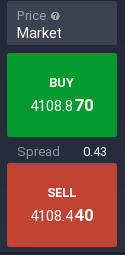
IQ Option supports:
- BUY / Long open
- SELL / Short open
When an open signal is received, the agent:
- Checks the connection and account.
- Checks the selected asset.
- Checks the Invest amount and leverage.
- Checks whether the instrument is tradeable.
- Sends the market-order command.
- Waits for the new position confirmation.
The trade can be confirmed by:
- Successful order response
- New position in the portfolio
- Matching symbol and position side
- Position or order update from IQ Option
If the order is rejected because of insufficient balance, invalid Invest, unavailable leverage, or a closed market, the agent keeps the selected asset and Invest prepared and waits for the next signal.
8. Closing Trades

IQ Option supports:
- Closing a BUY / Long position
- Closing a SELL / Short position
When a close signal is received, the agent:
- Requests the current position list.
- Searches for the matching asset and position side.
- Identifies the exact IQ Option position ID.
- Sends the close command.
- Waits until the position is closed or disappears from the open-position list.
- Keeps the same asset and Invest prepared for the next signal.
The agent closes only the exact matching server position.
9. Common IQ Option Issues
Chrome opens with a manual login page
This is expected if the IQ Option session is missing or expired. The user should log in to IQ Option manually in the same Chrome window opened by the WP Agent.
The agent does not enter login, password, 2FA, CAPTCHA, email verification, SMS verification, or other security verification automatically.
Platform Connection does not become ON
The agent did not detect a ready IQ Option connection.
Make sure:
- The trading room is fully loaded
- Login and verification are complete
- Practice or Real account is selected
- No popup window is open
- The internet connection is working
- The IQ Option page was opened by the WP Agent
Login required or session expired
If IQ Option shows a login page, CAPTCHA, 2FA request, email confirmation, or session-expired message, complete the required action manually and leave the trading room open.
Symbol not found
The Platform Symbol does not match an IQ Option asset.
Use the exact name displayed inside IQ Option.
Examples:
EUR/USD
Gold
Check spelling, spaces, slash characters, and the full asset name.
Margin instrument not found
The asset exists, but it is not available as a supported margin instrument.
Possible reasons:
- The asset is available only as an option
- The instrument is unavailable for the selected account
- The instrument is restricted in the user’s country
- The asset is temporarily suspended
- Margin trading is unavailable for the asset
Invest value is invalid
IQ Option rejected the Invest amount.
Possible reasons:
- Invest is below the minimum
- Invest is above the available balance
- The decimal format is invalid
- The selected leverage is unavailable
- The instrument uses another minimum amount or increment
Remember that Invest is not Lot.
Insufficient balance
The account does not have enough available balance for the selected Invest amount and leverage.
Check:
- Account balance
- Available balance
- Existing positions
- Invest amount
- Leverage
- Selected Practice or Real account
Market closed or instrument suspended
The selected asset is currently unavailable for trading.
Wait until the market opens or select another available instrument.
Open failed: order not confirmed
The agent sent the opening command, but IQ Option did not confirm the position.
Possible reasons:
- Insufficient balance
- Invalid Invest
- Invalid leverage
- Market closed
- Instrument suspended
- Order rejected
- Connection problem
- Delayed IQ Option response
Check manually whether the position was opened before sending another order.
Close skipped: no_matching_position
The agent could not find an open position matching the requested asset and side.
Check:
- Whether the position is still open
- Whether it was already closed
- Platform Symbol
- Position side
- Selected Practice or Real account
Close failed: close not confirmed
The agent sent the closing command, but the position was not confirmed as closed.
Possible reasons:
- Market closed
- Instrument suspended
- Wrong account selected
- Symbol or position-side mismatch
- Connection problem
- Delayed IQ Option response
Check manually whether the position is still open.
WebSocket connection lost
The IQ Option connection was interrupted.
Possible reasons:
- Internet connection problem
- Session expired
- User logged out
- Browser tab was refreshed or closed
- Another login invalidated the session
Restart the IQ Option session and log in manually again.
Several IQ Option tabs are open
Multiple IQ Option tabs may create several active connections.
Close additional tabs and keep only the IQ Option browser window opened by the WP Agent.