Westernpips DocsWesternpips Docs
  • Home
  • FAQ
  • Documentation
  • Forums
  • Home
  • FAQ
  • Documentation
  • Forums
  • Crypto Trader
    • Crypto Scanner - 1 Leg
    • Crypto Scanner - 2 Leg
    • Crypto Table
  • Getting Started
    • Web Portal my.westernpips.com
      • Web Portal Password Recovery
      • How to Buy Westernpips Products?
    • Products Installation
    • Prerequisites
      • .NET Desktop Runtime Installation
      • ASP.NET Core Runtime Installation
      • Microsoft Redistributable Installation
    • System Requirements
    • Installation Troubleshooting
  • Westernpips Golden Tools 3.5.7
    • Downloading
    • First Run
    • Installing a Westernpips Products Using WGT
    • Working with Installed Products
    • WGT Update
  • Westernpips Private 7
    • How to Check Which Quote Feed Is Faster
    • Installing and First Run
    • License Activation and Login
    • Change License IP, Add new IP
    • User Interface
      • Main Window
      • Dashboard
        • Options
        • Strategies
        • Connections
        • Schedulers
    • Trades Discovery, Check Orders Duration
    • WESTERNPIPS PRIVATE 7 ALGOS
      • OneLeg
        • OneLeg: Before You Start
        • OneLeg First Setup, Step by Step
        • OneLeg Key Parameters with an XAUUSD Example
        • OneLeg Troubleshooting
      • Two Leg Simple Hedge
      • Two Leg Lock
      • Multi Leg Spread
      • One Leg Multi
      • OneLegHidden
      • Two Leg Standard
      • Remote
      • Copier
      • Clicker in WesternPips Private 7
      • Session Control — Quick Guide
      • Exucution Control — Quick Guide
      • Slippage Control - Fast Guide
      • Add/Edit Provider Window Settings
      • BackTester
      • Setting up a connection with the Broker Terminal via the EA connector
    • Connectors
      • Common Settings and Operation
        • FIX Connection Settings
        • FIX Logs
      • Trading and Fast Sources Connectors
        • 24Exchange Connector
        • Active Financial API Connector
        • Binance Connector
        • Bitfinex Connector
        • CBOE FIX Connector
        • Celer FIX Connector
        • CFH FIX Connector
        • CTrader FIX Connector
        • DukasCopy FIX Connector
        • DxFeed FIX Connector
        • Euronext FIX Connector
        • Exante FIX Connector
        • FastMatch ITCH Connector
        • FlexTrade FIX Connector
        • Fortex FIX Connector
        • FXCM FIX Connector
        • FxPig FIX Connector
        • GCEX FIX Connector
        • Gold-i Matrix FIX Connector
        • Integral FIX Connector
        • LMAX API Connector
        • LMAX FIX Connector
        • MaxxTrader FIX Connector
        • MT EA Connector
        • M4 Server Connector
        • M5 Server Connector
        • OGM FIX Connector
        • OKX Connector
        • OneZero FIX Connector
        • PrimeXM FIX Connector
        • Remote Connector
        • Rithmic Connector
        • RoE FIX Connector
        • Saxo FIX Connector
        • SolidFX FIX Connector
        • Spotex FIX Connector
        • TraderMade FIX Connector
        • Universal Connector
        • Universal Fast Connector
        • XenFin FIX Connector
        • XTRD FIX Connector
  • Westernpips Webcliker
    • System Requirements
    • Installer
    • Agent
    • UI Settings
    • UI Logs
    • Start/Stop
    • Connections
    • Trade platforms
      • CMC Markets
      • M5 Web
      • M4 Web
      • TRADE NATION
      • Exness Web
      • Universal cliker
      • IG Trading Platform
      • MEX / MultiBank
      • ByBit
      • EXANTE
      • IQ Option
      • Plus500
      • Quotex
    • Risk Warning
  • Glossary
    • Latency Arbitrage
    • Fast Price Feed
    • Execution Latency
    • Slippage
    • FIX API
    • Requote
    • Forex Arbitrage
    • Toxic Flow
    • Last Look
    • B-Book
    • Forex VPS
    • Brokers That Allow Arbitrage
    • Low Latency

M4 Web

53 views 0

Trade Platforms — M4 Web
M4 Web - mt41

1. Selecting M4 Web in  UI


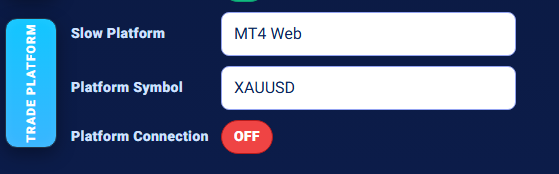
To use M4 Web as the trading platform, open Webclicker Panel and set:

Slow Platform = M4 Web

2. About M4 Web
M4 Web - mt42


M4 Web means the browser-based M4 terminal.
It allows the user to access a broker’s M4 account through a web terminal instead of the desktop application.

3. Required settings for M4 Web

Before pressing START, make sure settings fields are configured.

4. START flow for M4 Web

When the user clicks START with Slow Platform = M4 Web, the process works like this:

1. WC UI saves the current settings.
2. The UI sends the platform start command to the local WP Agent.
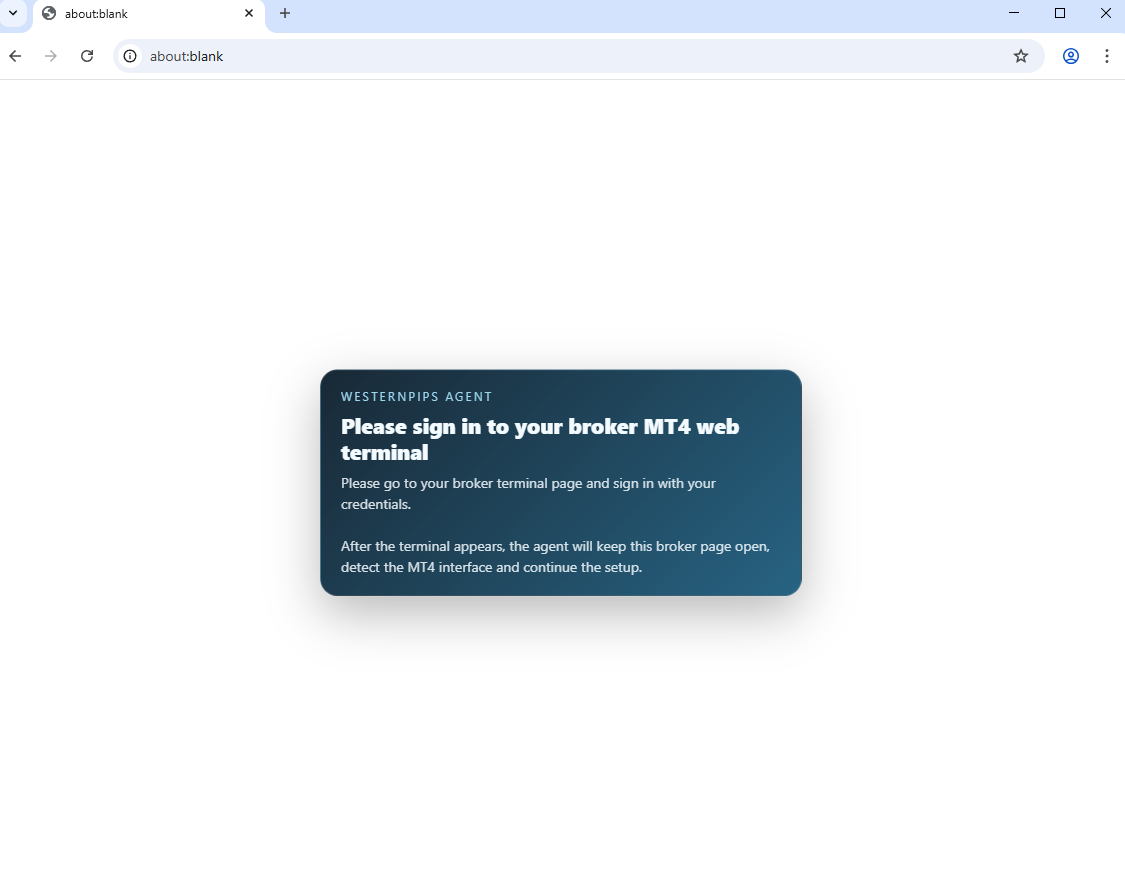
3. The agent opens Chrome.
4. The agent opens a blank page.
5. The agent shows a notice asking the user to sign in manually to the broker’s M4 Web terminal.
6. The agent detects the authorized M4 terminal.
7. The agent opens the terminal page directly and waits for the M4 interface to load.
8. The agent prepares the terminal for trading.
9. When preparation is complete, Platform Connection becomes ready and the Webclicker algorithm can work.

5. M4 platform preparation
M4 Web - mt43


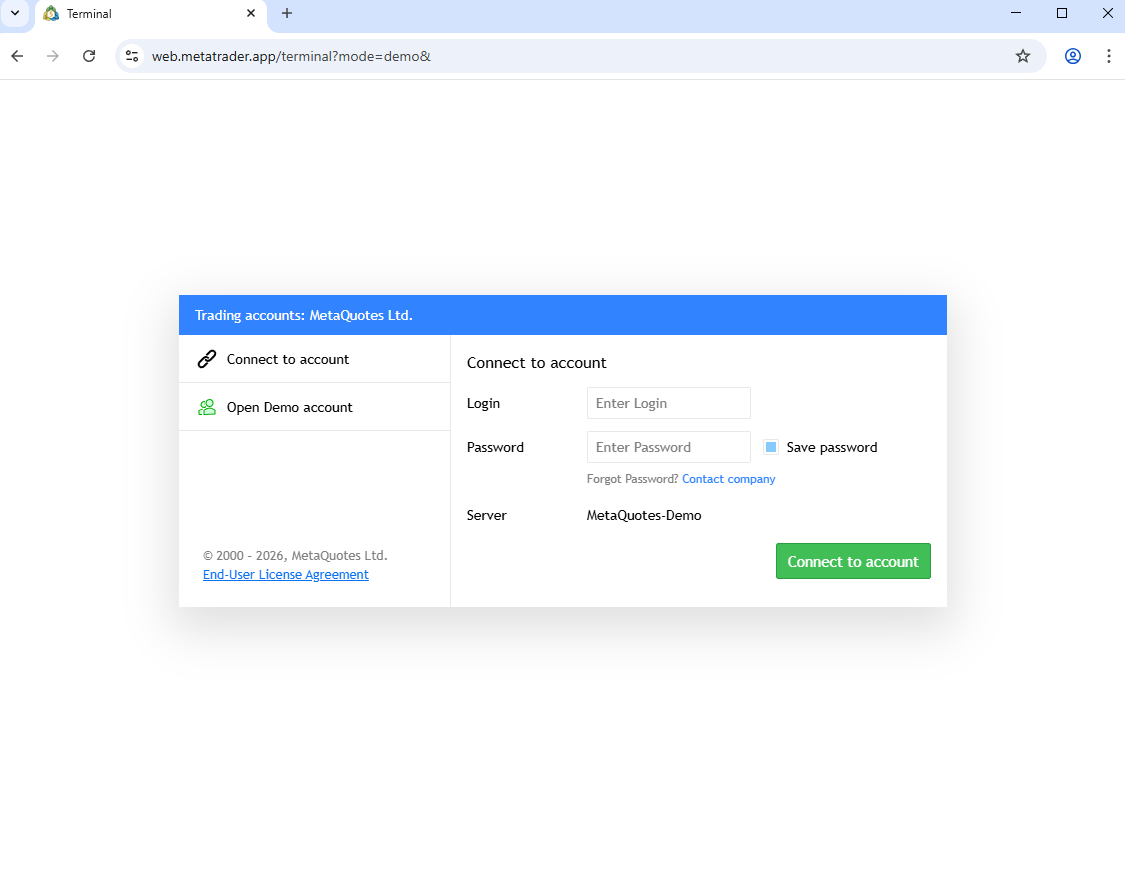
After the user logs in manually (for example MetaQ ,input your M4 login and password) and the agent detects the terminal, the agent prepares M4 Web for automated trading.

The preparation process includes:

– setting the selected symbol;
– opening the positions panel;
– disabling the calendar;
– enabling auto trading;
– enabling one-click trading;
– cleaning unnecessary labels from one-click buttons;
– removing chart canvas;
– preparing the history tab;
– prepare JavaScript handles for quick access to the lot input, Buy button, and Sell button.

6. How the agent opens trades on M4 Web
M4 Web - mt44

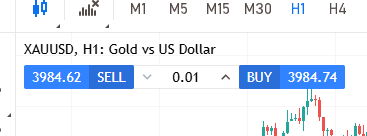
For M4 Web, the agent supports:

BUY open
SELL open

M4 Web works in strict single-position mode: Webclicker should not open a second trade while another trade is already open.

7. How the agent closes trades on M4 Web

M4 Web - mt45

For closing trades, the agent supports:

Close BUY
Close SELL

The agent finds the exact matching position row by instrument and side.

8. Common M4 Web issues

  • The browser opens with a blank page(This is expected in M4 Web mode. The current implementation uses manual login mode, so the user must manually open or sign in to the broker’s M4 Web terminal)
  • Platform Connection does not become ON(The agent did not detect a loaded and authorized M4 terminal. Make sure the M4 Web terminal is fully loaded )
  • Prepare error(If the agent finds the terminal but cannot prepare it, the response may contain `prepare_error`. In this case, restart the M4 Web session and avoid changing the terminal layout while the agent is preparing it)
  • Symbol not found(The M4 symbol may not match the value entered in Platform Symbol. Use the exact symbol visible in the broker’s M4 Web terminal)
  • Order skipped: open_position_exists(M4 Web strict mode detected an existing open position. Close the existing position before opening a new one)
  • Close skipped: no_matching_position(The agent did not find an open position matching the requested side and instrument. Check whether the position is still open and whether the symbol matches the platform symbol)

Was this helpful?

Yes  No
Related Articles
  • Low Latency
  • Brokers That Allow Arbitrage
  • Forex VPS
  • B-Book
  • Last Look
  • Toxic Flow
Previously
M5 Web
Up Next
TRADE NATION
  • Copyright 2026 Westernpips.com. All Rights Reserved.

LiveInternet counter