Trade Platforms — M5 Web
1. Selecting M5 Web in UI
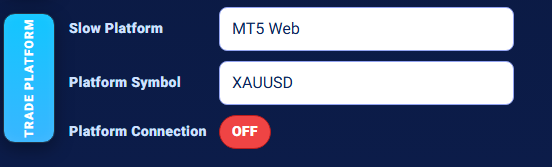
To use M5 Web as the trading platform, open Webclicker Panel and set:
Slow Platform = M5 Web
2. About M5 Web
M5 Web means the browser-based M5 terminal.
It allows the user to access a broker’s M5 account through a web terminal instead of the desktop application.
3. Required settings for M5 Web
Before pressing START, make sure settings fields are configured.
4. START flow for M5 Web
When the user clicks START with Slow Platform = M5 Web, the process works like this:
1. WC UI saves the current settings.
2. The UI sends the platform start command to the local WP Agent.
3. The agent opens Chrome.
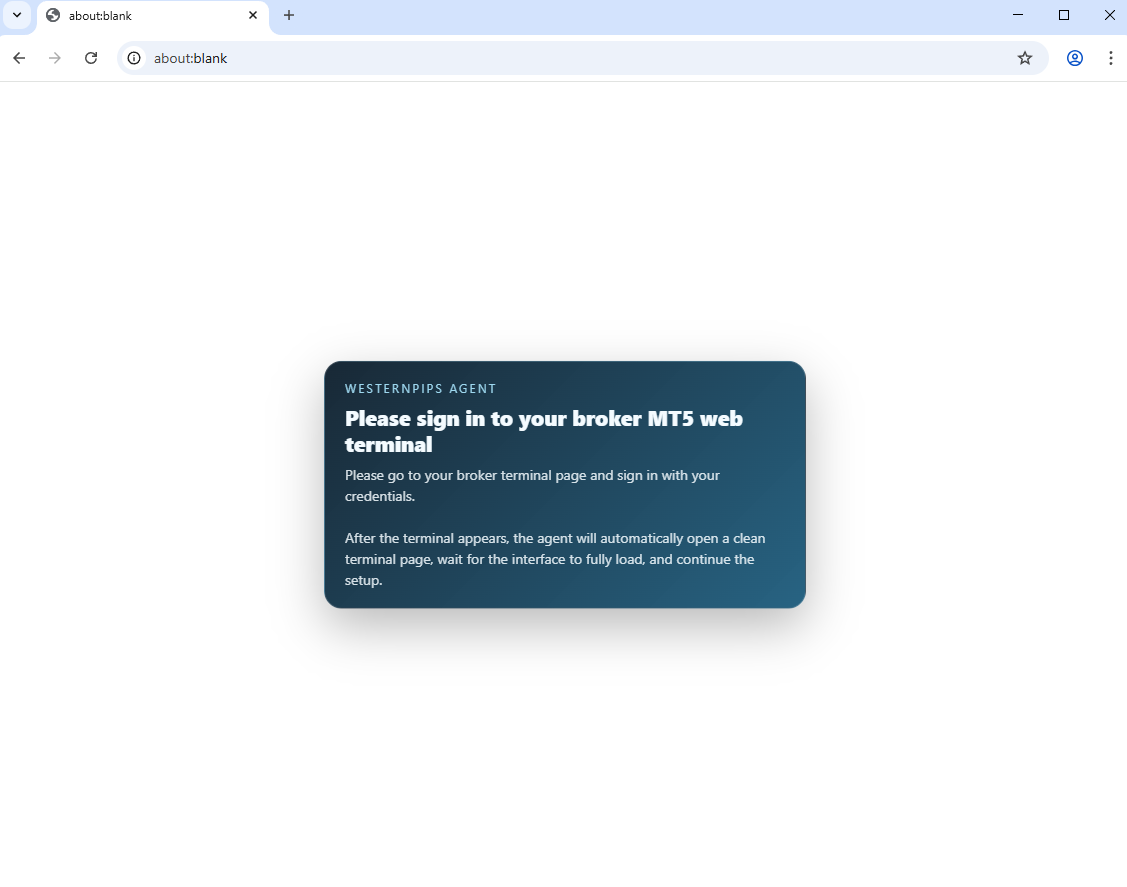
4. The agent opens a blank page.
5. The agent shows a notice asking the user to sign in manually to the broker’s M5 Web terminal.
6. The agent detects the authorized M5 terminal.
7. The agent opens the terminal page directly and waits for the M5 interface to load.
8. The agent prepares the terminal for trading.
9. When preparation is complete, Platform Connection becomes ready and the Webclicker algorithm can work.
5. M5 platform preparation
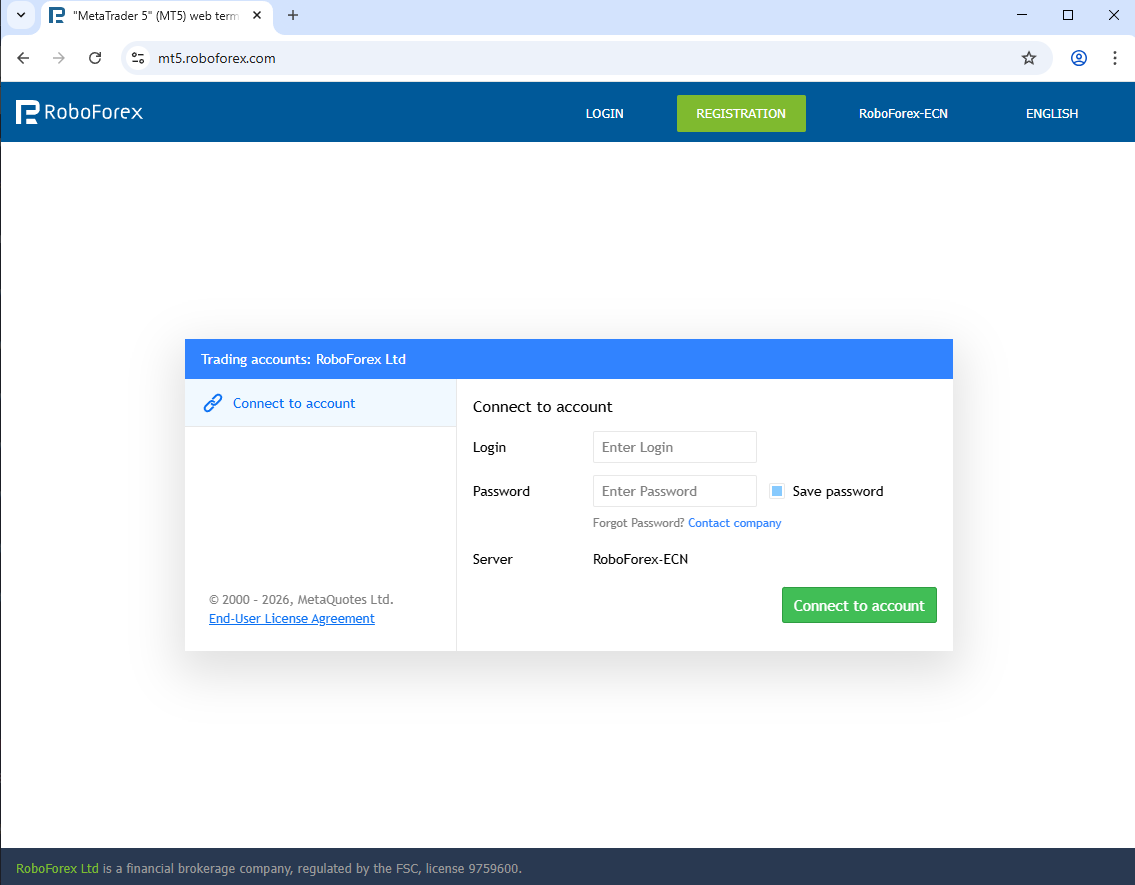
After the user logs in manually (for example Robo ,input your M5 login and password) and the agent detects the terminal, the agent prepares M5 Web for automated trading.
The preparation process includes:
– setting the selected symbol;
– opening the positions panel;
– disabling the calendar;
– enabling auto trading;
– enabling one-click trading;
– cleaning unnecessary labels from one-click buttons;
– removing chart canvas;
– preparing the history tab;
– prepare JavaScript handles for quick access to the lot input, Buy button, and Sell button.
6. How the agent opens trades on M5 Web
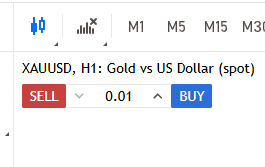
For M5 Web, the agent supports:
BUY open
SELL open
M5 Web works in strict single-position mode: Webclicker should not open a second trade while another trade is already open.
7. How the agent closes trades on M5 Web

For closing trades, the agent supports:
Close BUY
Close SELL
The agent finds the exact matching position row by instrument and side.
8. Common M5 Web issues
- The browser opens with a blank page(This is expected in M5 Web mode. The current implementation uses manual login mode, so the user must manually open or sign in to the broker’s M5 Web terminal)
- Platform Connection does not become ON(The agent did not detect a loaded and authorized M5 terminal. Make sure the M5 Web terminal is fully loaded )
- Prepare error(If the agent finds the terminal but cannot prepare it, the response may contain `prepare_error`. In this case, restart the M5 Web session and avoid changing the terminal layout while the agent is preparing it)
- Symbol not found(The M5 symbol may not match the value entered in Platform Symbol. Use the exact symbol visible in the broker’s M5 Web terminal)
- Order skipped: open_position_exists(M5 Web strict mode detected an existing open position. Close the existing position before opening a new one)
- Close skipped: no_matching_position(The agent did not find an open position matching the requested side and instrument. Check whether the position is still open and whether the symbol matches the platform symbol)