Trade Platforms — Universal Clicker
1. Selecting Universal Clicker in UI
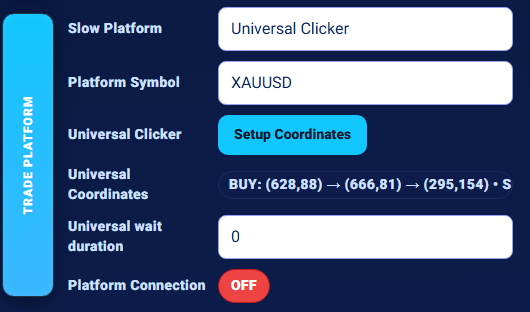
To use Universal Clicker as the trading mode, open Webclicker Panel and set:
Slow Platform = Universal Clicker
After selecting Universal Clicker, the UI shows additional fields:
Universal Clicker — contains the Setup Coordinates button.
Universal Coordinates — shows whether BUY / SELL / CLOSE coordinates are configured or not.
Universal wait duration — durations in seconds between few clicks (if = 0 its OFF )
2. What Universal Clicker is used for
Universal Clicker is a generic execution mode. It can be used on many web trading platforms if the platform has stable clickable areas for:
BUY
SELL
CLOSE
This mode is useful when a platform is not directly supported by Webclicker, but still has a predictable one-click trading layout.
3. Important requirement: one-click trading must be supported by platform
Universal Clicker does not fill platform forms, does not search for symbols, and does not confirm complex order tickets.
The platform must be prepared by the user before trading:
1. Open the broker platform.
2. Log in manually .
3. Select the correct instrument.
4. Set the correct trade amount / lot size inside the platform.
5. Enable one-click trading.
6. Make sure BUY, SELL, and CLOSE buttons are visible and ready.
Universal Clicker only performs mouse clicks on saved coordinates.
If the platform requires extra confirmation, popups, manual ticket confirmation, or changing lots before every trade, this mode may not work reliably.
4. Setup Coordinates
Before Universal Clicker can start, the user must configure coordinates.
For this puprpose better use Demo account for 1 st calibration or small lots 0.01 on real account .
For example will be use M5 Web Robo .
Click:
Setup Coordinates
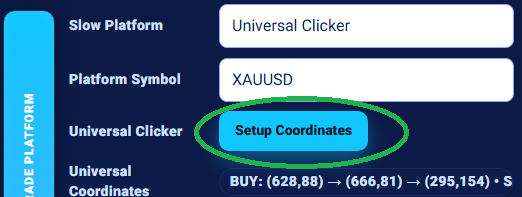
The UI starts the coordinate capture process and shows the instruction:
Go to your platform’s login page (any platform) and log in.
Move mouse to BUY/SELL/CLOSE points and press ESC for each point (if Universal wait duration = 0 click 3 times on one point, if you use it, then you can click if the opening requires a few coordinates to confirm the opening of the order)
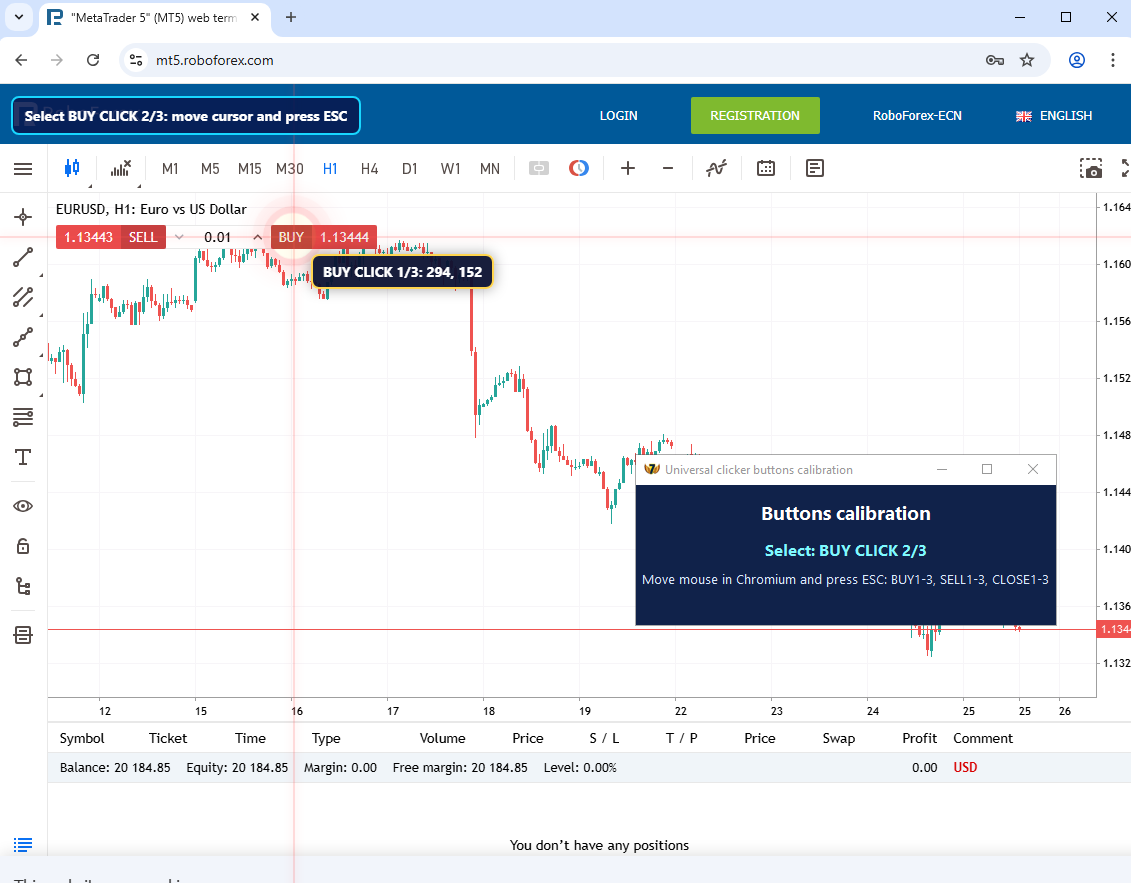
The coordinate setup saves three points:
BUY coordinate — where the agent should click to open a BUY trade.
SELL coordinate — where the agent should click to open a SELL trade.
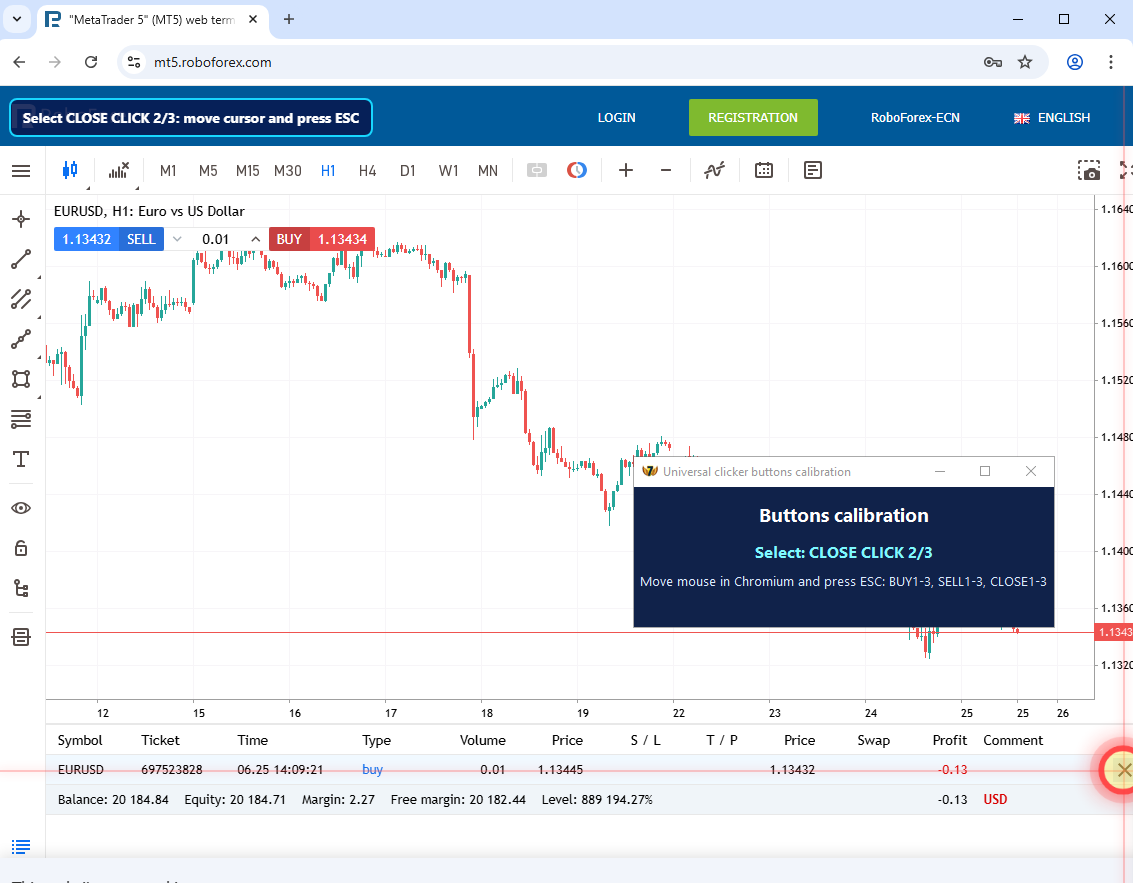
CLOSE coordinate — where the agent should click to close the active trade.
After successful setup, the UI saves the coordinates and shows:
Universal clicker coordinates saved.
5. START flow for Universal Clicker
When the user clicks START with Slow Platform = Universal Clicker, the process works like this:
1. UI saves the current settings.
2. The UI checks that Universal Clicker coordinates exist.
3. The UI sends the start command to the local WP Agent.
4. The agent loads the saved coordinates.
5. The agent launches Chromium .
7. The agent opens the saved platform URL if available.
8. The agent stores the expected browser title and URL.
9. The agent waits until the target tab is detected.
6. How the agent opens trades
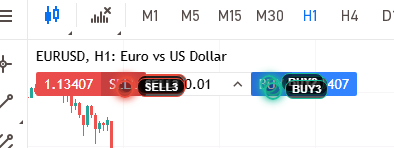
Universal Clicker supports:
BUY open
SELL open
When Webclicker sends a BUY signal, the agent clicks the saved BUY coordinate.
When Webclicker sends a SELL signal, the agent clicks the saved SELL coordinate.
7. How the agent closes trades
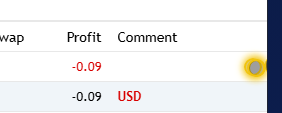
Universal Clicker supports:
Close BUY
Close SELL
Both close actions use the saved CLOSE coordinate.
8. Important : Virtual position tracking
Universal Clicker does not read real open positions from the broker platform.
Universal Clicker requires careful platform preparation. If the broker platform rejects an order, shows a confirmation dialog, changes the lot size, or fails to close the trade, Universal Clicker may not know it automatically.
9. Common Universal Clicker issues
- Universal Coordinates: (Not configuredCoordinates were not saved yet. Click Setup Coordinates and capture BUY / SELL / CLOSE points first)
- TARGET_TAB_NOT_READY (The agent cannot find the expected browser tab by saved title or URL. Open the correct platform tab or repeat coordinate setup on the correct page)
- CHROMIUM_NOT_FOUND(Portable Chromium is missing from the agent installation folder. Reinstall the agent or check the `chromium` folder)
- Browser closed by user(The Chromium runtime was closed while Webclicker was running. Start Universal Clicker again)
- Clicks happen in the wrong place(The platform layout, browser size, screen resolution, or iframe position changed after coordinate setup. Run Setup Coordinates again)
- Order not really opened or not really closed(Universal Clicker only clicks coordinates and tracks a virtual state. Check the broker platform manually and make sure one-click trading is enabled and no confirmation popups are blocking the action)