BACKTESTER
The most important strategy to find the best and most profitable settings of any strategy based on the recorded ticks.
What you need to do to get a high-quality set to work on a live account:
1. Record quotes of the traded symbol
2. Launching a “trial” trading on a real account
3. Preparing the Backtest strategy for launch
4. Work on creating a set
This is a roadmap for creating a working set. If you have done everything according to the instructions, but the profit does not go to the broker, then most likely the broker’s conditions do not allow you to trade with the arbitration system.
1. Record quotes of the traded symbol
To start recording quotes, check the Save Track to File box in the selected strategy and run it (you can do it without trading permission). We recommend recording an entire trading session, and at least 3 days for a better result.
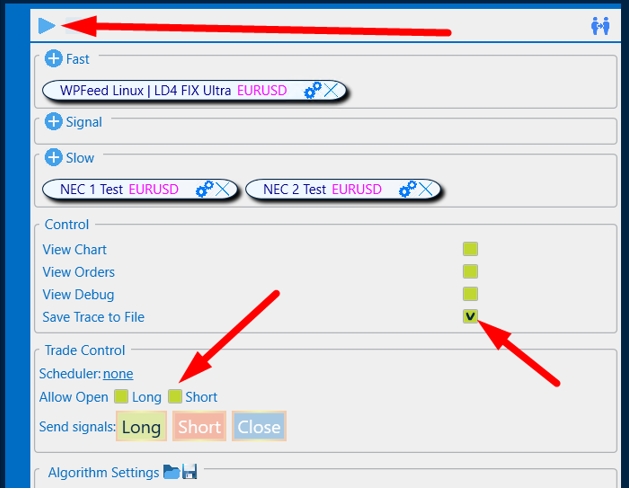
After launching the strategy, quotes will be automatically recorded in a separate file with the name of the strategy that you are recording. When the required time is recorded, stop the strategy and now you can move on to the next points.
2. Launching a “trial” trading on a real account
Launch the strategy on a live account with the desired symbol, allow trading, and be sure to add the View Orders checkmark.
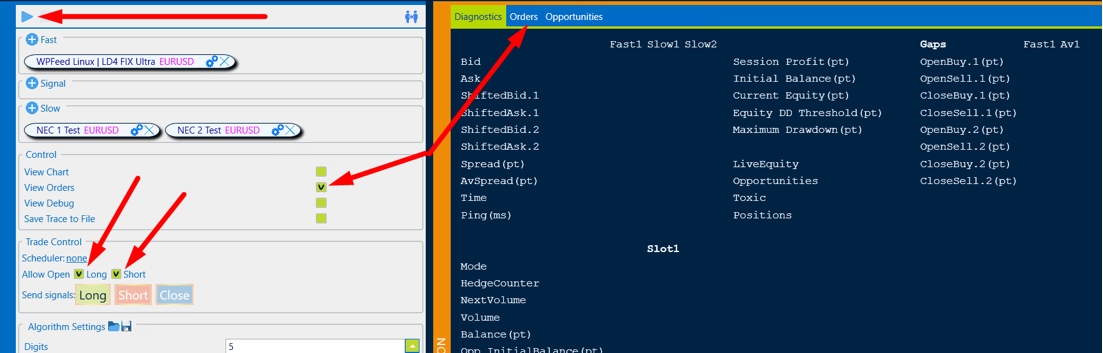
It is important to check the lot size before launching on a real strategy (always conduct tests with a minimum), the size of the chip should be small for a set of statistics.
For example, totestoncurrencies, you canuse the following”Basic”settings:
Currency:
- Open a Gap = 2;
- Close the gap = 1;
- Take profit = 200;
- Stop loss = 100.
To test on Gold:
- Open gap = 10;
- Close the gap = 5;
- Take profit = 200;
- Stop loss = 100.
We are waiting for 5-10 transactions to be executed. Then Stop the strategy and go to the Orders section.
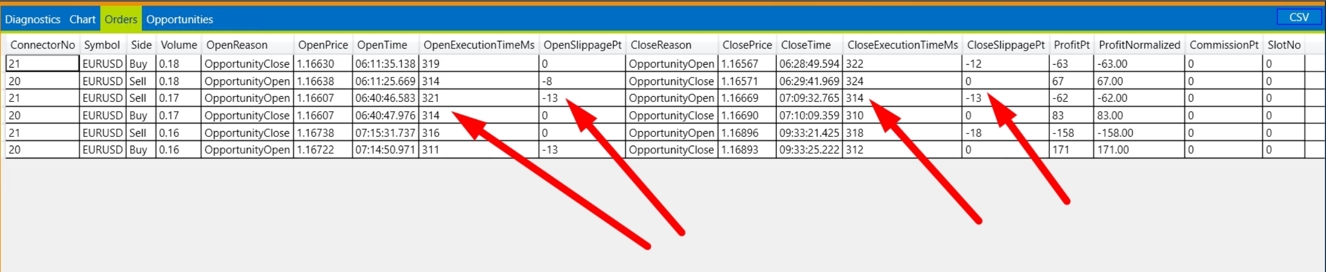
Important parameters for the Backtest that need to be recorded:
-
- average OpenExecutionTime, in this case, you can record 315ms;
- average CloseExecutionTime, in this case, you can record also 315ms;
- average OpenSlippagePT in this case, you can record 10pt;
- average CloseSlippagePT in this case, you can record also10pt.
It is also important to pay attention to the number of open/closed transactions with a slip = 0. In our case, we can safely put a 50% probability in the Backtest.
Now we have all the data to start creating a working set.
3. Preparing the Backtest strategy for launch
To do this, click and select the hidden history testing strategy :click and choose the Backtest OneLegHidden strategy:
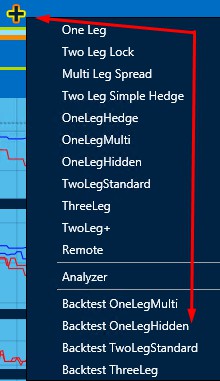
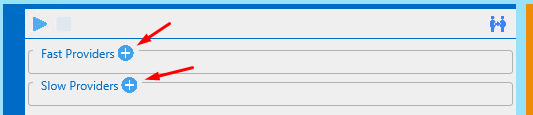
Next, the following actions will be required:
- downloading previously recorded quotes for Fast Providers;
- downloading previously recorded quotes for Slow providers;
Click and in the pop-up window click
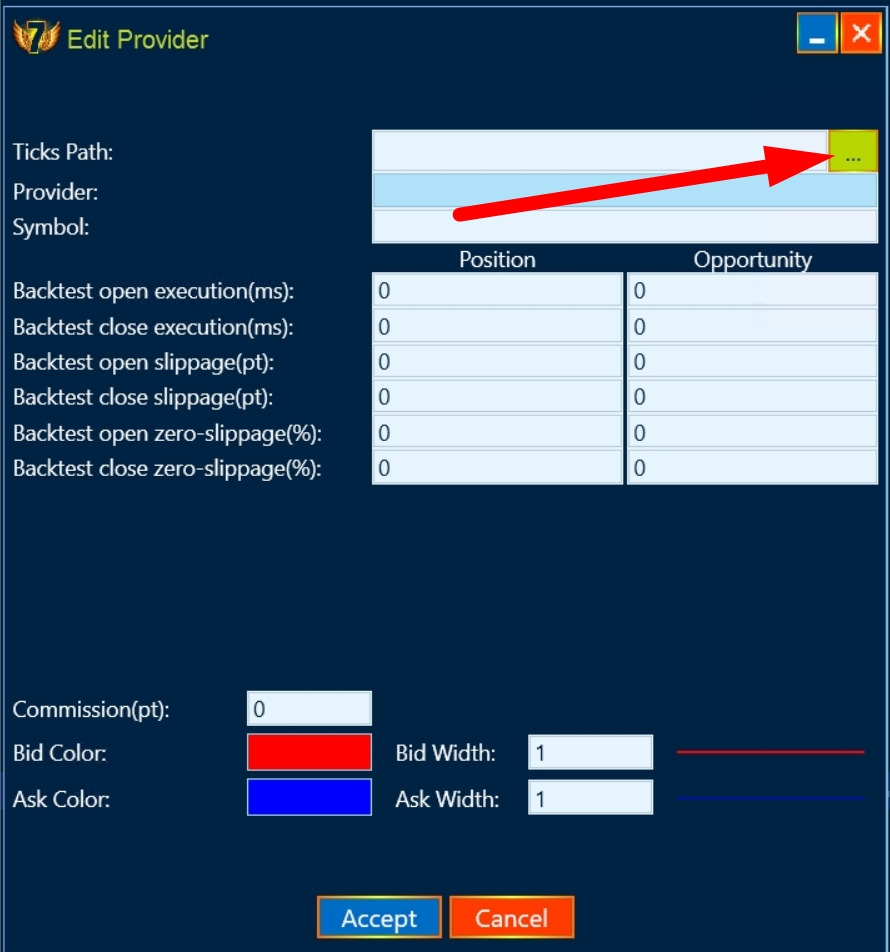
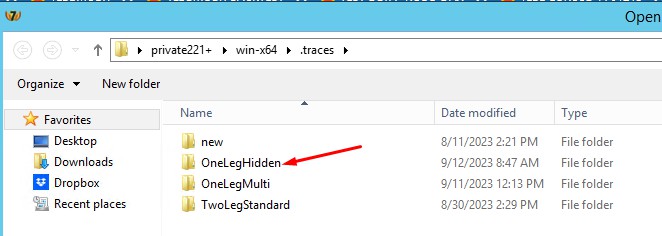
And we select quotes step by step for Fast providers, and then for Slow providers:

It is necessary to set the data that we received from testing on a real account in the settings of the slow provider. As we remember, we recorded the opening and closing of a deal as =315ms, the slip = 10pt, and the probability of opening/closing a deal with a slip = 0 is 50%.
We fill in this data in the settings of BOTH brokers (we do the same if the broker is the same)
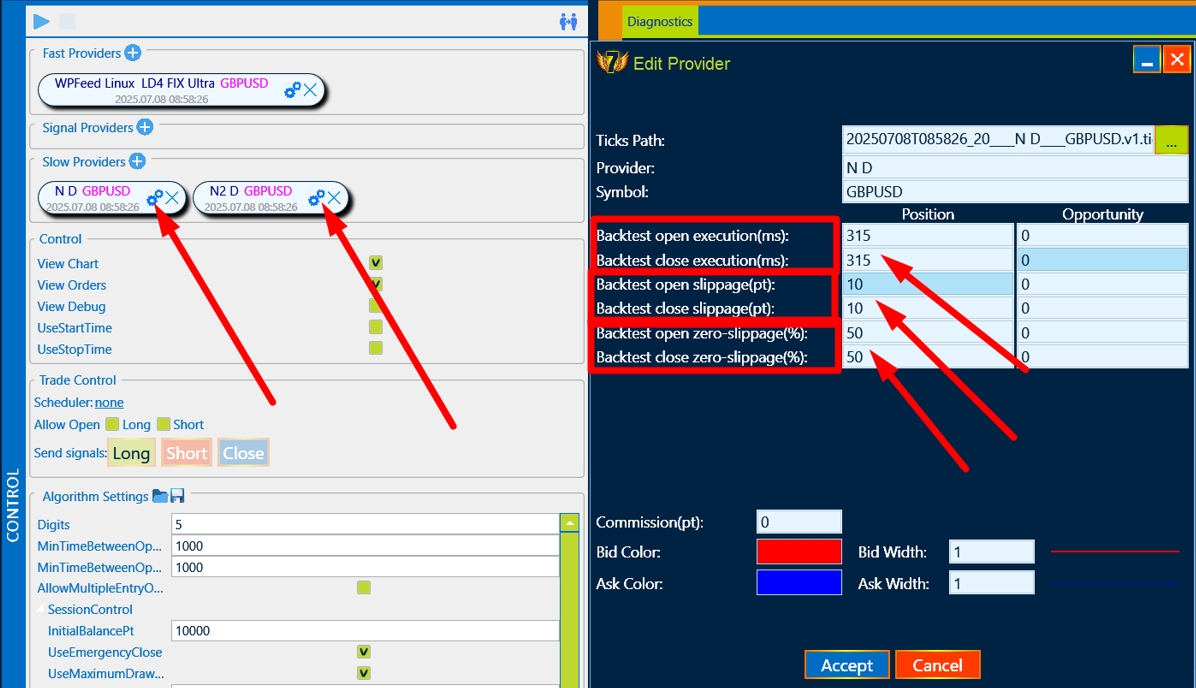
Please note that the OneLegHidden strategy requires 2 “slow” brokers and 1 “fast” broker, so there will be 3 entries in total.
If the quotes are loaded correctly, the following type of program will appear:
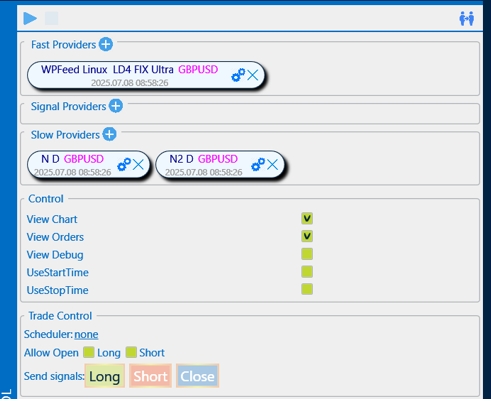
We can start testing with the “Basic” settings:
-
- Open a gap = 2;
- Close the gap = 1;
- Take profit = 200;
- Stop loss = 100.
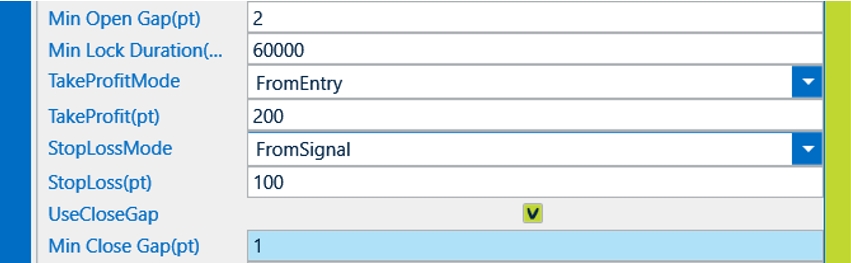
4. Work on creating a set
After preparing the strategy, click start and wait for the result.
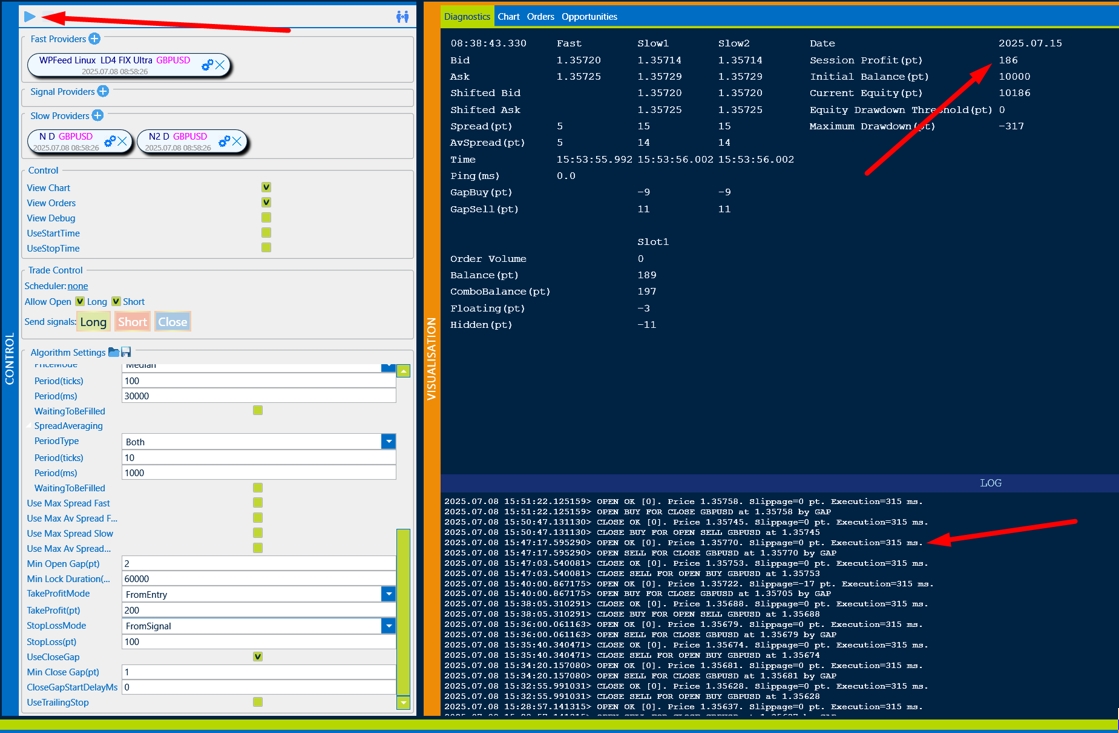
We recommend that you configure the set in the Orders section:
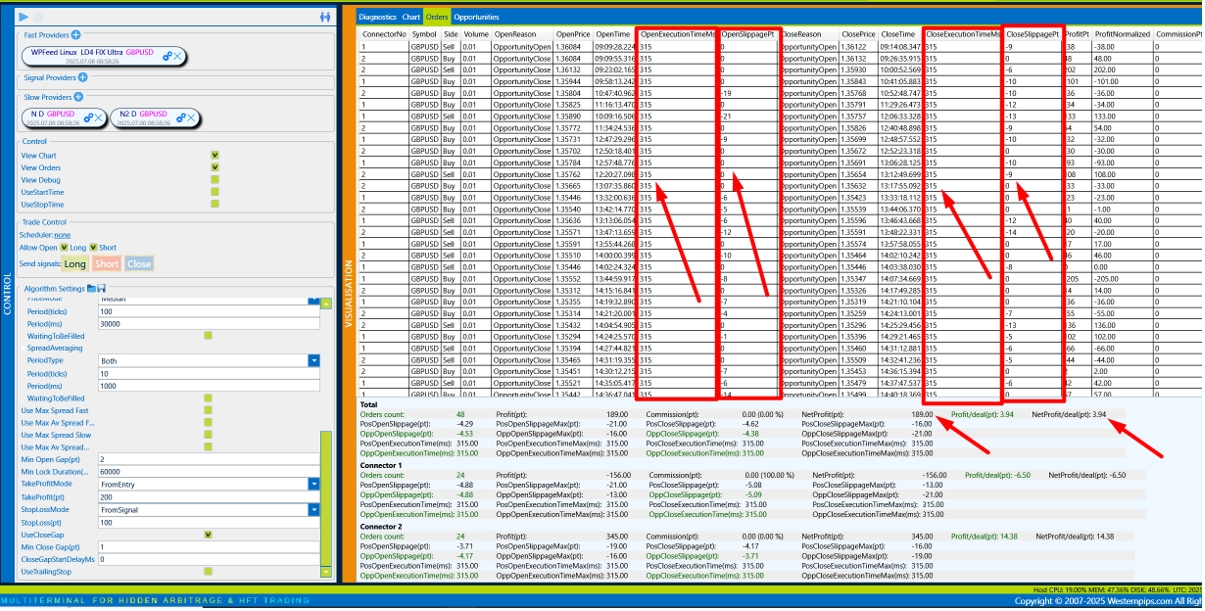
The most important parameters of:
-
- NetProfit/deal (pt) – shows the average profit per transaction, taking into account all profitable transactions and unprofitable ones.
- NetProfit(pt) – total profit with current settings
Please also note that the data that we entered into the backtest is now fully reflected in the Backtest- Open/CloseExecutionTime, Slippage and the probability of slipping = 0 is approximately 50%. This is the right testing strategy.
Now our task is to increase the profit on the transaction and the final profit.
The first is to upgrade OpenGap by 1 and let’s start the strategy again.
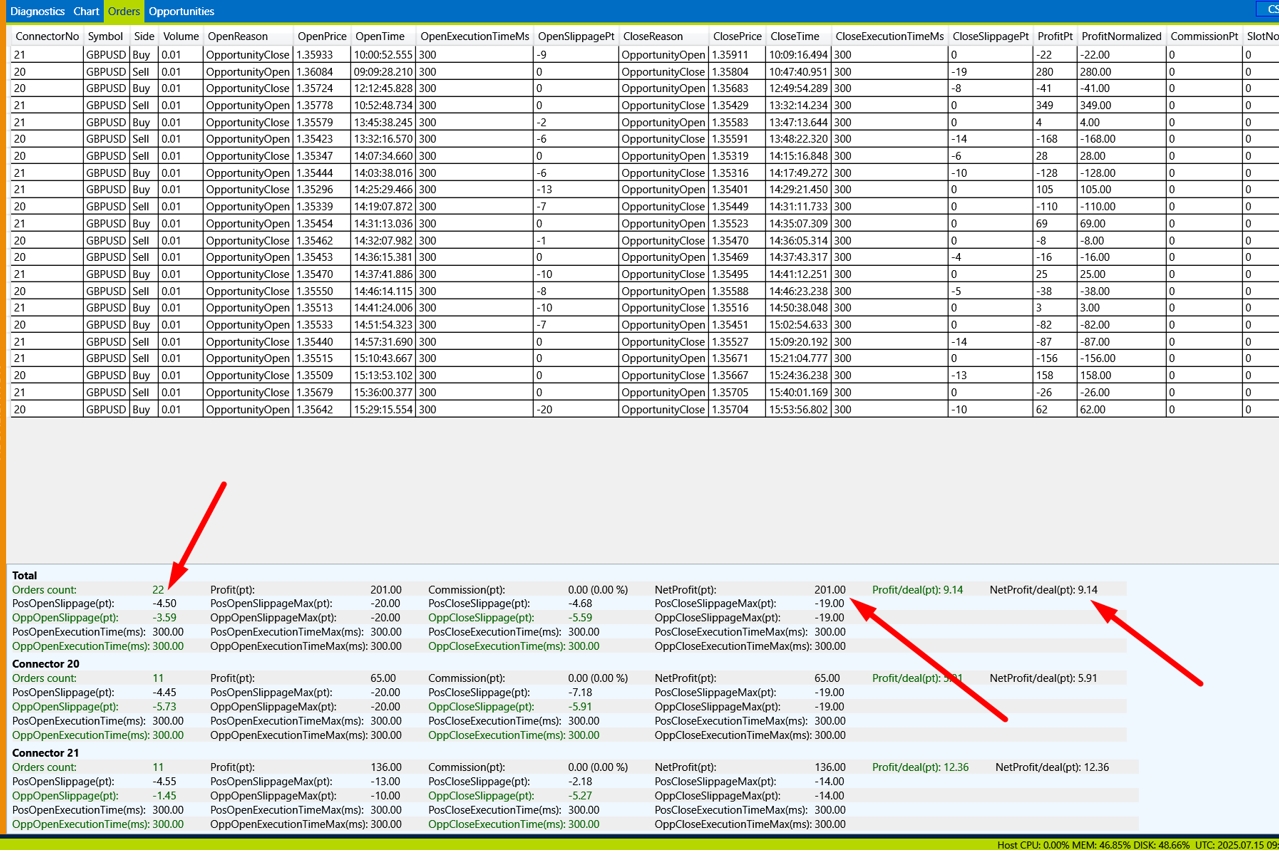
We see that the profit per transaction has become higher, the total profit has also increased and the number of transactions has decreased.
We raise it by 1 more OpenGap and let’s start the strategy again.
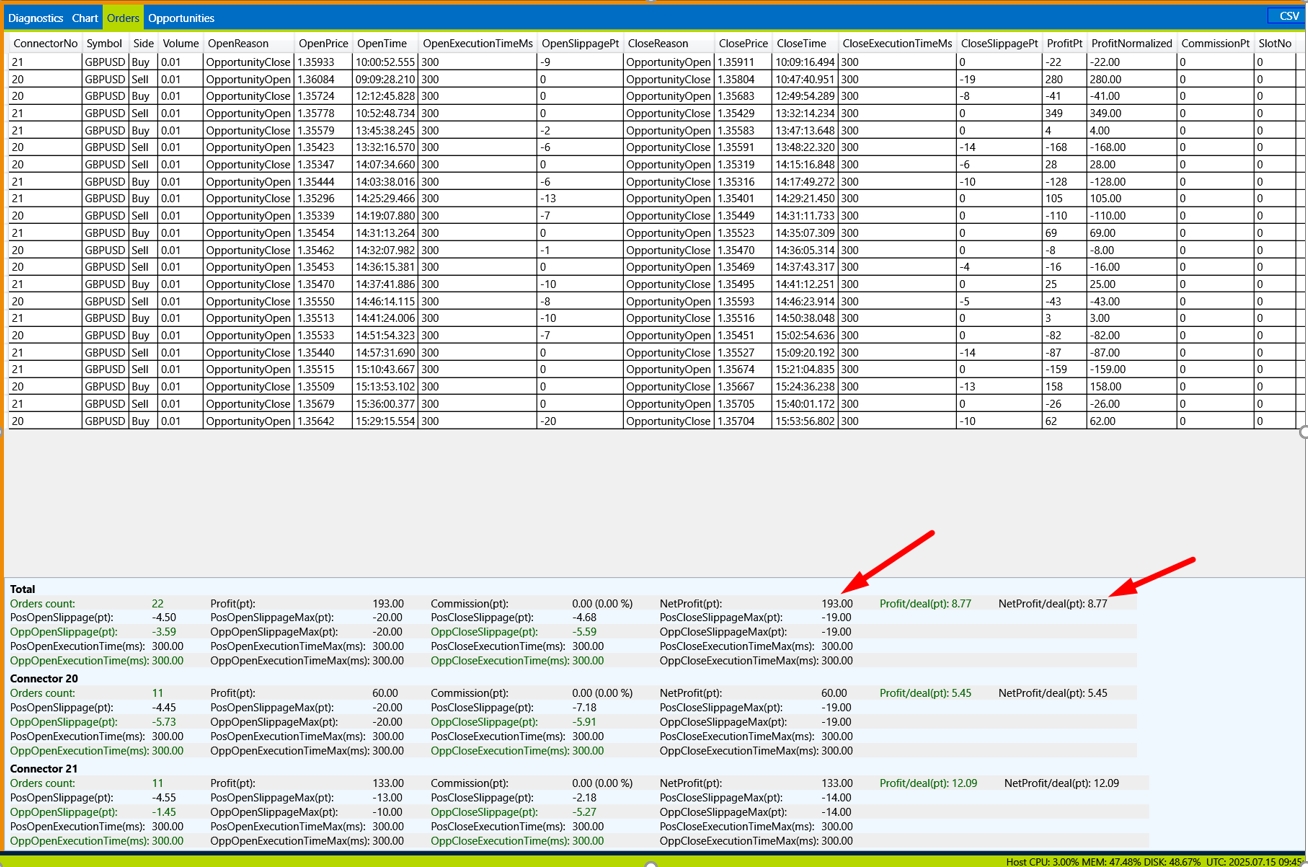
We see that the profit per transaction has decreased and the total profit too. Therefore, we leave the previous Gap = 3 as the basis and we can switch to other settings.
We recommend the following configuration sequence:
-
- Open Gap – we find the biggest profit per trade and total profit.
- CloseGap – Just like with the opening of Gap, we are looking for the most profitable setup.
- TakeProfit/StopLoss – There are many options here, it is necessary to painstakingly search for the ideal option.
- TrailStart-TrailStop.
After you have found the most profitable set, you need to write it down.
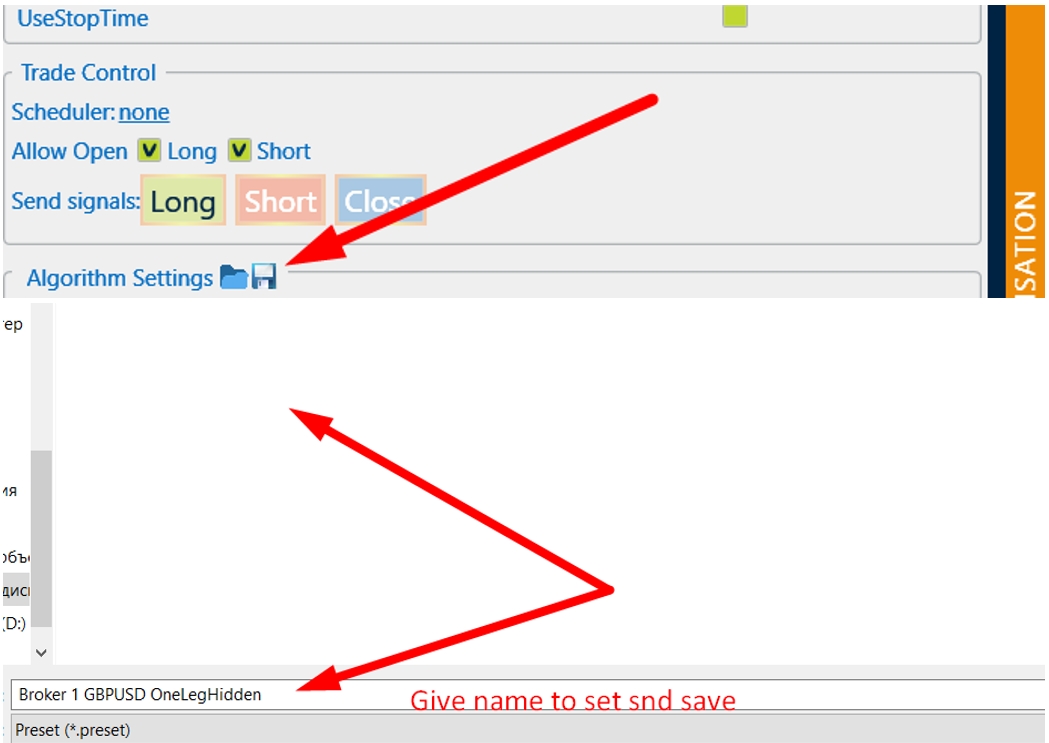
Pay attention to the gap size on the broker you want to trade on. We recommend setting the gep size not less than the spread size.
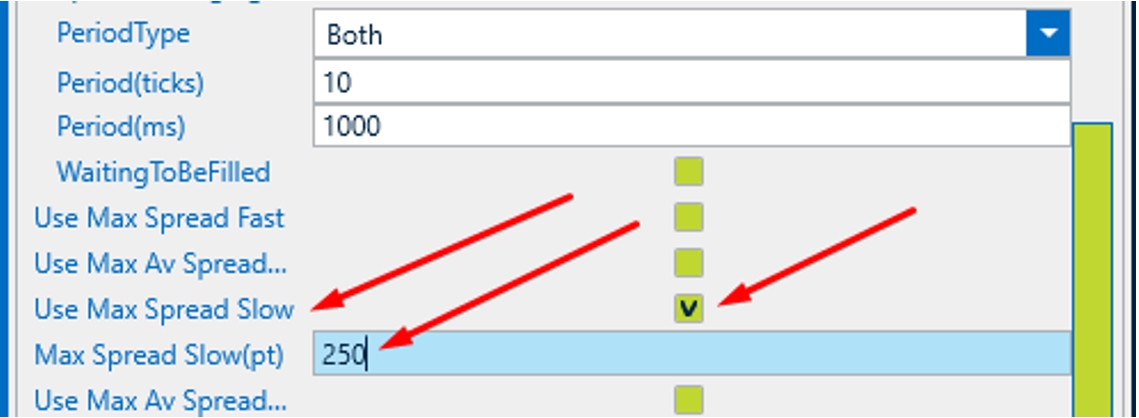
Also note that there is a lot of volatility on big trading news and the spread widens very much on a slow broker. Limit it and you will protect your trading from unnecessary risks.
You must understand that it takes patience and painstaking work to create a set. Record several days of quotes and when creating a set on one day, test it on other days as well. If you see that the profit is very small or the trade is not stable, change the broker.
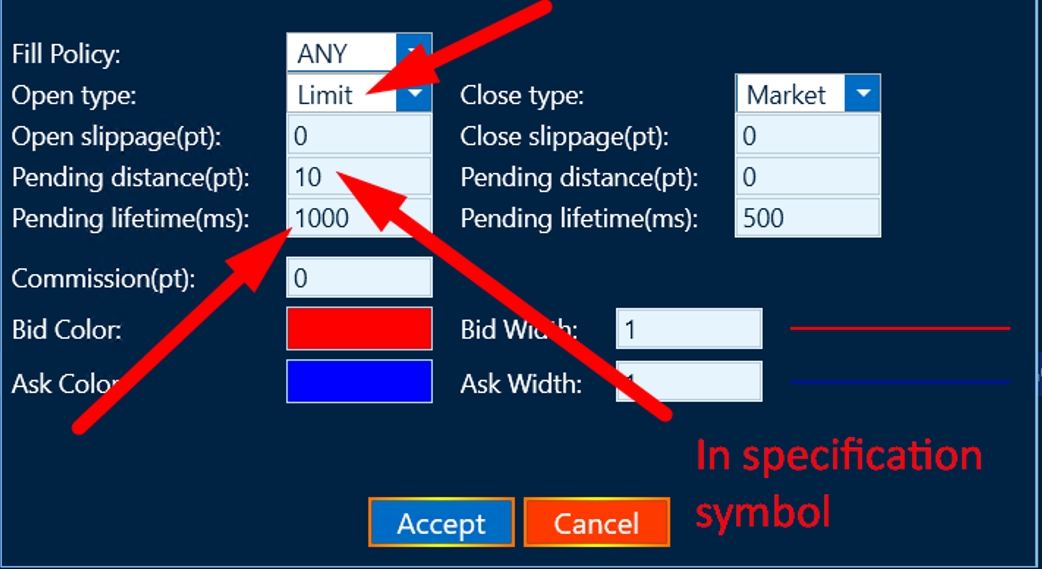
Please note that the software allows you to trade in the limit order mode (for maximum trade concealment, but it is not suitable for all brokers – pay attention to the size of Stop orders in the symbol specification). The lifetime of a limit order is also important. We recommend setting 1000ms.
Limit order testing is not available in the Backtest yet. To trade limit orders, change the order type from Market to Limit
Input data
| Parameters | Decoding |
| Settings | |
| AllowTradeOpen | Allow the opening of orders |
| Digits | The number of decimal places in quotes |
| Volume1 | The volume of the transaction being opened on the first slow broker |
| Volume2 | The volume of the transaction being opened on the second slow broker |
| SlotsCount | The number of simultaneously traded combinations |
| ExecutionControl | Settings of the Order Execution speed control module |
| UseAutoShift | Use automatic quote alignment between fast and slow broker. |
| AutoShiftPeriod | The averaging period for automatic alignment of quotes |
| ManualShiftBidPt | the number of points to shift the Bid price of a fast broker |
| ManualShiftAskPt | the number of points to shift the Ask price of a fast broker |
| MinSpreadFastPt | the minimum spread in points on a fast broker at which a deal can be opened |
| UseMaxSpreadFast | use the maximum spread filter on a fast broker |
| MaxSpreadFastPt | the value of the maximum spread filter in points on a fast broker, at which a deal can be opened |
| MinSpreadSlowPt | the minimum spread in points on a slow broker at which a deal can be openedа |
| UseMaxSpreadSlow | use the maximum spread filter on a slow broker |
| MaxSpreadSlowPt | the value of the maximum spread filter in points on a slow broker at which a trade can be opened |
| MinOpenGapPt | the minimum gap in points for opening a deal on a slow broker |
| FastTickDirectionCon firmation | entry is only possible if the direction of the last tick on the fast broker coincides with the direction of the transaction |
| TakeProfitPt | take profit in points |
| StopLossPt | stop loss in points |
| MinLockDurationMs | minimum holding time of the bow in milliseconds |
| HoldIfGapAbovePt | the value of the transaction retention filter, if the gap is higher or equal to the specified value in points, then the transaction is held and no closing conditions are met |