
Trade Platforms — IG
1. Selecting IG in UI
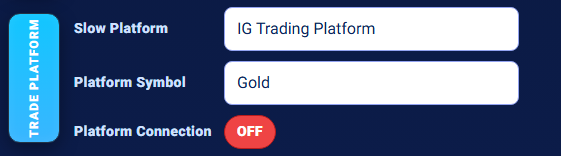
To use IG as the trading platform, open Webcliker Panel and set:
Slow Platform = IG
The Platform Symbol field is very important.
If the instrument name on IG is not exactly the same as the normal market symbol, use the exact IG market name in Platform Symbol.
For example:
XAUUSDcan beGoldEURUSDcan beEUR/USDSPX500can beUS 500
For FX symbols, both compact and slash formats may work, but complex IG market names should be entered exactly as shown inside the IG platform.
2. About IG
In Webcliker, IG is used as the trade execution platform.
IG is an online trading provider that offers access to financial markets through its web trading platform and mobile applications. IG provides access to markets such as forex, commodities, indices, shares, and other CFD products, depending on the account type and region.
The IG Web Trading Platform allows users to search markets, open trade tickets, manage open positions, view balance information, and close trades directly from the browser.
As with all CFD and leveraged trading platforms, users should understand that trading carries risk and can result in losses.
Webcliker calculates the gap logic from the selected fast and slow quote sources, and the local WP Agent controls the IG web terminal through the browser.
3. Platform Login and Password
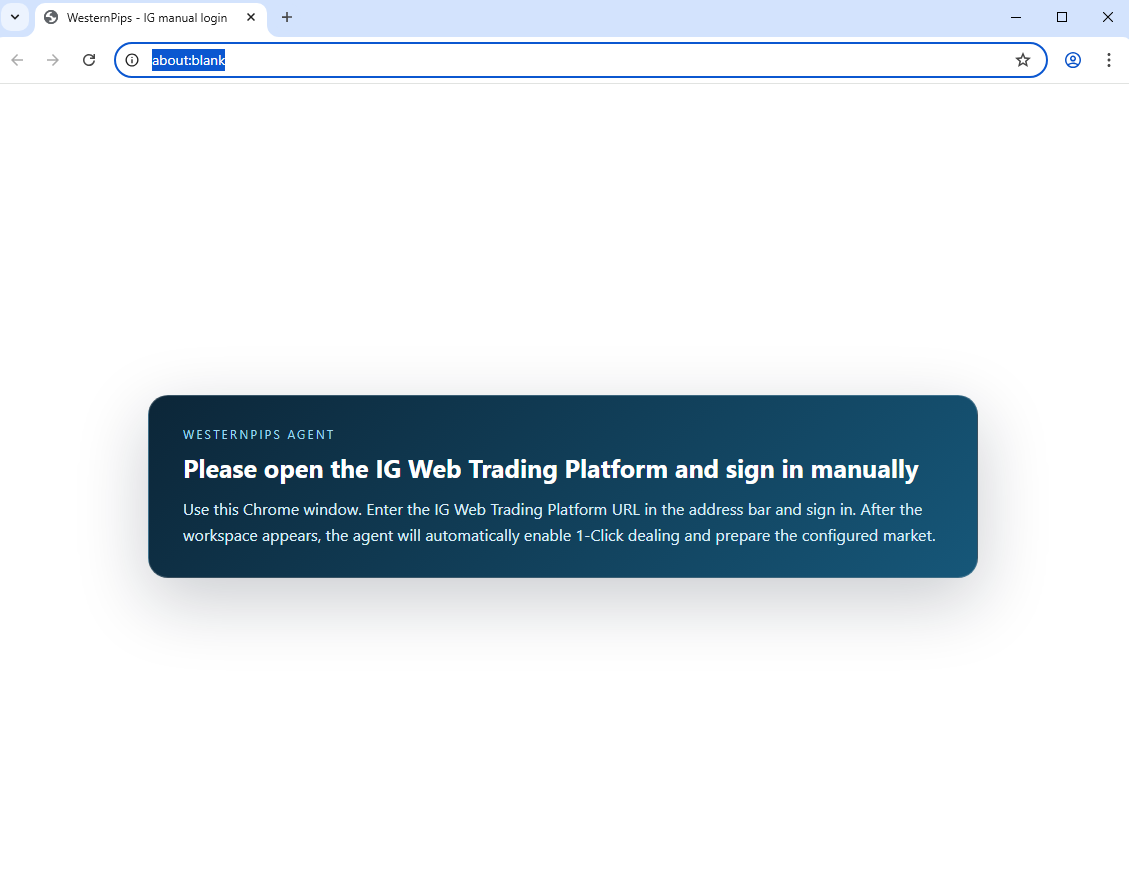
The user still needs valid IG credentials, but they enter them manually inside the IG web terminal opened in Chrome.
The agent does not enter the IG login or password automatically.
4. Required settings before START
Before pressing START, make sure settings are configured:
- Slow Platform = IG
- Platform Symbol is correct
- Lot / Size is correct
- Gap open and close settings are correct
- IG web terminal can be opened and logged into manually
5. START flow for IG
When the user clicks START with Slow Platform = IG, the process works like this:
- Webcliker UI saves the current settings.
- The UI sends the start command to the local WP Agent.
- The agent starts an IG session in manual login mode.
- The user opens the IG web terminal and logs in manually.
- The agent detects when the IG interface is ready.
- After the terminal is ready, Webcliker can continue with platform preparation and trading.
The IG module can read account balance.
6. IG preparation
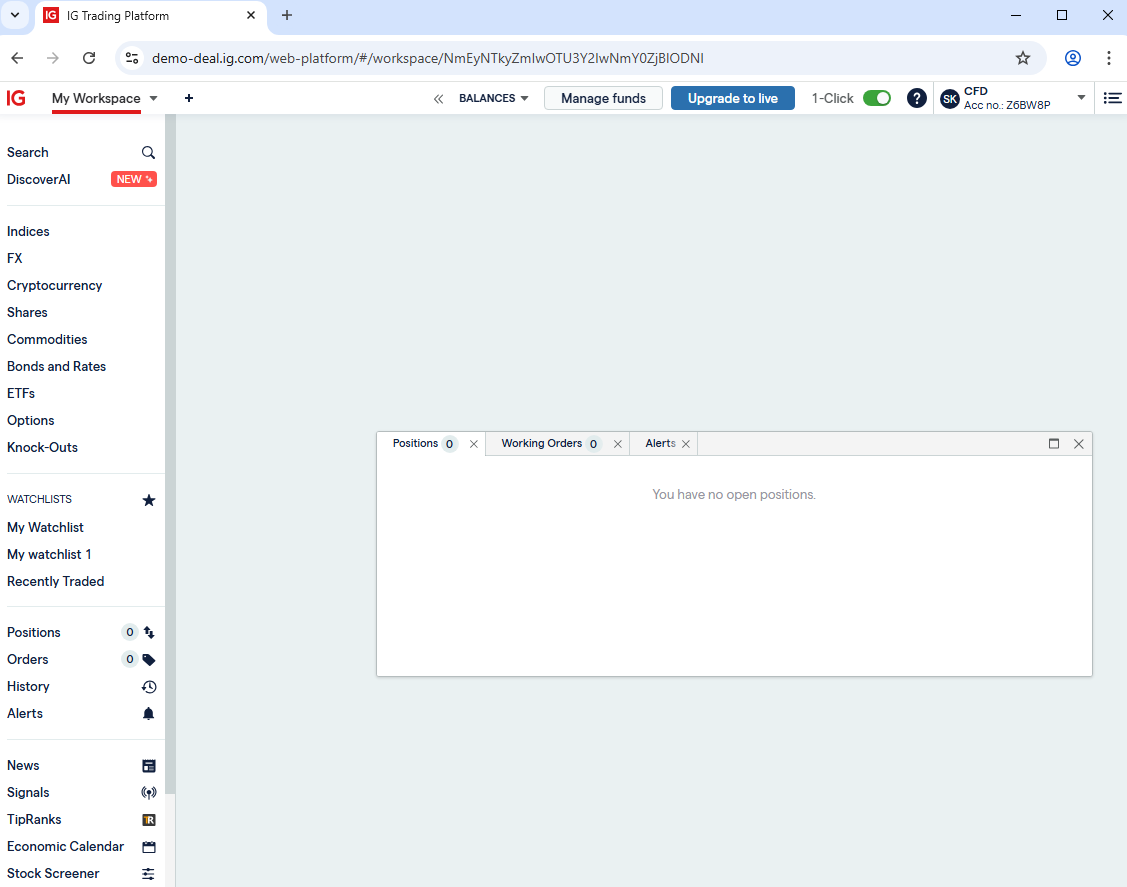
After the IG terminal is ready, the agent may prepare the ticket for trading.
Preparation can happen automatically after the platform has been ready for a short time, or when the backend asks the agent to prepare a ticket.
During preparation, the agent:
- detects the active IG web platform page;
- checks that the IG workspace is loaded;
- closes or dismisses blocking overlays if possible;
- enables 1-Click dealing if it is not already enabled;
- searches for the selected market symbol;
- opens the trade ticket;
- sets the trade Size;
- keeps the ticket ready for fast order execution.
7. How the agent opens trades on IG
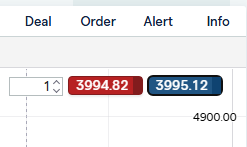
IG supports:
BUY open
SELL open
When an open signal is received, the agent clicks the prepared IG Buy or Sell button and waits for confirmation from the platform.
The agent can confirm the open trade by checking IG execution messages, Positions count, or a new position row.
8. How the agent closes trades on IG

IG supports:
Close BUY
Close SELL
When a close signal is received, the agent searches for the matching open position in IG Positions, clicks the close control, confirms the close action if required, and waits until the position is closed.
After closing, the agent may read updated balance and prepare the same market again for the next trade.
9. Common IG issues
Chrome opens with a manual login page
This is expected. The user should open the IG web terminal in the same Chrome window and sign in manually.
Platform Connection does not become ON
The agent did not detect the ready IG terminal. Make sure the IG platform is fully loaded and shows elements such as Search, Positions, balance, and the trading workspace.
Login required or session expired
If the page is on login or session-expired state, the agent keeps waiting for manual login and returns waiting_user_login: true.
Symbol not found
The value in Platform Symbol may not match the IG market name. Use the exact market name shown in the IG platform.
Ticket not opened
The agent could not find the market row or the trade ticket did not open. Check the Platform Symbol and make sure the interface is not blocked by popups.
Size input not found
The trade ticket opened, but the agent could not find the Size field. Restart the IG session and let the agent prepare the ticket again.
1-Click dealing is not ready
The agent tries to enable 1-Click dealing during preparation. If this fails, the ticket may not become open-ready.
Open skipped: open_position_exists
The agent detected that a position is already open and skipped a duplicate open action.
Open failed: IG_OPEN_NOT_CONFIRMED
The agent clicked Buy or Sell, but IG did not confirm the trade. Check manually whether the position was opened.
Close skipped: no_matching_position
The agent could not find an open position matching the requested side and instrument.
Close failed: IG_CLOSE_NOT_CONFIRMED
The agent clicked close, but the position did not disappear or the position count did not decrease.
Market closed
The selected IG market is not tradeable at this time. Wait until the market opens again.