Westernpips DocsWesternpips Docs
  • Home
  • FAQ
  • Documentation
  • Forums
  • Home
  • FAQ
  • Documentation
  • Forums
  • Crypto Trader
    • Crypto Scanner - 1 Leg
    • Crypto Scanner - 2 Leg
    • Crypto Table
  • Getting Started
    • Web Portal my.westernpips.com
      • Web Portal Password Recovery
      • How to Buy Westernpips Products?
    • Products Installation
    • Prerequisites
      • .NET Desktop Runtime Installation
      • ASP.NET Core Runtime Installation
      • Microsoft Redistributable Installation
    • System Requirements
    • Installation Troubleshooting
  • Westernpips Golden Tools 3.5.7
    • Downloading
    • First Run
    • Installing a Westernpips Products Using WGT
    • Working with Installed Products
    • WGT Update
  • Westernpips Private 7
    • How to Check Which Quote Feed Is Faster
    • Installing and First Run
    • License Activation and Login
    • Change License IP, Add new IP
    • User Interface
      • Main Window
      • Dashboard
        • Options
        • Strategies
        • Connections
        • Schedulers
    • Trades Discovery, Check Orders Duration
    • WESTERNPIPS PRIVATE 7 ALGOS
      • OneLeg
        • OneLeg: Before You Start
        • OneLeg First Setup, Step by Step
        • OneLeg Key Parameters with an XAUUSD Example
        • OneLeg Troubleshooting
      • Two Leg Simple Hedge
      • Two Leg Lock
      • Multi Leg Spread
      • One Leg Multi
      • OneLegHidden
      • Two Leg Standard
      • Remote
      • Copier
      • Clicker in WesternPips Private 7
      • Session Control — Quick Guide
      • Exucution Control — Quick Guide
      • Slippage Control - Fast Guide
      • Add/Edit Provider Window Settings
      • BackTester
      • Setting up a connection with the Broker Terminal via the EA connector
    • Connectors
      • Common Settings and Operation
        • FIX Connection Settings
        • FIX Logs
      • Trading and Fast Sources Connectors
        • 24Exchange Connector
        • Active Financial API Connector
        • Binance Connector
        • Bitfinex Connector
        • CBOE FIX Connector
        • Celer FIX Connector
        • CFH FIX Connector
        • CTrader FIX Connector
        • DukasCopy FIX Connector
        • DxFeed FIX Connector
        • Euronext FIX Connector
        • Exante FIX Connector
        • FastMatch ITCH Connector
        • FlexTrade FIX Connector
        • Fortex FIX Connector
        • FXCM FIX Connector
        • FxPig FIX Connector
        • GCEX FIX Connector
        • Gold-i Matrix FIX Connector
        • Integral FIX Connector
        • LMAX API Connector
        • LMAX FIX Connector
        • MaxxTrader FIX Connector
        • MT EA Connector
        • M4 Server Connector
        • M5 Server Connector
        • OGM FIX Connector
        • OKX Connector
        • OneZero FIX Connector
        • PrimeXM FIX Connector
        • Remote Connector
        • Rithmic Connector
        • RoE FIX Connector
        • Saxo FIX Connector
        • SolidFX FIX Connector
        • Spotex FIX Connector
        • TraderMade FIX Connector
        • Universal Connector
        • Universal Fast Connector
        • XenFin FIX Connector
        • XTRD FIX Connector
  • Westernpips Webcliker
    • System Requirements
    • Installer
    • Agent
    • UI Settings
    • UI Logs
    • Start/Stop
    • Connections
    • Trade platforms
      • CMC Markets
      • M5 Web
      • M4 Web
      • TRADE NATION
      • Exness Web
      • Universal cliker
      • IG Trading Platform
      • MEX / MultiBank
      • ByBit
      • EXANTE
      • IQ Option
      • Plus500
      • Quotex
    • Risk Warning
  • Glossary
    • Latency Arbitrage
    • Fast Price Feed
    • Execution Latency
    • Slippage
    • FIX API
    • Requote
    • Forex Arbitrage
    • Toxic Flow
    • Last Look
    • B-Book
    • Forex VPS
    • Brokers That Allow Arbitrage
    • Low Latency

Remote

443 views 1

Strategy Remote

The strategy is necessary to mask the IP address of one broker (or account) when trading on two brokers (or one, on different accounts) with 2LEG strategies. To mask an ip address, you need to have 2 servers or 2 PCs with different ip addresses. One of them will be the “Main” one, which will include a trading strategy and an “Auxiliary” server to mask the ip address.

    1. Setting up the “Main” server

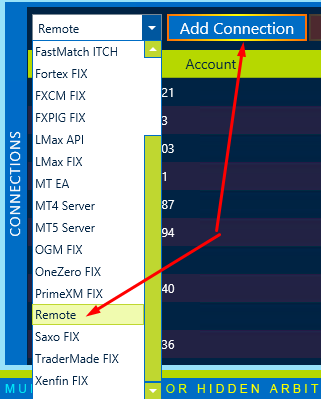
On the “Main” server / PC, Open the Dashboard, select Remote, Add Connection

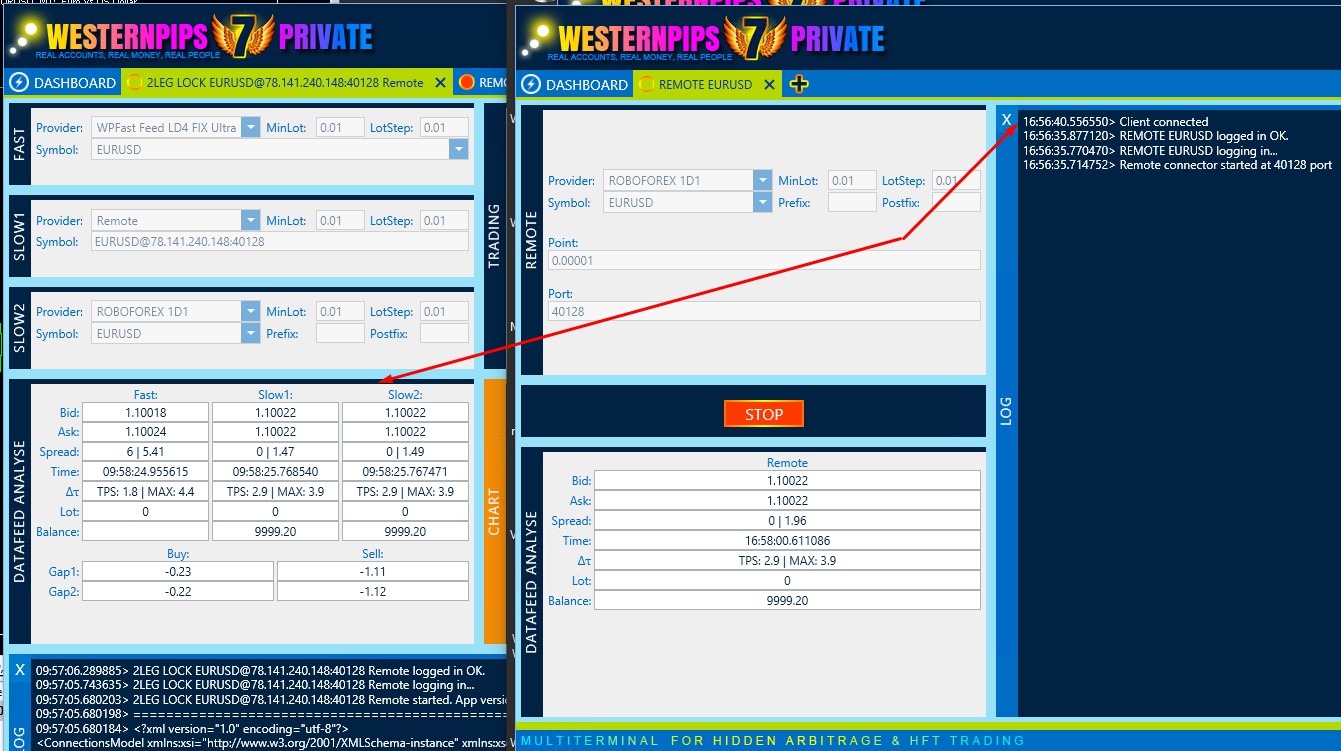
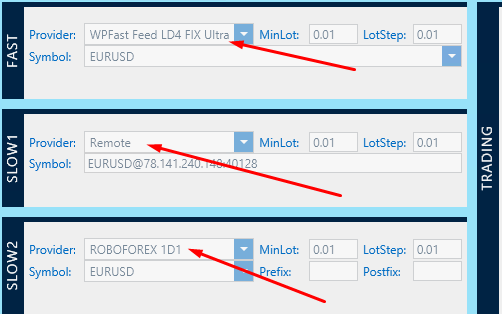
1. Choosing the right strategy (for example, 2 LegLock and Roboforex broker)
Remote - word image 3262 61 Remote - word image 3262 62 Remote - word image 3262 63

  • we choose the supplier of fast quotes FAST and the right tool
  • select Remote SLOW1 and the desired tool (this particular slot will work
  • from another ip), register the EURUSD@auxiliary server in the name of
  • the tool:port (necessarily the same ports on both servers)

– Example EURUSD@78.141.240.148:40128

  • choosing a Roboforex SLOW2 broker and the right tool

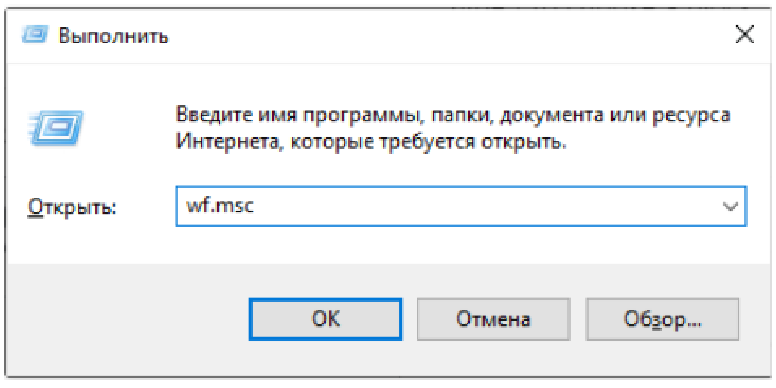
To work correctly, you need to configure the access of the “Main” Firewall Servers. The fastest way to open the Windows Firewall settings: keyboard shortcut <Win+R> and type the command wf.msc.

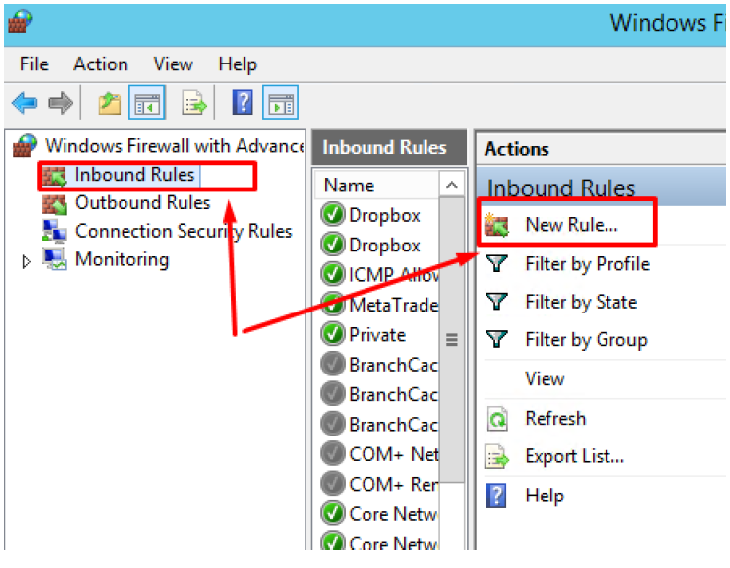
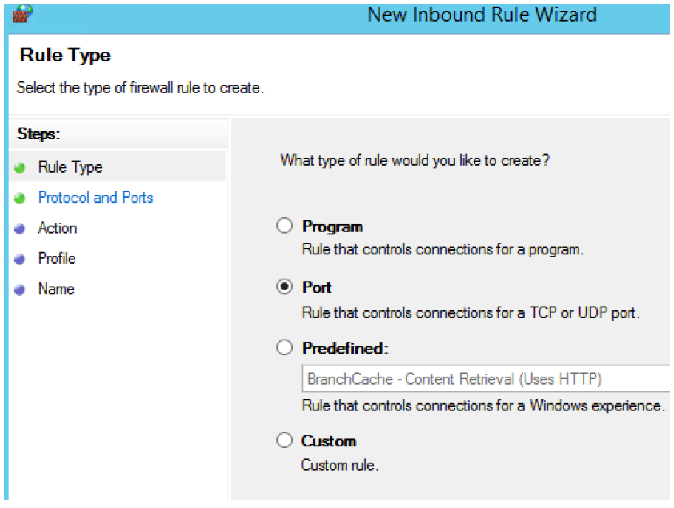
  1. Select the “Rules for incoming connections” item, then the “Create rule” action.
Remote - word image 3262 65 Remote - word image 3262 66

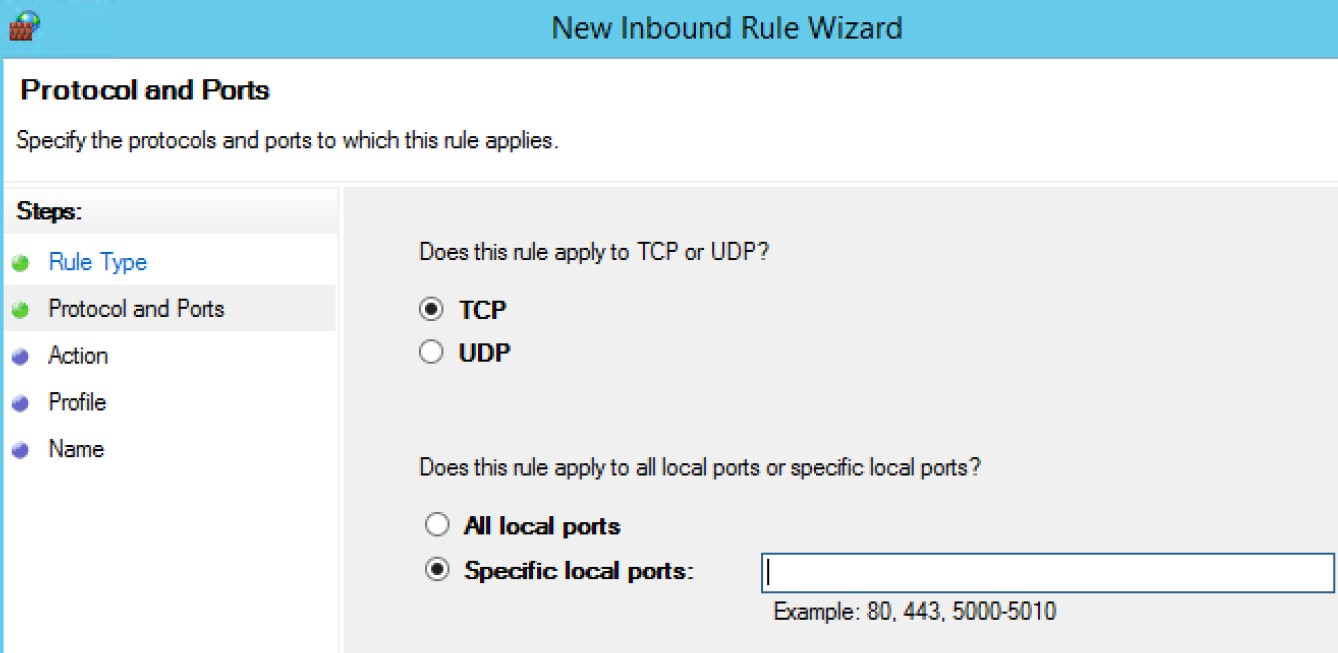
  1. The rule type is “For Port”.
  2. Specify the TCP protocol and the working port (in the example, the port is 40128)

Remote - word image 3262 67

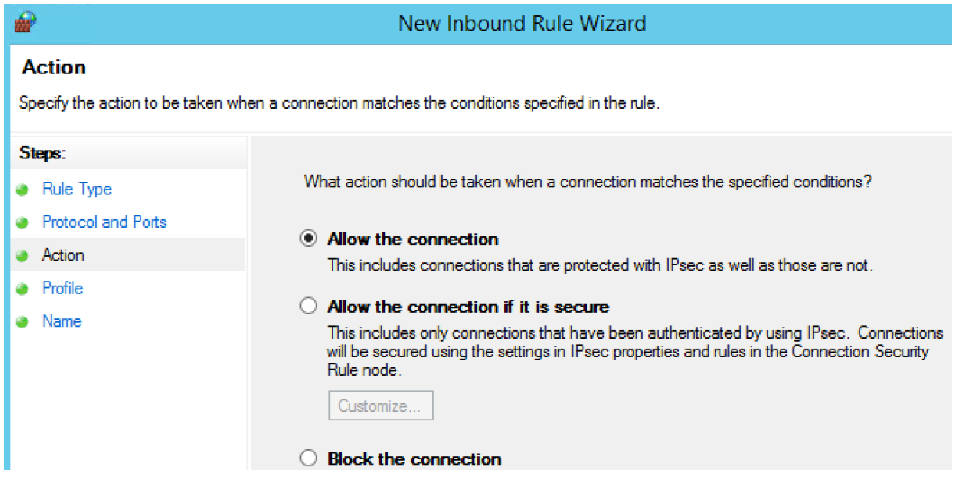
  1. Allow the connection

Remote - word image 3262 69 Remote - word image 3262 70

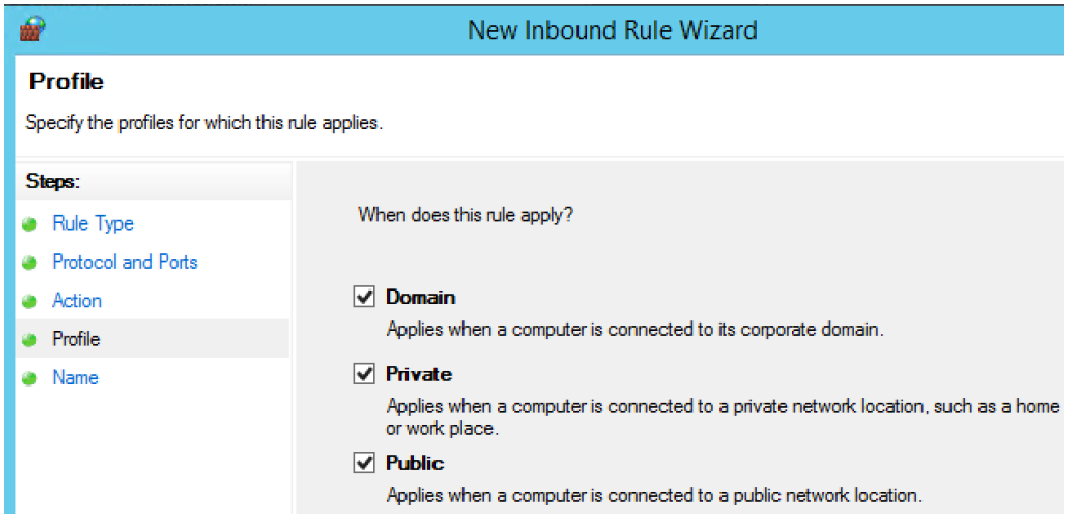
  1. Specify the profiles to which the rule applies (all by default)
  2. Rule name – here you need to specify any name of the rule that you understand.
    1. Setting up an “Auxiliary” server

1.2. Setting up an “Auxiliary” server

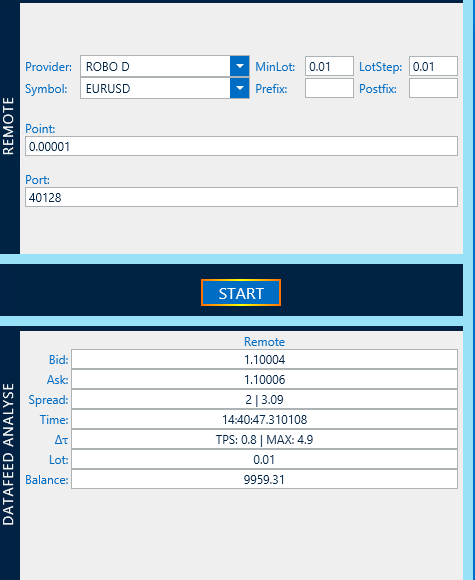
On the “Auxiliary” server / PC, Open Dashboard, select Remote and click Add Connection

  • Choosing the Remote strategy
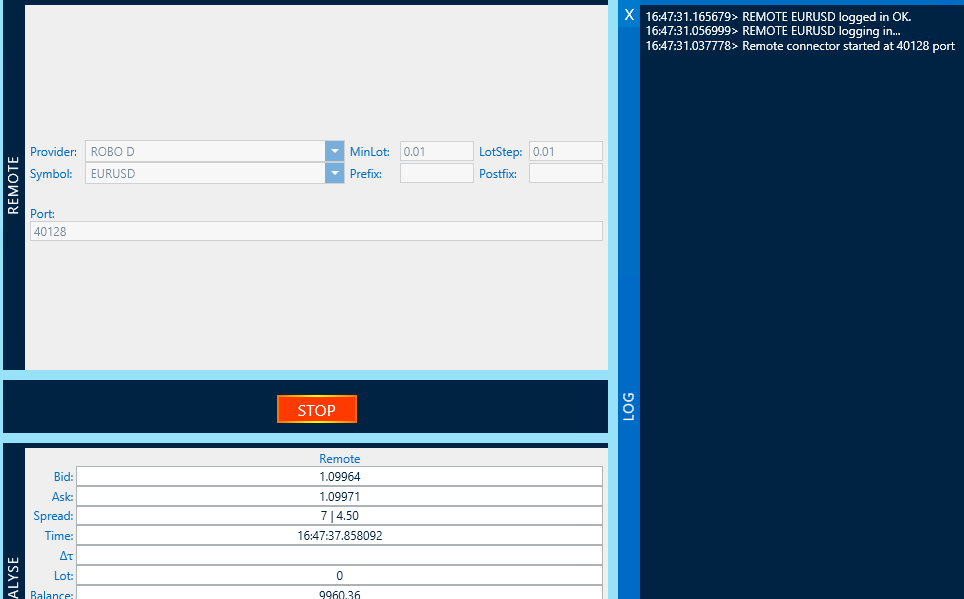
  • we select the broker whose ip we mask, the symbol Port is specified as in the “Main” server, in example 40128
Remote - word image 3262 72 Remote - word image 3262 73

    1. Launching the strategy

Click START on the “Auxiliary” server and see in the Log Remote connector started at 40128 port.

On the “Main” server, click START on the configured strategy

Remote - word image 3262 75

With successful configuration, we see the inscription Client connected on the “Auxiliary” server and the connection of quotes. After launching the strategy, all deals at the broker SLOW1 will be disguised as the IP address of the “Auxiliary” server. The deals of the SLOW2 broker remain under the ip address of the “Main” server.
Was this helpful?

1 Yes  No
Related Articles
  • Low Latency
  • Brokers That Allow Arbitrage
  • Forex VPS
  • B-Book
  • Last Look
  • Toxic Flow
Previously
Two Leg Standard
Up Next
Copier
  • Copyright 2026 Westernpips.com. All Rights Reserved.

LiveInternet counter