Exucution Control — Fast Guide
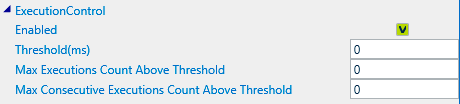
The Execution Control module is a critical safety system designed specifically for latency arbitrage algorithms.
Its main goal is to monitor the execution speed of every order, detect when the broker starts delaying or filtering trades, and automatically stop or limit activity before the account gets flagged or banned.
When brokers enable anti-arbitrage plugins or slow down execution on their side, this module helps protect your account by temporarily blocking new trades once the latency exceeds the safe threshold.
⚙️ Settings Overview
| Setting | Type | Default | Description |
|---|---|---|---|
| Enabled | boolean | true | Activates the latency control system. |
| Threshold (ms) | integer | 100 | Maximum safe execution time per order (milliseconds). |
| MaxExecutionCountAboveThreshold | integer | 10 | Total number of slow trades allowed during one session. |
| MaxConsecutiveExecutionsCountAboveThreshold | integer | 3 | Maximum number of consecutive slow executions tolerated before trading halts. |
⚙️ 1. Enabled
What it does
Turns the entire Execution Control protection system on or off.
When Enabled = true, every order execution time is analyzed in real time.
When false, latency monitoring is disabled (not recommended for arbitrage trading).
Recommendation
✅ Always keep Enabled = true for all latency arbitrage setups.
Disable only during initial tests or debugging without live orders.
⚙️ 2. Threshold (ms)
Description
Defines the maximum safe execution time in milliseconds — the time difference between order send and confirmation:
If execution time exceeds this threshold, it indicates that:
-
the broker’s side may be delaying or filtering orders;
-
a plugin (virtual dealer, A/B plugin, or bridge delay filter) might be active;
-
or your VPS connection has degraded.
Such conditions are dangerous for latency arbitrage and must trigger protection.
Always select the threshold slightly above your average ping + broker processing time.
The lower the latency — the higher your protection efficiency.
⚙️ 3. MaxExecutionCountAboveThreshold
What it does
Specifies how many slow executions (above threshold) are allowed during a session before the system intervenes.
When this limit is exceeded:
-
the algorithm temporarily stops opening new trades,
-
logs a warning in the console,
-
and prevents further exposure to broker-side manipulation.
Example
→ After 10 orders slower than 100 ms, the algorithm pauses trading to prevent broker detection.
Recommendations for Latency Arbitrage
| Trading Setup | Recommended Value |
|---|---|
| Ultra-fast (FIX / PrimeXM) | 5–8 |
| Standard VPS (MT5 / cTrader) | 10–12 |
| Remote / Backup VPS | 15–20 |
Fewer allowed slow executions = higher protection, but slightly less uptime.
⚙️ 4. MaxConsecutiveExecutionsCountAboveThreshold
What it does
Defines how many slow executions in a row are tolerated before the control logic triggers immediately.
In latency arbitrage, multiple consecutive slow trades often mean the broker activated a delay plugin or switched your account to a manual “B-book” queue.
This setting instantly detects and stops trading before the broker accumulates evidence of arbitrage behavior.
Example
→ After 3 consecutive delayed executions, trading halts and protection activates.
Recommended Values
| Environment | Recommended Value |
|---|---|
| HFT / Arbitrage (Ultra-fast FIX) | 2 |
| Low-latency MT5 / cTrader setup | 3 |
| Standard VPS / Cloud server | 4–5 |
Lower value = faster reaction to broker-side slowdowns.
⚙️ 5. How It Works Step-by-Step
-
Execution Control enabled.
Every order’s latency is measured in real time. -
Execution time calculation.
The system measures:ExecTime (ms) = t_fill - t_send. -
Threshold comparison.
If ExecTime > Threshold:-
SlowExecutionCountincreases. -
ConsecutiveSlowExecutionCountincreases.
-
-
Trigger conditions.
-
If total slow executions ≥
MaxExecutionCountAboveThreshold
→ state = ExecutionLimitReached (trading paused). -
If consecutive slow executions ≥
MaxConsecutiveExecutionsCountAboveThreshold
→ immediate trigger, trading paused instantly.
-
-
Protection reaction.
-
The algorithm stops sending new orders.
-
Sends internal alert (visible in console and logs).
-
Keeps monitoring until normal execution resumes.
-
-
Auto recovery.
-
Once a fast order is executed or after session restart, counters reset.
-
Trading resumes automatically in safe conditions.
-
🧠 How This Protects from Broker Ban
-
Early Detection: detects broker-side delays before they become systematic.
-
Automatic Response: pauses trading to avoid generating suspicious “latency arbitrage” patterns.
-
Safety Buffer: gives the algorithm time to cool down and avoid triggering the broker’s plugin logs.
-
Low-Risk Restart: resumes only after latency stabilizes back within the defined limits.
This mechanism mimics human-like reaction time and prevents overloading broker servers with high-frequency orders during plugin activation.
✅ Summary
| Setting | Purpose | Recommended Range |
|---|---|---|
| Enabled | Activates latency control protection | True |
| Threshold (ms) | Maximum safe order execution time | 50–120 ms |
| MaxExecutionCountAboveThreshold | Total slow trades before protection | 5–10 |
| MaxConsecutiveExecutionsCountAboveThreshold | Consecutive slow trades before trigger | 2–3 |
🧭 Final Notes for Latency Arbitrage Traders
-
Always use a co-located or low-latency VPS (ping < 2 ms to broker).
-
Keep Execution Control active to avoid broker-side plugin detection.
-
This module is your first line of defense against execution delays and hidden dealing desk filters.
-
Combine it with Session Control for complete risk and latency management.