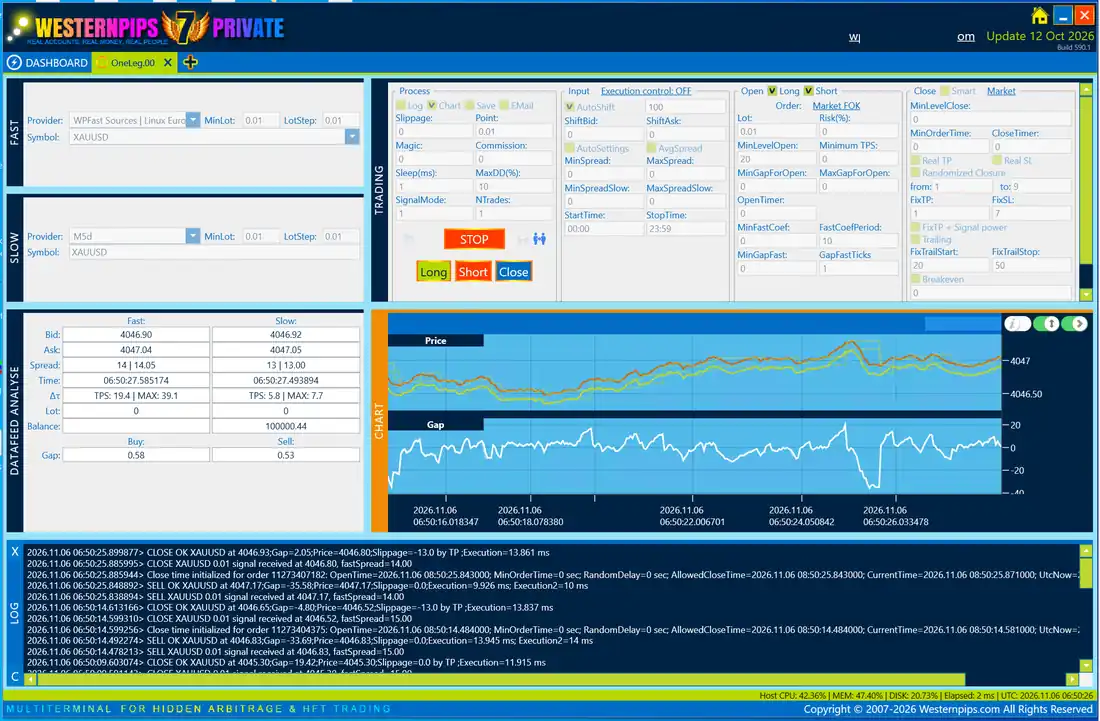
OneLeg is the classic latency arbitrage strategy in Westernpips Private 7: it compares quotes from a fast price provider with quotes from a slower broker and opens a trade on the slow broker when the price gap is large enough. Only one account trades (the slow broker); the fast provider is used purely as a price reference. Below you will find how the strategy works, a 5-step quick start and a full reference of every setting, grouped in the same order as the panels in the program window.
New to OneLeg? Start with these guides:
- Before you start: licence, fast feed, broker account, VPS and broker rules.
- First setup, step by step: observe the gap, set the entry and exit levels, test and trade small.
- Key parameters with an XAUUSD example: the 8 settings that matter most and one real trade explained step by step.
- Troubleshooting: no trades, failed orders, slippage, positions that do not close.
How the OneLeg strategy works
- Fast quote: the fast provider (a Westernpips Fast Source or any connector) shows a new price, for example EUR/USD Bid rises by 3 pips.
- Gap calculation: the program compares it with the slow broker’s quote using the selected SignalMode formula and applies shifts and spread filters.
- Signal: when the gap reaches MinLevelOpen and passes all entry filters, a Buy (or Sell) order is sent to the slow broker.
- Exit: the position is closed by the Close panel rules: reverse gap (MinLevelClose), virtual take profit and stop loss, trailing stop or timer.
Learn more about the concept in the glossary: latency arbitrage, fast price feed, slippage.
Quick start: set up OneLeg in 5 steps
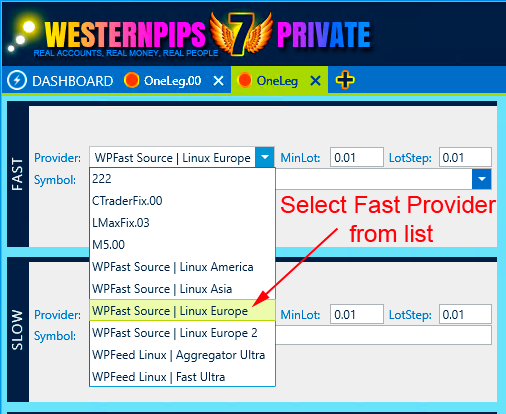
- Step 1. Fast provider: in the FAST panel choose the provider and enter the symbol. You can use the built-in Westernpips Fast Sources or add your own provider in Dashboard > Connections from the list of available connectors.
- Step 2. Slow provider: in the SLOW panel choose the broker account that will trade and enter its symbol. All orders are opened on this account. Set MinLot and LotStep for the instrument.
- Step 3. Settings: load a ready set file or choose the levels visually on the Gap chart at this broker. The BackTester does not support OneLeg; it works only for OneLegMulti, OneLegHidden and TwoLegStandard. The full procedure is in first setup, step by step.
- Step 4. Protection: set MaxDD, the stop loss rules in the Close panel and, if needed, the Execution Control dialog.
- Step 5. Start: press START. Trading begins only when Long and/or Short is ticked in the Open panel; without them the strategy shows quotes and the gap chart but does not trade.
Symbol names
Enter the symbol exactly as the provider uses it: as a name with a slash (XAU/USD), with a broker suffix (XAUUSD.fc) or as a numeric code (658421). Find the correct name in the broker’s terminal or FIX/API documentation, or ask the provider for its symbol list.
Datafeed Analyse, Chart and Log: reading the strategy window
The lower part of the window shows what the strategy sees in real time. Use it to check the feeds before allowing trading and to tune entry levels.
| Field | What it shows | How to use it |
|---|---|---|
| Bid / Ask | Current quotes of the fast and slow provider side by side. | Check that both feeds show the same symbol and similar prices. |
| Spread | Current spread and average spread for each provider, in points. | Compare with MinSpread / MaxSpread filters and AvgSpread. |
| Time | Time of the last tick from each provider, with microseconds. | If one time stops changing, that feed has frozen; trading pauses if a feed does not update for 200 seconds. |
| Δτ (TPS / MAX) | Ticks per second now and the maximum observed. | The fast provider should normally show a higher TPS than the slow broker. Use it to set Minimum TPS. |
| Lot / Balance | Open volume and account balance on each side. | Confirms that the slow account is connected and positions are tracked. |
| Gap (Buy / Sell) | Current gap for a Buy and a Sell signal, in points. | A trade opens when the gap reaches MinLevelOpen and passes the filters. |
| Chart: Price | Fast and slow quotes on one chart. | Shows how far and how often the slow broker lags behind. |
| Chart: Gap | Gap history over time. | Run without Long/Short and set MinLevelOpen and MinGapForOpen just below the main peaks. |
| Log | Every signal, order and close with price, gap, slippage and execution time in ms. | Check slippage and execution time per trade and the reason for each close (TP, SL, timer). See how to read the log. |
How to read the OneLeg log: signals, fills, slippage and execution time
The log at the bottom of the strategy window records every step of every trade: the signal, the order sent to the slow broker, the fill, the close timer and the exit. The newest line is at the top, so read a trade from the bottom up. Time stamps at the start of each line are UTC time of your computer, with microseconds.

One full trade from the screenshot above, in the order the lines were written:
BUY XAUUSD 0.01 signal received at 4048.37, fastSpread=15.00: the gap reached the entry level and passed all filters. The strategy asks for 0.01 lot at 4048.37; the fast provider spread at that moment is 15 points.BUY OK XAUUSD at 4048.37;Gap=33.12;Price=4048.37;Slippage=0.0;Execution=10.299 ms; Execution2=10 ms: the broker filled the order at 4048.37, with no slippage, in 10.3 ms.Close time initialized for order 11273441590: OpenTime=2026.11.06 08:52:56.679000; MinOrderTime=0 sec; RandomDelay=0 sec; AllowedCloseTime=2026.11.06 08:52:56.679000; ...: the earliest time this position may be closed is calculated.CLOSE XAUUSD 0.01 signal received at 4048.52, fastSpread=15.00: an exit rule triggered; the strategy asks to close at 4048.52.CLOSE OK XAUUSD at 4048.52;Gap=4.95;Price=4048.52;Slippage=0.0 by TP ;Execution=9.932 ms: closed at 4048.52 by take profit in 9.9 ms. Result of this trade: +15 points (4048.37 to 4048.52).
Log line types
| Line | When it appears | What to check |
|---|---|---|
| BUY / SELL … signal received at …, fastSpread=… | The entry signal. The price is the requested price; for Limit and Stop orders it already includes the pending distance from the Order Type dialog. A signal email is sent at this moment if EMail is on. | How often signals appear and the fast spread at signal time. |
| Wait N ms | Only if OpenTimer is above 0: the delay before the order is sent. | Remember this wait is included in Execution2. |
| BUY OK / SELL OK | The broker confirmed the entry. | Fill price, Gap, Slippage, Execution, Execution2 (see the field table below). |
| BUY FAILED / SELL FAILED | The order was rejected; the line before it (in red) shows the broker or connector error. | Requotes, off quotes, wrong symbol name, trading disabled, not enough margin. |
| Close time initialized for order … | Once per position, as soon as the strategy sees it open. | OpenTime, MinOrderTime, RandomDelay and AllowedCloseTime: no exit is sent before AllowedCloseTime. CurrentTime and UtcNow at the end of the line show the slow connector time and your computer UTC time. |
| CLOSE … signal received at … | An exit rule triggered and the close request is sent. | Time between the entry and this line is the holding time. |
| CLOSE OK … by REASON | The broker confirmed the exit. | Close price, slippage on exit, execution time and the reason. |
| CLOSE FAILED | The close was rejected (error in the line before). The strategy keeps trying while the exit rule is still true. | Repeated close failures mean the position may stay open: check it in the terminal. |
Fields in BUY OK, SELL OK and CLOSE OK lines
| Field | Meaning |
|---|---|
| at | Actual fill price from the broker. |
| Gap | The gap between the fast and the slow quote, in points, at the moment of the signal. On entry it is at least your threshold: MinLevelOpen multiplied by the spread coefficient, plus the slow spread and Commission (33.12 in the example). On exit it is the gap left when the close signal fired. |
| Price | The price the strategy requested. |
| Slippage | Difference between requested price and fill, in points. Positive = better than requested, negative = worse. For a Buy entry, a fill 3 points higher than requested shows Slippage=-3.0. |
| Execution | Time reported by the connector for the order itself, from sending to confirmation, in ms with three decimals. This is the broker execution speed. |
| Execution2 | Entries only: full time from signal detection to the logged fill, in whole ms. It includes OpenTimer and internal processing, so it is always equal to or above Execution. |
| by TP / SL / Trail / GAP / TIMER / Slippage control | Exit reason: take profit, stop loss, trailing stop or breakeven (both show “by Trail”), gap closed below MinLevelClose, CloseTimer expired, or Smart Close closed immediately because entry slippage ate 80% or more of the gap. |
Broker time in the log
OpenTime and AllowedCloseTime come from the broker server, while the time stamp at the start of each line is your computer UTC time. In the screenshot the trade opened at 06:52:56 UTC but OpenTime shows 08:52:56: this broker server runs at UTC+2. A difference of whole hours is normal. If the difference is not a whole number of hours, or grows during the day, the clock of your VPS or of the broker is drifting; resync Windows time, because MinOrderTime and CloseTimer are counted from broker time.
Tips: what the log tells you about a broker
- Execution time. Stable 5 to 15 ms fills, like 9.9 to 10.3 ms in the example, are a good result from a VPS near the broker server. Single spikes, like the 33.918 ms close in the screenshot, are normal; if most fills are slow, move the VPS closer to the broker or use the Execution Control dialog to pause trading during slow periods.
- Slippage pattern. Slippage of 0.0 on both entry and exit, as in the example, means the broker fills at the requested price. If entries constantly show negative slippage while exits show zero or positive, the broker applies asymmetric slippage to profitable orders. Compare the average entry slippage with the average Gap: if slippage takes a large part of the gap, raise MinLevelOpen or turn on Smart Close.
- Gap at entry. Gap values far above the threshold mean you could raise MinLevelOpen and still catch the same moves; values always just at the threshold mean the level is near the limit of what the feed gives.
- Holding time. In the screenshot, positions closed in about 50 ms, the same second they opened. Very short holding times are what a broker’s risk system notices first; if the broker objects, use MinOrderTime or Randomized Closure and check AllowedCloseTime in the log.
- Failed orders. Several FAILED lines in a row usually mean requotes or rejections (see requote) or a wrong symbol name; read the red error line above each FAILED line.
- Exit reasons. Count how many trades close by TP, SL, GAP and TIMER. Many SL or TIMER exits mean the gap often does not close: check the gap chart before changing TP and SL.
- Keeping the log. Use the C button on the left of the log to copy it to the clipboard and the X button to clear it. The Log checkbox in the Process panel additionally saves gap (db_) and quote (qu_) files in
C:\Program Files\Westernpips Private 7\.logs\<strategy name>for analysis in Excel. The Save checkbox records every tick toC:\Program Files\Westernpips Private 7\.data\<strategy name>as a complete record of the session.
Strategy toolbar
| Button | Action |
|---|---|
 |
Load set: load strategy settings from a .preset file. |
 |
Save set: save current settings to a .preset file. |
 |
Clone tab: create a new strategy tab with the same settings. |
| START / STOP | Start or stop the strategy. New settings apply only after Stop and Start. |
 |
Long / Short / Close: open a position manually or close open positions. |
OneLeg settings reference
Settings are listed in the same order as in the TRADING panel: Process, Input, Open and Close. “Default” is the value in a new OneLeg tab. “pt” means points, defined by the Point setting. When AutoSettings is on, values marked * are multiplied by the slow broker’s spread. Descriptions match Private 7 build 590.1.
Process panel: logging, symbol and general settings
| Parameter | What it does | Unit | Default |
|---|---|---|---|
| Log | Writes two CSV files to the C:\Program Files\Westernpips Private 7\.logs\<strategy name> folder: db_*.log with gaps, levels, spread and TPS, and qu_*.log with every quote of both providers. The on-screen log is always shown. |
on/off | off |
| Chart | Draws the Price and Gap charts in the strategy window. | on/off | off |
| Save | Saves every tick (fast and slow Bid/Ask, Buy and Sell gap, time) to a .1leg file in the C:\Program Files\Westernpips Private 7\.data\<strategy name> folder. The Analyzer in the current build does not open .1leg files; the file format is described in the XAUUSD example. |
on/off | off |
| Sends an email for every Buy or Sell signal, using the SMTP settings in the program options. | on/off | off | |
| Slippage | Maximum price deviation sent with each open and close order. Used by brokers with instant execution. See slippage. | pt | 0 |
| Point | Price step of the symbol. Examples: EURUSD 1.12385 → 0.00001; USDJPY 117.256 → 0.001; XAUUSD 4046.90 → 0.01; GER30 11337.25 → 0.01. All “pt” settings depend on it. | price | 0.00001 |
| Magic | Order identifier. The strategy manages only orders with this Magic on the slow symbol. If not 0, it is visible to the broker; with 0, orders look like manual trades. | number | 0 |
| Commission | Your commission in points. Added to the MinLevelOpen threshold, to FixTP and to FixTrailStart. | pt | 0 |
| Sleep (ms) | Pause between strategy cycles. Lower values react faster but load the CPU more. | ms | 1 |
| MaxDD (%) | Equity protection, counted from the highest equity of the slow account since start: stop level = peak equity × (1 − MaxDD/100). Below this level the strategy stops opening new trades (“Equity drawdown reached. Trading stopped.” in the log). Open positions are still closed by the Close rules. 0 = off. | % | 10 |
| SignalMode | Gap formula. 0: Buy and Sell gap = FastBid − SlowBid. 1: Buy gap = FastBid − SlowAsk, Sell gap = FastAsk − SlowBid, so the gap is measured to the price you can actually trade at. | 0 / 1 | 1 |
| NTrades | Number of orders sent in parallel on one signal. All of them are closed together. Useful when the broker limits the maximum lot. | orders | 1 |
Input panel: price alignment, spread filters and trading hours
| Parameter | What it does | Unit | Default |
|---|---|---|---|
| Execution control | Link in the panel header (shows ON/OFF) that opens the Execution Control dialog: stops new trades when orders execute too slowly. | dialog | OFF |
| AutoShift | Removes a constant price offset between providers. The gap becomes the current difference minus its moving average over the number of ticks in the field next to it. When AutoShift is on, ShiftBid and ShiftAsk are ignored. | on/off, ticks | on, 100 |
| ShiftBid | Manual shift added to the fast Bid. Works only when AutoShift is off. | pt | 0 |
| ShiftAsk | Manual shift added to the fast Ask. Works only when AutoShift is off. | pt | 0 |
| AutoSettings | Multiplies MinLevelOpen, MinLevelClose, FixTP, FixSL, FixTrailStart, FixTrailStop and Breakeven by the slow broker’s spread in points (minimum 1). Example: spread 13 pt and MinLevelOpen 2 → 26 pt. | on/off | off |
| AvgSpread | Uses the slow broker’s spread averaged over the AutoShift tick period instead of the current spread in all calculations. Recommended for floating spreads. | on/off | on |
| MinSpread | Minimum spread on the fast provider. Below it, no signals are taken. | pt | 0 |
| MaxSpread | Maximum spread on the fast provider. 0 = no limit. | pt | 0 |
| MinSpreadSlow | Minimum spread on the slow broker. | pt | 0 |
| MaxSpreadSlow | Maximum spread on the slow broker. 0 = no limit. | pt | 0 |
| StartTime / StopTime | Daily window for automatic opening, in UTC. A window across midnight (e.g. 22:00–02:00) is supported. Closing works at any time. | hh:mm UTC | 00:00 / 23:59 |
Important: the four spread filters block not only new signals but also all closing rules, including FixSL. If a spread spike lasts, an open position waits. Use Real SL if you need a stop loss at the broker.
Execution Control dialog
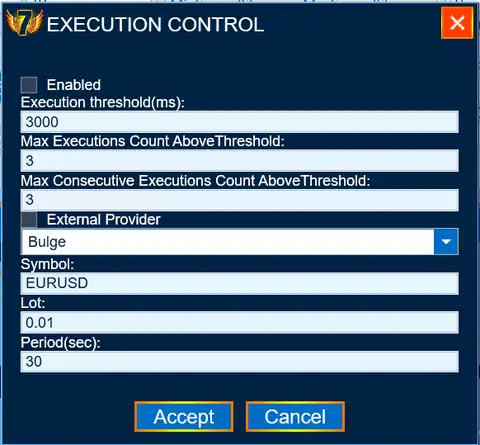
Opens from the Execution control link in the Input panel. It only blocks new trades; open positions are still managed and closed.
| Setting | What it does | Unit | Default |
|---|---|---|---|
| Enabled | Turns execution control on. Required for both modes below. | on/off | off |
| Execution threshold (ms) | Execution time at or above which an order counts as slow. | ms | 3000 |
| Max Executions Count AboveThreshold | Own-trades mode: total number of slow executions (opens and closes) after which new trades are blocked. | orders | 3 |
| Max Consecutive Executions Count AboveThreshold | Own-trades mode: number of slow executions in a row after which new trades are blocked. A fast execution resets this counter (but not the total). | orders | 3 |
| External Provider | External mode: instead of counting the strategy’s own trades, the program checks another account. Every Period seconds it opens a real Buy market order on this account and closes it immediately, then compares the slower of the two execution times with the threshold. Slow → new trades blocked; fast again → trading resumes automatically. In this mode the two count settings above are not used. Use an account where test trades are acceptable and count their spread and commission as a cost. | on/off + provider | off |
| Symbol / Lot | Symbol and lot of the test trades on the external provider. Use the minimum lot. | symbol / lots | EURUSD / 0.01 |
| Period (sec) | Interval between test trades. | s | 30 |
In own-trades mode the block stays until the strategy is restarted (Stop/Start). In external mode it is lifted automatically when execution becomes fast again.
Open panel: direction, lot size and entry filters
| Parameter | What it does | Unit | Default |
|---|---|---|---|
| Long / Short | Allows automatic Buy and/or Sell trades. With neither ticked, the strategy shows quotes and the gap but does not trade. The manual Long/Short buttons work regardless. | on/off | off / off |
| Order | Link (shows the current type, e.g. “Market FOK”) that opens the Order Type dialog for opening orders. | dialog | Market FOK |
| Lot | Fixed lot for trades on the slow broker. | lots | 0.01 |
| Risk (%) | If above 0, replaces Lot: lot = slow account equity × Risk% / 100 / 1000, rounded down to LotStep and not less than MinLot (from the SLOW panel). Example: equity 10,000 and Risk 10% → 1.00 lot. | % | 0 |
| MinLevelOpen | Main entry threshold. A trade opens when the gap reaches MinLevelOpen* + slow spread + Commission. Example: MinLevelOpen 20 and slow spread 13 → a Sell opens at a gap of about −33 pt. | pt* | 25 |
| Minimum TPS | Minimum ticks per second on the fast provider required to open. 0 = off. | ticks/s | 0 |
| MinGapForOpen | Additional minimum gap (absolute value) to open. 0 = off. | pt | 0 |
| MaxGapForOpen | Maximum gap to open; larger gaps are treated as bad data and skipped. 0 = off. | pt | 0 |
| OpenTimer | Delay between the signal and sending the order. | ms | 0 |
| MinFastCoef | Ratio of price movement on the fast provider to movement on the slow broker (sum of Bid and Ask changes, averaged over FastCoefPeriod ticks). A signal is taken only if the ratio ≥ MinFastCoef, which filters cases where the slow broker moves as fast as the feed. 0 = off. | ratio | 0 |
| FastCoefPeriod | Number of ticks for averaging MinFastCoef. Recommended 5–10. | ticks | 10 |
| MinGapFast | Minimum jump on the fast provider over the last GapFastTicks ticks: for Buy the fast Ask must rise by at least this value, for Sell the fast Bid must fall by it. Keeps sharp jumps, skips slow drifts. 0 = off. | pt | 0 |
| GapFastTicks | Number of ticks over which MinGapFast is measured. | ticks | 1 |
Built-in entry rules (no settings)
- One position at a time: a new signal is taken only when there is no open position with this Magic and symbol (NTrades orders count as one position).
- Pause between operations: at least 1.5 seconds after any open or close.
- Tick direction: for Buy the fast Bid must have risen on the current tick, for Sell the fast Ask must have fallen.
- Gap larger than spread: the gap must exceed the slow broker’s spread.
- Slow broker jump filter: no entry on a tick where the slow broker’s own price jumped by the threshold or more.
- Bad data filter: ticks where fast and slow prices differ more than 3 times are ignored, and trading pauses if a feed has not updated for 200 seconds.
Order Type dialog
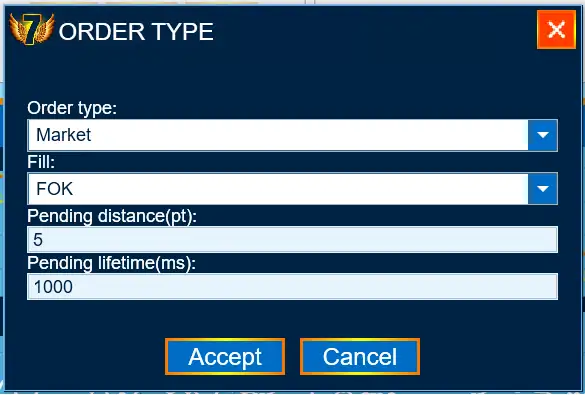
Opens from the Order link in the Open panel. The Market link in the Close panel header opens the same dialog for closing orders.
| Setting | What it does | Unit | Default |
|---|---|---|---|
| Order type | Market, Limit or Stop. For Limit the price is moved by Pending distance in your favour (Buy below Ask, Sell above Bid); for Stop, the other way. | list | Market |
| Fill | Filling mode: FOK, IOC, FILL or ANY. Use a mode your broker supports (see the order window in its terminal); a wrong choice gives “Unsupported filling mode”. Relevant for MT5, cTrader and FIX/API brokers. | list | FOK |
| Pending distance (pt) | Offset of Limit and Stop orders from the current price. | pt | 5 |
| Pending lifetime (ms) | How long a Limit or Stop order lives before it is cancelled. | ms | 1000 |
Close panel: exit rules
| Parameter | What it does | Unit | Default |
|---|---|---|---|
| Smart | Slippage-aware exit. If negative slippage at entry is 80% of the opening gap or more, the trade is closed at once (“by Slippage control”). Otherwise take profit = opening gap minus entry slippage, and stop loss = FixSL plus entry slippage. Replaces FixTP/FixSL levels. | on/off | off |
| Market (close order type) | Link that opens the Order Type dialog for closing orders. | dialog | Market |
| MinLevelClose | Closes when the gap reverses against the position by this value (“by GAP”). Works together with FixTP/FixSL. 0 = off. | pt* | 0 |
| MinOrderTime | Minimum holding time. No exit is executed earlier, including FixSL, CloseTimer and the manual Close button: a close signal that comes earlier waits until this time has passed. | s | 0 |
| CloseTimer | Closes the position after this many seconds (“by TIMER”). When CloseTimer is above 0, FixTP, FixSL, Trailing and Breakeven are switched off; only MinLevelClose and the timer close the trade. 0 = off. | s | 0 |
| Real TP / Real SL | Also sends take profit and/or stop loss to the broker as order levels (from FixTP/FixSL; Real SL follows trailing and breakeven). Virtual exits keep working. Useful as protection if the program or connection stops. | on/off | off / off |
| Randomized Closure (from / to) | Adds a random delay between “from” and “to” seconds on top of MinOrderTime before any close is executed, so holding times vary. It does not close the trade by itself. | s | off, 1 / 9 |
| FixTP | Virtual take profit: FixTP* + Commission (“by TP”). | pt* | 1 |
| FixSL | Virtual stop loss: FixSL* + slow spread (“by SL”). | pt* | 7 |
| FixTP + Signal power | Shown in the panel but not used by the OneLeg algorithm in build 590.1; changing it has no effect. | on/off | off |
| Trailing | Trailing stop (“by Trail”). | on/off | off |
| FixTrailStart | Profit at which trailing starts: FixTrailStart* + Commission. | pt* | 5 |
| FixTrailStop | Distance of the trailing stop from the current profit: FixTrailStop* + slow spread. The stop only moves in your favour. | pt* | 4 |
| Breakeven | When profit reaches the value in the field (×spread with AutoSettings), the stop is moved to the opening price. | on/off, pt* | off, 0 |
| MaxSpreadSlow (close) | If the slow broker’s spread is at or above this value, no exit rule is checked, including FixSL. 0 = off. | pt | 0 |
How key OneLeg settings work together
- Entry threshold: gap ≥ MinLevelOpen* + slow spread + Commission, plus all active filters and built-in rules. The slow spread is always added, so a broker with a wide spread needs a larger gap.
- Points or spread coefficient: with AutoSettings on, MinLevelOpen, MinLevelClose, FixTP, FixSL, FixTrailStart, FixTrailStop and Breakeven are multiples of the slow spread.
- Exit timing: every exit waits for MinOrderTime (plus the random delay, if enabled). CloseTimer above 0 turns off FixTP, FixSL, Trailing and Breakeven.
- Spread filters affect exits: Min/MaxSpread, Min/MaxSpreadSlow and MaxSpreadSlow (close) can delay any exit, including the stop loss.
- Protection blocks only entries: MaxDD and Execution Control stop new trades; open positions are still closed by the Close rules.
- Zero means off: for MinSpread-type filters, MinGapForOpen, MaxGapForOpen, MinFastCoef, MinGapFast, MinLevelClose and CloseTimer, 0 disables the setting.
- Restart to apply: after changing settings, press Stop and Start.
Related guides
- OneLeg key parameters with an XAUUSD example
- OneLeg first setup, step by step
- OneLeg troubleshooting
- OneLegHidden, One Leg Multi, Two Leg Lock: other strategies in Private 7.
- Glossary: brokers that allow arbitrage, low latency, forex VPS.
FAQ about the OneLeg strategy
Why does OneLeg not open trades?
Check that Long and/or Short is ticked, that the gap reaches MinLevelOpen plus the slow spread and Commission, and that no filter blocks the signal: spread limits, MinGapFast, MinFastCoef, Minimum TPS, trading hours (UTC), MaxDD and Execution Control. Remember that only one position is open at a time. Also check the log for “Unsupported filling mode” and set the correct Fill.
Which MinLevelOpen should I use?
There is no universal value: it depends on the broker, symbol and fast provider. OneLeg has no backtest, so choose it visually: watch the Gap chart without trading and set the level so that the threshold (MinLevelOpen + slow spread + Commission) sits just below the main peaks. See the first setup guide and the XAUUSD example.
What is the difference between OneLeg and Two Leg Lock?
OneLeg trades only on the slow broker. Two Leg Lock opens an opposite position on a second account to lock the trade.
Risk warning: Leveraged trading in Forex and CFDs can result in losses that exceed your initial expectations. Default values are a starting point, not recommended settings; test every set on your broker before trading, and remember that past results do not guarantee future results. This page is for educational purposes only and is not investment advice.