Westernpips DocsWesternpips Docs
  • Home
  • FAQ
  • Documentation
  • Forums
  • Home
  • FAQ
  • Documentation
  • Forums
  • Crypto Trader
    • Crypto Scanner - 1 Leg
    • Crypto Scanner - 2 Leg
    • Crypto Table
  • Getting Started
    • Web Portal my.westernpips.com
      • Web Portal Password Recovery
      • How to Buy Westernpips Products?
    • Products Installation
    • Prerequisites
      • .NET Desktop Runtime Installation
      • ASP.NET Core Runtime Installation
      • Microsoft Redistributable Installation
    • System Requirements
    • Installation Troubleshooting
  • Westernpips Golden Tools 3.5.7
    • Downloading
    • First Run
    • Installing a Westernpips Products Using WGT
    • Working with Installed Products
    • WGT Update
  • Westernpips Private 7
    • How to Check Which Quote Feed Is Faster
    • Installing and First Run
    • License Activation and Login
    • Change License IP, Add new IP
    • User Interface
      • Main Window
      • Dashboard
        • Options
        • Strategies
        • Connections
        • Schedulers
    • Trades Discovery, Check Orders Duration
    • WESTERNPIPS PRIVATE 7 ALGOS
      • OneLeg
        • OneLeg: Before You Start
        • OneLeg First Setup, Step by Step
        • OneLeg Key Parameters with an XAUUSD Example
        • OneLeg Troubleshooting
      • Two Leg Simple Hedge
      • Two Leg Lock
      • Multi Leg Spread
      • One Leg Multi
      • OneLegHidden
      • Two Leg Standard
      • Remote
      • Copier
      • Clicker in WesternPips Private 7
      • Session Control — Quick Guide
      • Exucution Control — Quick Guide
      • Slippage Control - Fast Guide
      • Add/Edit Provider Window Settings
      • BackTester
      • Setting up a connection with the Broker Terminal via the EA connector
    • Connectors
      • Common Settings and Operation
        • FIX Connection Settings
        • FIX Logs
      • Trading and Fast Sources Connectors
        • 24Exchange Connector
        • Active Financial API Connector
        • Binance Connector
        • Bitfinex Connector
        • CBOE FIX Connector
        • Celer FIX Connector
        • CFH FIX Connector
        • CTrader FIX Connector
        • DukasCopy FIX Connector
        • DxFeed FIX Connector
        • Euronext FIX Connector
        • Exante FIX Connector
        • FastMatch ITCH Connector
        • FlexTrade FIX Connector
        • Fortex FIX Connector
        • FXCM FIX Connector
        • FxPig FIX Connector
        • GCEX FIX Connector
        • Gold-i Matrix FIX Connector
        • Integral FIX Connector
        • LMAX API Connector
        • LMAX FIX Connector
        • MaxxTrader FIX Connector
        • MT EA Connector
        • M4 Server Connector
        • M5 Server Connector
        • OGM FIX Connector
        • OKX Connector
        • OneZero FIX Connector
        • PrimeXM FIX Connector
        • Remote Connector
        • Rithmic Connector
        • RoE FIX Connector
        • Saxo FIX Connector
        • SolidFX FIX Connector
        • Spotex FIX Connector
        • TraderMade FIX Connector
        • Universal Connector
        • Universal Fast Connector
        • XenFin FIX Connector
        • XTRD FIX Connector
  • Westernpips Webcliker
    • System Requirements
    • Installer
    • Agent
    • UI Settings
    • UI Logs
    • Start/Stop
    • Connections
    • Trade platforms
      • CMC Markets
      • M5 Web
      • M4 Web
      • TRADE NATION
      • Exness Web
      • Universal cliker
      • IG Trading Platform
      • MEX / MultiBank
      • ByBit
      • EXANTE
      • IQ Option
      • Plus500
      • Quotex
    • Risk Warning
  • Glossary
    • Latency Arbitrage
    • Fast Price Feed
    • Execution Latency
    • Slippage
    • FIX API
    • Requote
    • Forex Arbitrage
    • Toxic Flow
    • Last Look
    • B-Book
    • Forex VPS
    • Brokers That Allow Arbitrage
    • Low Latency

Add/Edit Provider Window Settings

240 views 1

Edit Provider – Configuration Guide

This window allows you to configure all parameters for your Fast Quotes Provider or Slow Broker Provider. Each setting defines how quotes are received, processed, and how trading operations are executed.
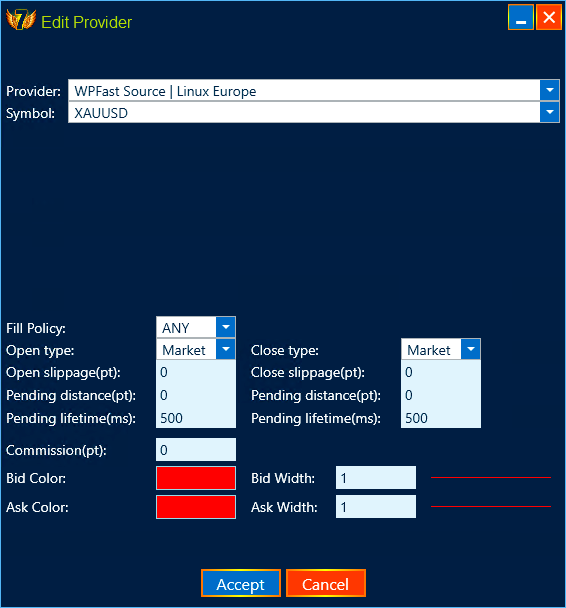
Add/Edit Provider Window Settings - editproviderwin


1. Provider

Select the data source or broker connection you want to use.
Examples:

  • WPFast Source | Linux Europe (recommended fast data source)

  • Your own FIX, API, or M4/M5 terminal connection


2. Symbol

Choose the instrument that will be traded (e.g. XAUUSD, EURUSD, GBPUSD, etc.).

You shold add full instrument name via prefix or suffix or nambers code.


3. Fill Policy

Defines how the order should be filled by the broker:

  • ANY – order can be partially filled if full volume is unavailable.

  • FILL_OR_KILL (FOK) – order must be filled immediately in full or canceled.

  • IOC — the order executes instantly at the available price and cancels any unfilled part.

  • FILL — the order waits until the full requested volume is filled.


4. Open Type

Specifies how new positions will be opened:

  • Market – open instantly at the current market price.

  • Limit– place a limit or stop order at a specific price level.

Parameters:

  • Open Slippage (pt): maximum allowed slippage in points when opening a trade.

  • Pending Distance (pt): distance in points from current price for placing pending orders.

  • Pending Lifetime (ms): how long a pending order remains active before expiring.


5. Close Type

Defines how existing trades will be closed:

  • Market – close immediately at the current market price.

  • Limit – use a pending order to close at a target price.

Parameters:

  • Close Slippage (pt): maximum allowed slippage in points when closing a trade.

  • Pending Distance (pt): distance in points from the market price for the pending close order.

  • Pending Lifetime (ms): time in milliseconds before a pending close order expires.


6. Commission (pt)

Specify the broker commission in points (if applicable).
This value is used for accurate profit and spread calculations.


7. Bid/Ask Colors

Visual customization of quote display:

  • Bid Color: color of the bid line on the chart (default: red).

  • Ask Color: color of the ask line on the chart (default: red).


8. Bid/Ask Width

Defines the thickness (in pixels) of the Bid and Ask lines displayed on the chart.


9. Buttons

  • Accept – save all settings and apply the provider configuration.

  • Cancel – close the window without saving changes.


Was this helpful?

1 Yes  No
Related Articles
  • Low Latency
  • Brokers That Allow Arbitrage
  • Forex VPS
  • B-Book
  • Last Look
  • Toxic Flow
Previously
Slippage Control – Fast Guide
Up Next
BackTester
  • Copyright 2026 Westernpips.com. All Rights Reserved.

LiveInternet counter