The slow provider is your broker account: this is where the strategy actually opens and closes trades. In its Edit Provider window you choose the account and the symbol, and decide how orders are sent. If you are just starting, change only four things (account, symbol, Magic and commission) and leave everything else at the default Market settings.
Edit Provider guides: Overview · Fast and Signal providers · Slow trading account · Backtest provider
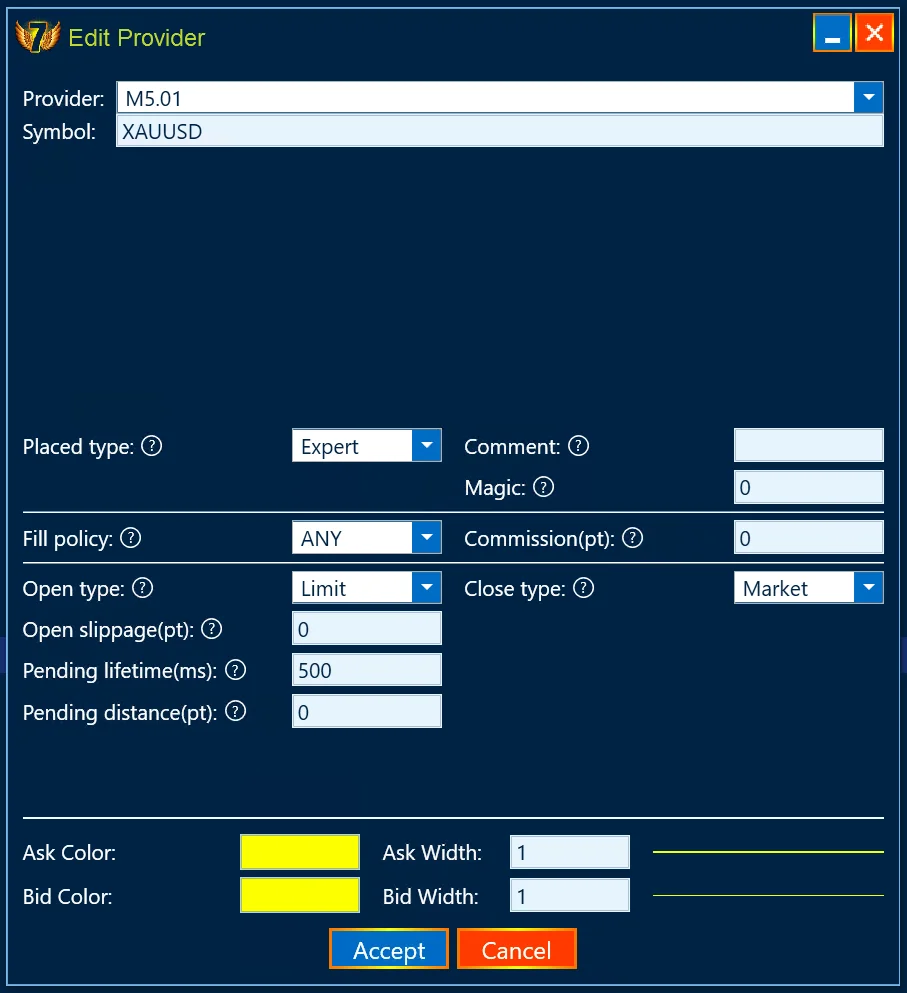
Quick setup in 6 steps
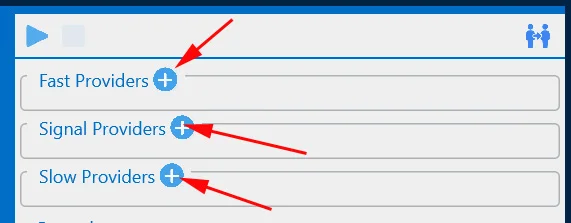
- Press + next to Slow Providers in the strategy tab.
- Provider: choose your broker account. If it is not in the list, add it first in Dashboard → Connections.
- Symbol: type the name exactly as in your broker’s terminal, including any ending such as
.eor-ECN(for example XAUUSD.e). - Placed type and Magic (MT4/MT5 only): choose Expert and enter any number you have not used in another tab, for example 1001.
- Commission(pt): enter your broker’s commission for a full trade (open + close) in points, so the profit shown in the program matches your account.
- Leave Open type and Close type on Market and press Accept.
That is enough to start. The rest of this page explains each field in case you want to change it later.
Words used on this page
- Point: the smallest price step of the symbol. For XAUUSD with two decimals, 1 point = 0.01, so 10 points = 0.10.
- Bid and Ask: Bid is the price you can sell at, Ask is the price you can buy at.
- Market order: buy or sell right now at the current price.
- Pending order: an order that waits for a set price: Limit, Stop, TakeProfit or StopLoss. It may not be filled at all.
- Magic number: a label number attached to the program’s orders so it can tell them apart from other orders on the same account.
Account and symbol
Provider is the broker account the strategy trades on. Symbol is the instrument. If the symbol name is wrong, the strategy log shows an error like “XAUUSD3 not exist”: copy the exact name from the Market Watch window of your terminal. Most strategies use one trading account; OneLegHidden can use two.
Placed type, Comment and Magic: labelling your orders (MT4/MT5 only)
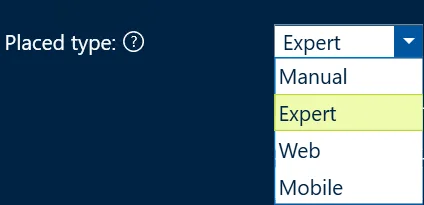
- Placed type: how the broker sees where the order came from: Manual (typed in the terminal), Expert (an Expert Advisor), Web or Mobile. Default: Manual. Choose Expert if you want to use Comment and Magic.
- Comment: a short text attached to each order, for example the strategy name. The broker may shorten it.
- Magic: a label number. When it is not 0, this tab manages only orders with this number on the symbol and ignores all others.
Why it matters: if you trade the same symbol on one account by hand or with two strategy tabs, give each tab its own Magic. Otherwise one tab may treat another tab’s positions as its own.
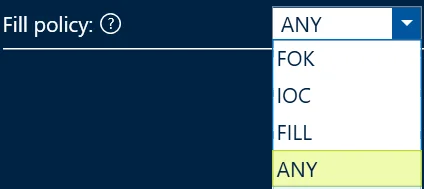
Fill policy: what happens when the broker cannot fill the whole lot
| Option | In simple words | When to choose |
|---|---|---|
| FOK (default) | Fill the whole lot at once or nothing. | Most ECN accounts. |
| IOC | Fill as much as is available now, cancel the rest. | If your broker requires it. |
| FILL | A broker-specific mode; its exact behaviour depends on the connector. | Only if your broker’s symbol specification asks for it. |
| ANY | Let the connector pick a mode the broker accepts. | If you are not sure. |
If the log shows “Unsupported filling mode” or “Invalid order filling type”, the broker does not accept the chosen option for this symbol: switch to ANY or check the symbol specification in the terminal.
Commission(pt): used only to calculate profit inside the program. It does not change what the broker charges you.
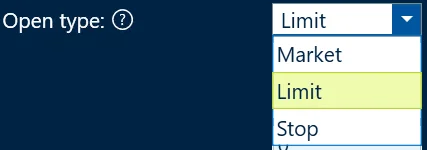
Open type: how a trade is opened
| Option | What happens |
|---|---|
| Market (default, recommended) | The trade opens immediately at the current price. |
| Limit | A pending order at a better price: a Buy below the current Ask, a Sell above the Bid. It opens only if the price comes back to it. |
| Stop | A pending order in the direction of the move: a Buy above the Ask, a Sell below the Bid. |
With Limit or Stop, extra fields appear:
- Pending distance(pt): how many points away from the current price the order is placed.
- Pending lifetime(ms): how long the order waits to be filled; after that it is cancelled and no trade is opened. Default: 500 ms (half a second).
- Open slippage(pt): the largest price difference you accept, sent to the broker as a request. It is not a guarantee: whether it is respected depends on the broker and connector.
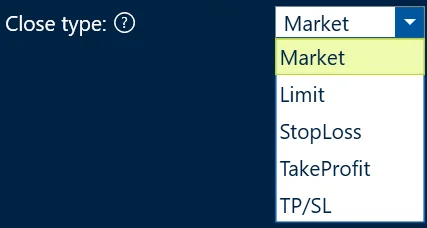
Close type: how a trade is closed
| Option | What happens |
|---|---|
| Market (default, recommended) | The position is closed immediately at the current price. |
| Limit | A closing order at a better price. On hedging accounts the connector may close at market instead. |
| TakeProfit | A take-profit level is set on the profit side of the price. |
| StopLoss | A stop-loss level is set on the loss side of the price. |
| TP/SL | The program chooses: TakeProfit if the fast price is in favour of the position, StopLoss if it is against it. |
Important: any close type except Market can leave the position open. If the closing order or level is not executed within Pending lifetime, it is removed and the position stays open until the next close signal. Start with Market and test other types on a demo account.
With a close type other than Market, extra fields appear:
- Pending distance(pt): how far from the current price the closing order or level is placed.
- Pending lifetime(ms): how long the closing order waits. Default: 500 ms.
- Close slippage(pt): the largest price difference you accept on the close (a request, not a guarantee).
- Distance mode (Limit and TakeProfit only): where the closing price comes from.
- Manual (default): current price plus Pending distance.
- Gap: current price plus the gap between the fast and the broker price at that moment.
- Fast price: exactly the fast provider’s price. If there is no fast price at that moment, the close is not sent and the log shows “Fast price close requires a valid fast quote”.
- Ignore signal wrong side (Limit, StopLoss, TakeProfit): when On (default), the program sends a close only if the fast price confirms the move in favour of the position; otherwise it skips this close signal and waits for the next one. The log then says “Signal direction does not match the direction of the open trade”. Market closes forced by the strategy are always sent.
Example: where a closing order is placed
Buy position on XAUUSD (1 point = 0.01), broker Bid 3585.00, Pending distance 10 points (the numbers are only an illustration):
- Limit or TakeProfit, Manual: 3585.00 + 0.10 = 3585.10.
- StopLoss: 3585.00 − 0.10 = 3584.90.
- Limit or TakeProfit, Gap, with a gap of +25 points: 3585.00 + 0.25 = 3585.25.
Some strategies, such as Two Leg Standard, work only with market orders; there Open type and Close type are locked to Market.
Colors on the chart
Bid Color, Ask Color, Bid Width and Ask Width only change how the broker’s price lines look on the chart. New trading accounts get yellow, then orange.
Common problems
| What you see | Why | What to do |
|---|---|---|
| “… not exist” for the symbol | The symbol name is different at your broker. | Copy the exact name from the terminal into Symbol. |
| “Unsupported filling mode” | The broker does not accept this Fill policy. | Choose ANY or the mode from the symbol specification. |
| The position did not close after a signal | A pending close type was not executed in time. | Increase Pending lifetime or set Close type to Market. |
| “Signal direction does not match…” | Ignore signal wrong side is On and the price moved against the position. | Normal behaviour. Turn it Off if every close signal should be sent. |
| “Fast price close requires a valid fast quote” | Distance mode is Fast price but there was no fast price. | Check the fast provider connection or switch to Manual. |
| No Placed type, Comment or Magic fields | The account is not MT4/MT5. | Normal: these fields exist only for MT4/MT5. |
| The tab closes positions you opened by hand | Magic is 0 or the same as on your other orders. | Set Placed type Expert and a unique Magic. |
FAQ
Which settings are safest for a beginner?
Open type Market, Close type Market, Fill policy FOK (or ANY if the broker rejects FOK), and a unique Magic. Change one setting at a time and check the result on a demo account.
Does Open slippage guarantee my price?
No. It is a request passed to the broker; some brokers and order types ignore it.
Why would I use a pending close at all?
With some brokers a Limit or TakeProfit close gives less slippage than a market close. The cost is that the close may not happen, so use it only after testing.
Related guides
- Edit Provider: fast and signal providers
- Edit Provider: backtest provider settings
- One Leg Multi and OneLeg
- Slippage and requotes
Risk warning. Trading Forex, CFDs and cryptocurrencies with leverage carries a high risk of losing money. Order types, fill policies and backtest results behave differently between brokers and connectors; test every setting on a demo account first. Read the full risk warning.