Two-leg WSS compares live bid / ask books across exchanges on the same market. Spot vs spot, or futures vs futures. The two books are never mixed.
The map is always the same: SELL the higher bid, BUY the cheaper ask. Spread is (sell bid - buy ask) / buy ask, shown as percent.
Important: This page is a scanner. It does not place orders. Red SELL and green BUY are the map of the two books, not an order ticket.
WPFeed is a quote source. Two-leg does not pair it as a tradable venue. Leave the WPFEED chip unchecked, or ignore Waiting rows that name it.
Live routes only belongs to 1-leg mode and is hidden here.
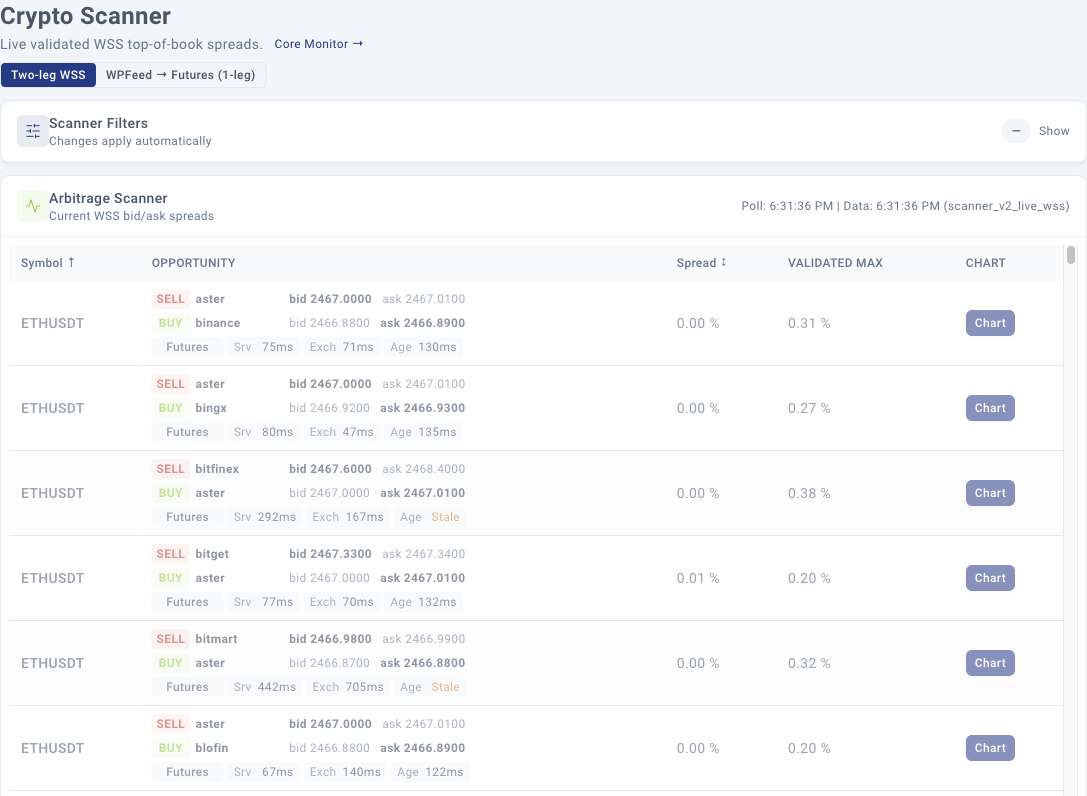
1. How to open 2-leg mode
- Open Crypto Scanner.
- Click Two-leg WSS. The tab turns dark blue when it is active.
- The table title becomes Arbitrage Scanner.
- Subtitle:
Current WSS bid/ask spreads.

The last selected tab is remembered in this browser.
2. Scanner Filters
Changes apply automatically. There is no Save button.
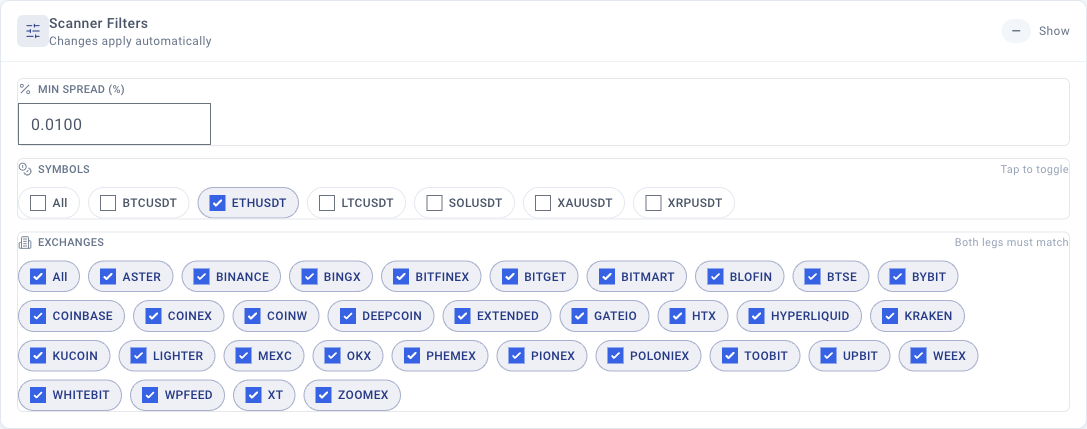
Min Spread (%)
Visible in this mode. Type a percent. Placeholder 0.20 means 0.20 %.
Rows below the threshold stay on screen. They go dim (muted). Use this when you only want to watch size that still pays after fees.
Min Spread is saved on this account together with Symbols.
Symbols
Hint: Tap to toggle.
Tap a chip to show or hide that pair. All selects every chip.
The list is the pairs enabled on this account, for example BTCUSDT, ETHUSDT, LTCUSDT, SOLUSDT, XAUUSDT, XRPUSDT.
Symbol chips are saved on this account.
Exchanges
Hint: Both legs must match.
A row is shown only when both the SELL venue and the BUY venue are checked.
Default is every scanner exchange. That is a full matrix. Narrow it when you need a readable desk.
Exchange chips are remembered in this browser. They are not saved on the server.
Live routes only
Hidden in Two-leg WSS. Do not look for it here.
3. Table overview
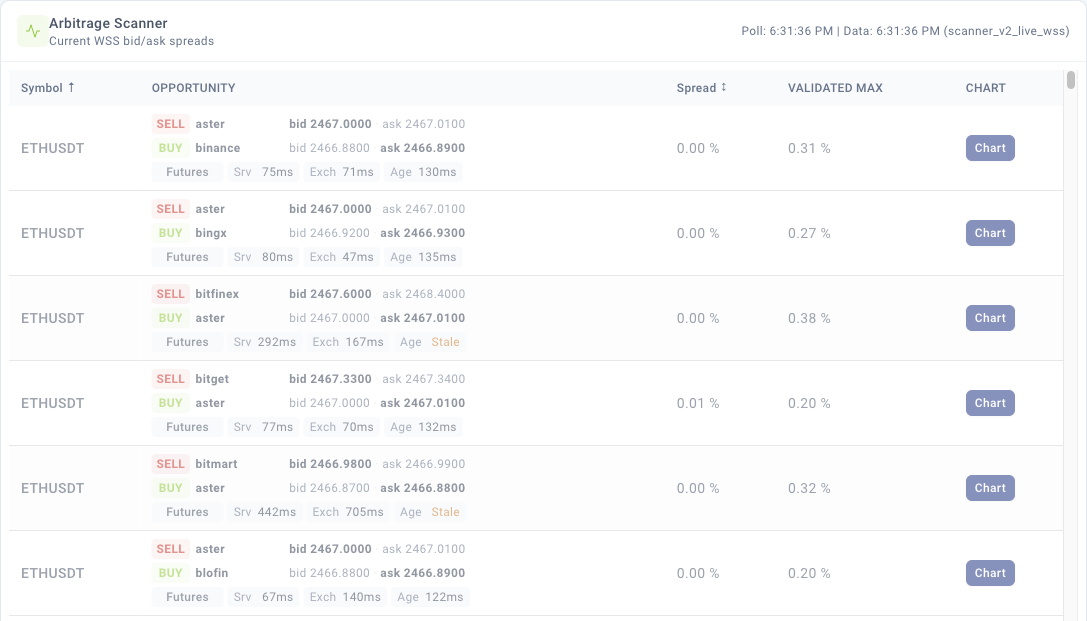
Columns: Symbol, Opportunity, Spread, Validated Max, Chart.
Click Symbol or Spread to sort. Default order is Symbol ascending.
The matrix keeps a placeholder for every selected exchange pair. Rows do not jump in and out when a quote blinks. Empty pairs stay as Waiting. Stale pairs stay dim.
4. Symbol column
The pair on this row.
Same pair can appear more than once: one row per exchange pair, and a separate row for spot vs futures when both markets exist.
5. Opportunity column
This is the map of the two books.
Top line – SELL
Red badge SELL. Then the sell venue and its bid / ask.
The bid is bold. That is the price you would sell.
Second line – BUY
Green badge BUY. Then the buy venue and its bid / ask.
The ask is bold. That is the price you would buy.
The scanner picks the better direction of the two venues. You do not choose SELL vs BUY by hand.
Badges under the books
| Badge | Meaning |
|---|---|
| Futures | Both legs are perps. |
| Spot | Both legs are spot. |
| Srv | Difference between the times when our server received both quotes, in ms. Dash if it cannot be calculated. |
| Exch | Difference of exchange timestamps, in ms. For reference. Dash if missing. |
| Age | Freshness of the older quote. Examples: 190ms, 2.1s. |
| Waiting | No quote for this pair yet. Placeholder row. |
| Stale | The pair had a quote. It is gone or too old. The row is kept so the matrix stays stable. |
If the two quotes arrive too far apart in time, the live pair is dropped. The row becomes Waiting or Stale.
6. Spread column
Current spread as percent, two decimals. Example: 0.01 %.
0.00 % – no edge, or no prices yet.
A row goes dim when:
- Age is Waiting or Stale
- Spread is zero or negative
- Spread is below Min Spread (%)
Dim is not hidden. You can still read the books.
7. Validated Max column
Best spread for this route today (Moscow time).
It does not go below the current live spread. If there was no peak yet, you see 0.00 %.
This is a scanner high-water mark. It is not a robot fill.
8. Chart column
Blue Chart – tick chart exists for both venues of this pair. Opens in a new tab.
Grey Chart – no chart for at least one venue.
9. Status line
Top right of the table card.
Examples:
Poll: 2:19:52 PM | Data: 2:19:52 PM (scanner_v2_live_wss)
Poll: 2:19:52 PM | No data (scanner_v2_live_wss)
Poll: 2:19:52 PM | No new data (scanner_v2_live_wss, last: 2:19:40 PM)
| Field | Meaning |
|---|---|
| Poll | Last page refresh time. |
| Data | Time of the snapshot on screen. |
| scanner_v2_live_wss | Live WebSocket top-of-book source. |
| No data | Nothing in the snapshot yet. |
| No new data | Poll ran. The snapshot did not move. |