Connections
The Connections page is used to add, store, edit, and delete M4 / M5 trading accounts. These accounts can then be selected in the Webclicker Panel as a Fast source or Slow source for quote streaming and gap calculation. The page is available from the Webclicker menu under Connections, and the Webclicker Panel also has an Add new button that opens this page.
1. What the Connections page is used for
The Connections page stores M4 and M5 account connection details:
Name — user-friendly account name.
Type — M4 or M5.
Login — trading account login.
Password — trading account password.
IP — broker server IP or host.
Broker — broker or server name.
Port — server port.
After the account is added successfully, it appears in one of two account tables:
M5 Accounts
M4 Accounts
Each table shows the account name, login, IP, broker, port, creation date, and action buttons.
2. How to add a new M4 / M5 account
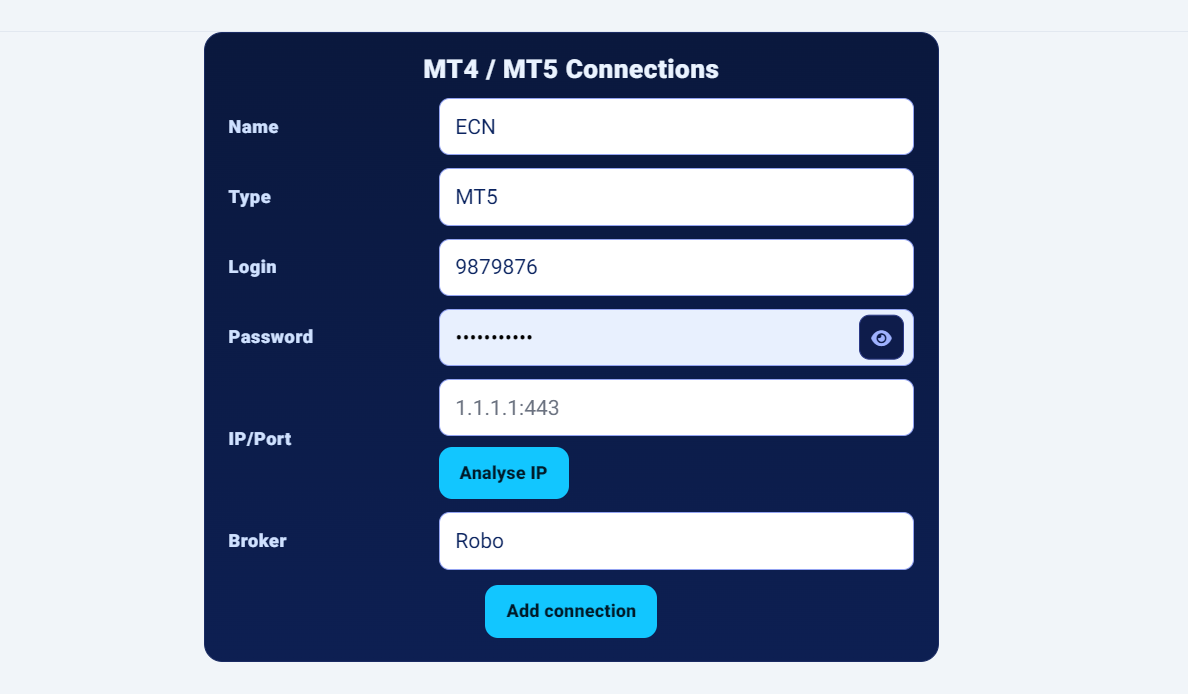
To add a new account:
1. Open Webclicker → Connections.
2. Fill in the Name field.
3. Select the account Type: `M5` or `M4`.
4. Enter the account Login.
5. Enter the account Password.
6. Enter the broker server IP or server host.
7. Enter the Broker name.
8. Enter the Port.
9. Click Add connection.
When the user clicks Add connection, account will be saved.
If the connection is successful, the account is saved and the user sees:
Account added successfully.
3. Duplicate account protection
The system does not allow adding two accounts with the same login for the same user. If an account with the same login already exists, the UI returns an error.
4. Analyse IP
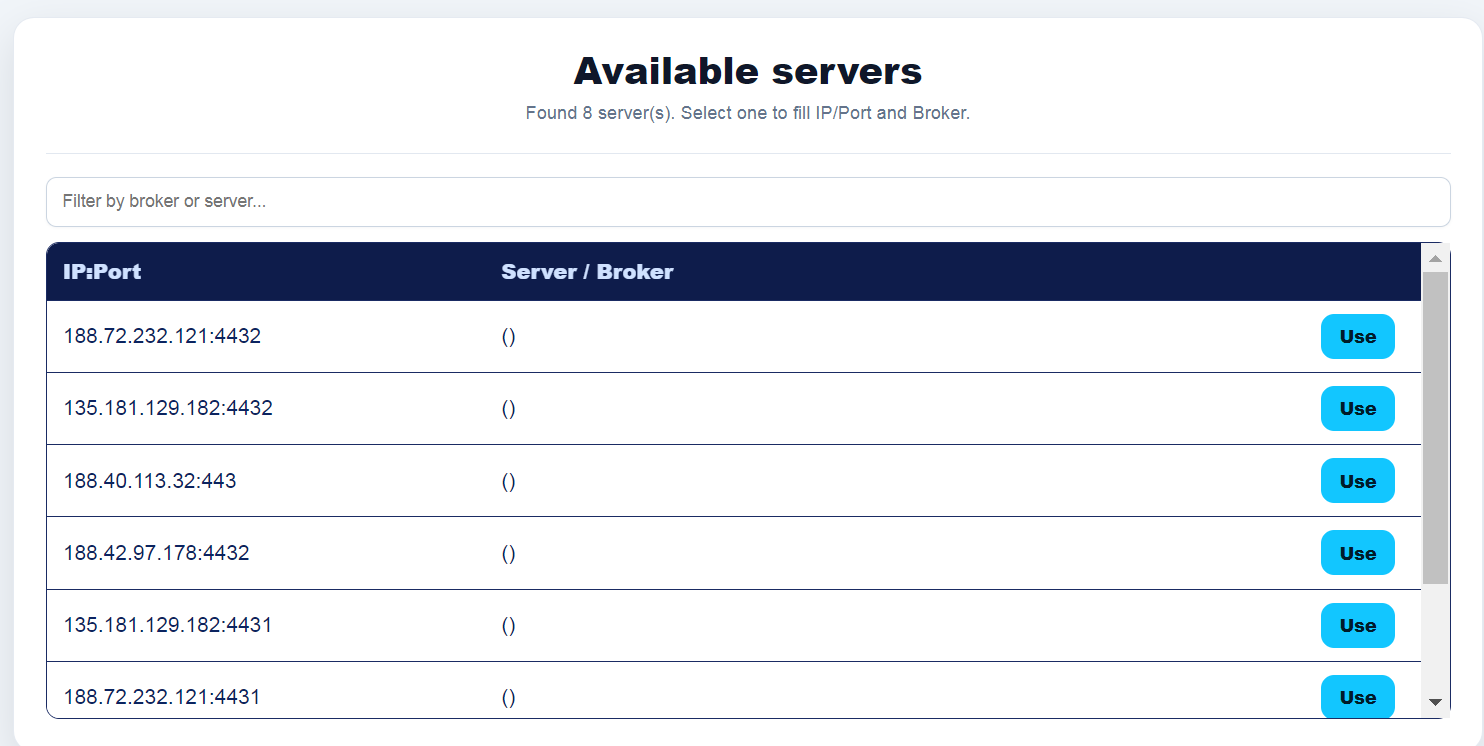
The Analyse IP button helps extract server information from broker server files.
To use it:
1. Select the account Type: `M4` or `M5`.
2. Click Analyse IP.
3. Choose the broker server file (.srv or .dat)
4. The system analyses the file and opens a popup with available servers.
5. Click Use next to the correct server.
6. The selected server data fills the IP, Port, and Broker fields in the main form.
SRV file is located in the root of the C:\Program Files (x86)\M 4\config folder.
DAT file C:\Users\Administrator\AppData\Roaming\MetaQuotes\Terminal\Your ID E3E3B02889D32F38295D39BF94B6AD4A\config servers.dat
For M4, the system expects server data from `.srv` files. For M5, it expects server data from `.dat` files. The UI parses the uploaded file and returns available server entries with address, company, and server name.
5. How to edit an account
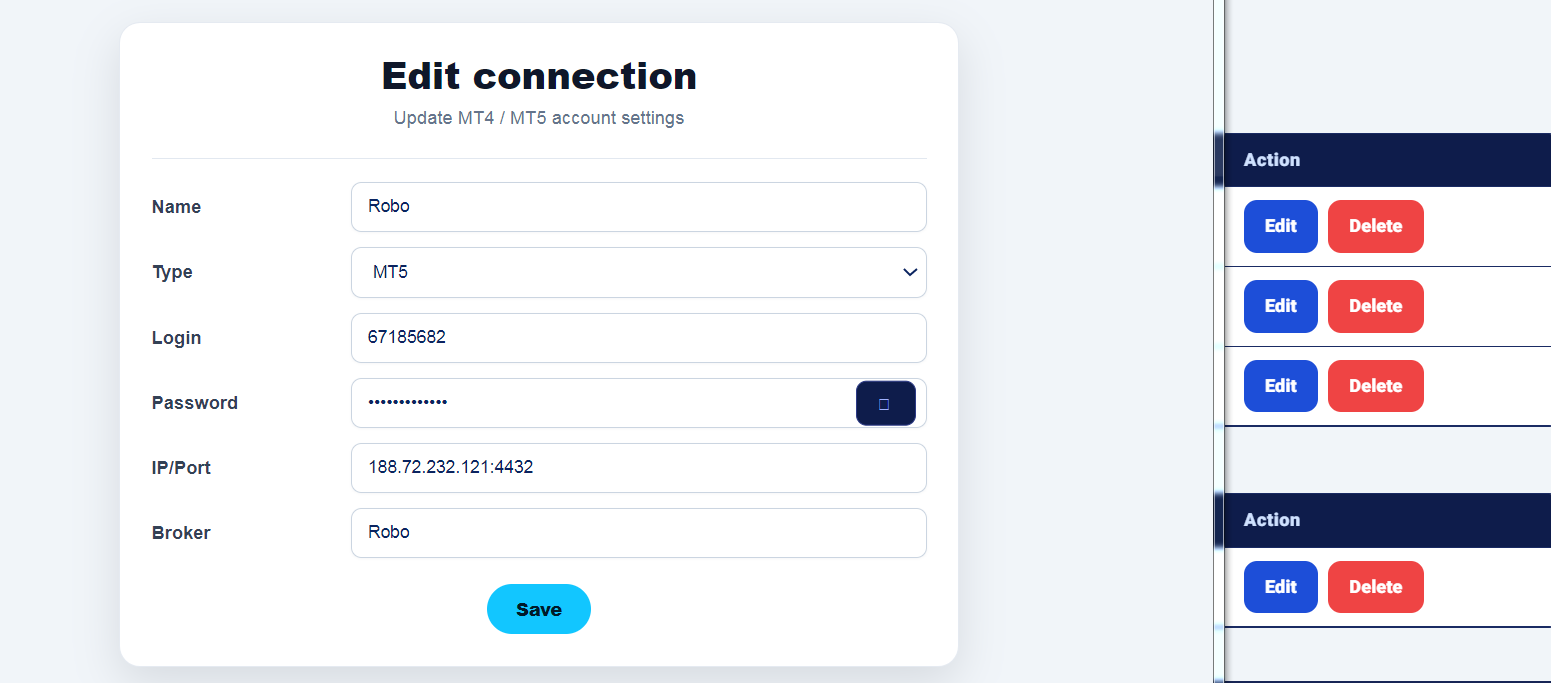
To edit an existing account:
1. Find the account in the M5 Accounts or M4 Accounts table.
2. Click Edit.
3. A separate edit window opens.
4. Change the required fields.
5. Click Save in the edit window.
If the update succeeds, the user sees:
Account updated successfully.
6. How to delete an account
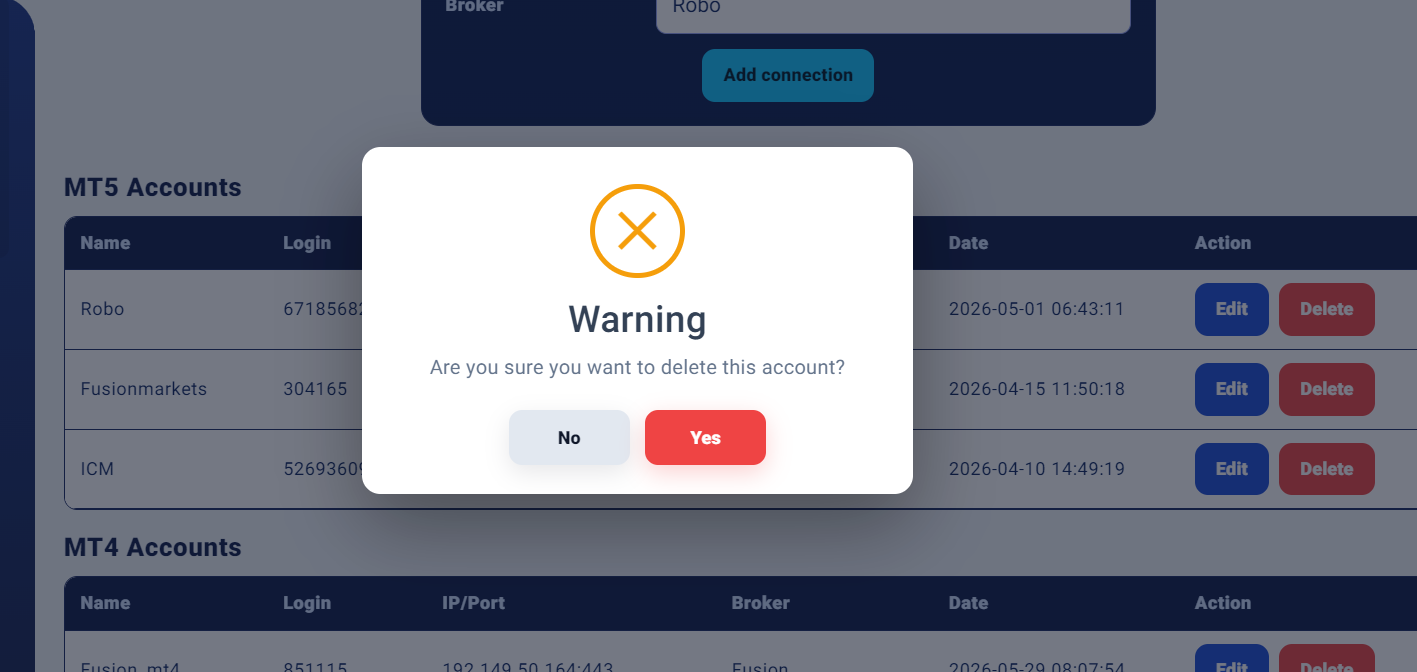
To delete an account:
1. Find the account in the M5 Accounts or M4 Accounts table.
2. Click Delete.
3. A confirmation modal appears.
4. Click Yes to confirm deletion.
5. The account is removed from the table.
After successful deletion, the user sees:
Account deleted successfully.
7. How saved accounts are used in Webclicker Panel
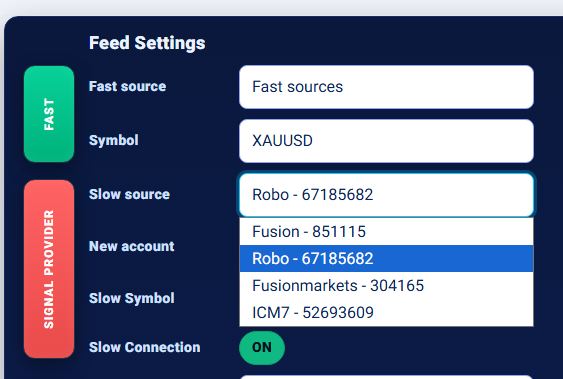
After an account is added, it can be used in Webclicker Panel as a quote source . In the panel, the account can appear in source selectors such as Fast source or Slow source. The UI uses the saved account data to build the runtime connection parameters: account type, login, password, IP, port, broker, and symbol.
8. Common issues
- Connection error please check login /pass /ip/port credentials.(The connection check failed. Check login, password, IP, and port)
- Account already exists.(An account with the same login is already saved. Edit the existing account instead of adding a duplicate)
- Analyse IP popup does not open.(The browser may be blocking popups. Allow popups for the site and try again)
- Wrong server selected(Run Analyse IP again and choose the correct broker server from the popup)