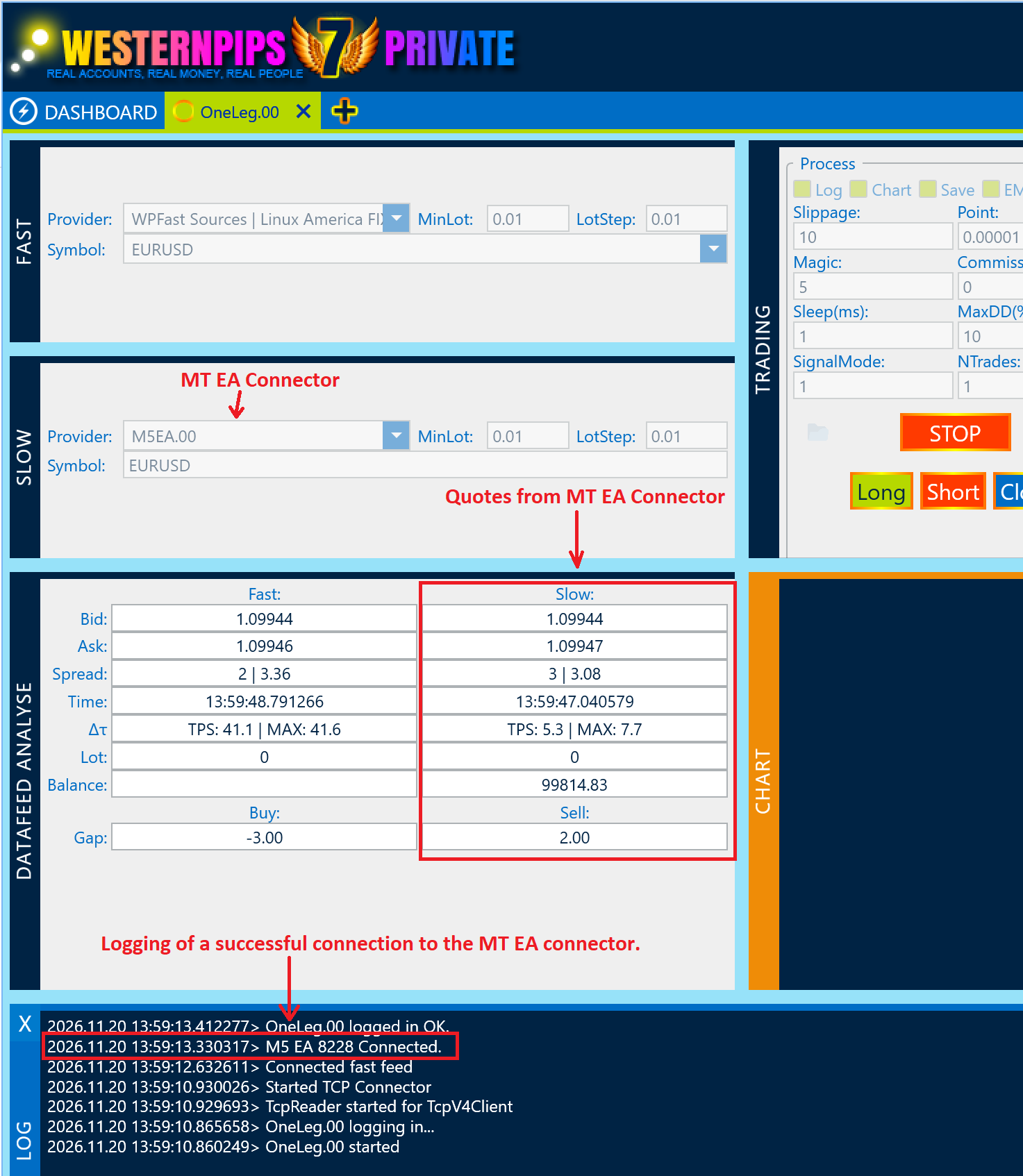
Setting up a connection with the your Broker Terminal via the EA connector
In our program, it is possible to establish a simple connection with a broker through a special adviser connector. This work option is simpler and more inexpensive and makes it possible to trade with Westernpips Private 7 for those who have not yet saved up to purchase a tariff plan where there is a direct TCP Connect to broker terminal servers.
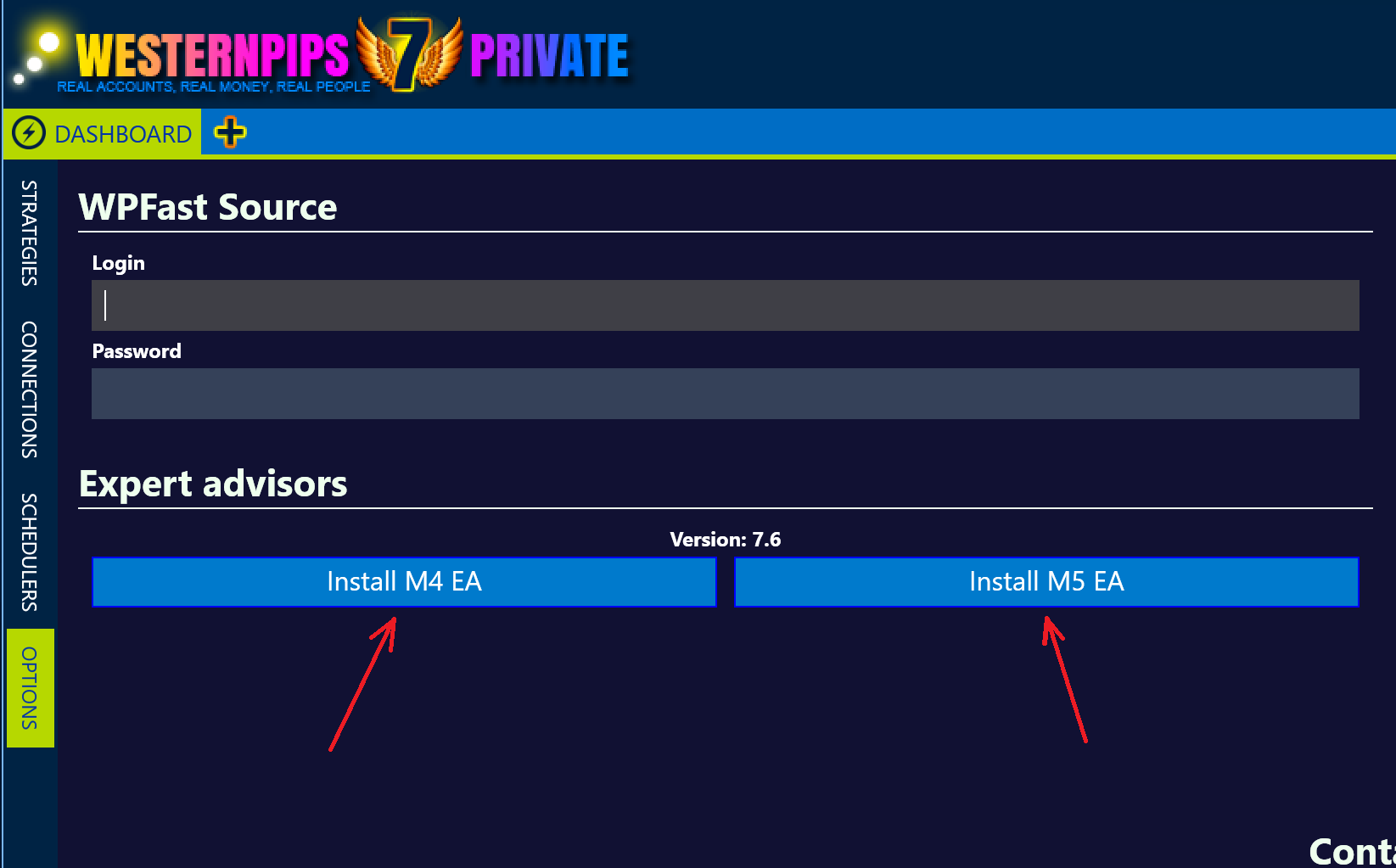
In order to install the Expert Advisor connector in the terminal, you need go to Dashboard>>>Options >>>click the “Install M4EA” or “Install M5 EA” button:
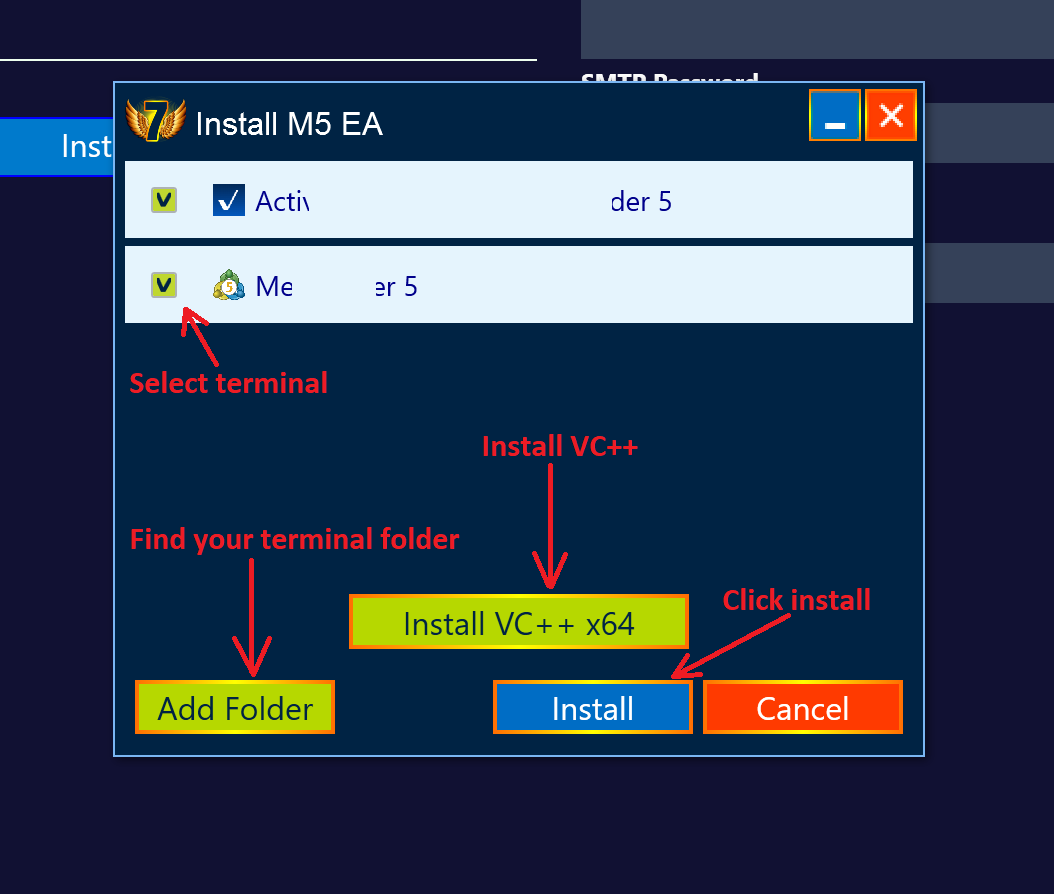
A window will open. If you see the “Install VC++” button, it means that this package is not installed in your system and you need to install it by clicking this button. Next, select the terminals of brokers installed on your PC/server; check the box where you want to install the Expert Advisor:
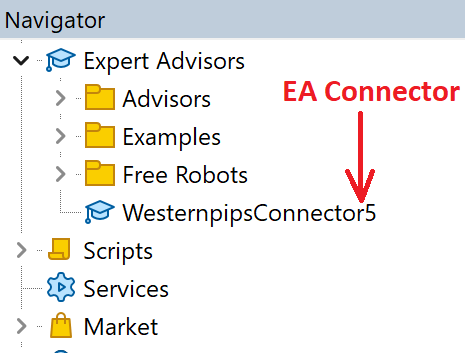
After restarting the broker terminal, you will see the installed Expert Advisor.
Connector settings in Westernpips Private 7:
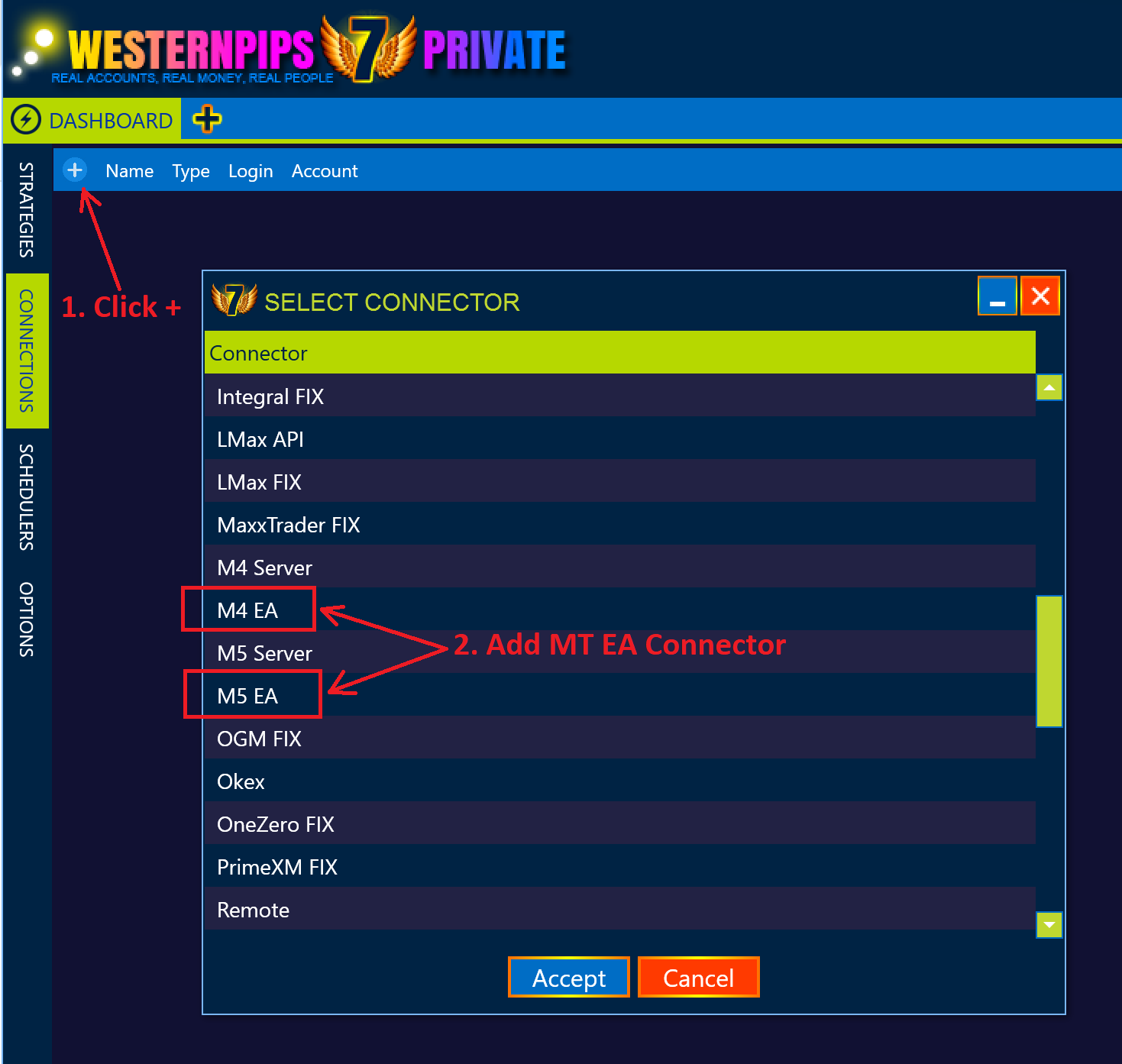
Go to DashBoard>>>Connection>>>Click “+”>>>Add “MT EA Connector”
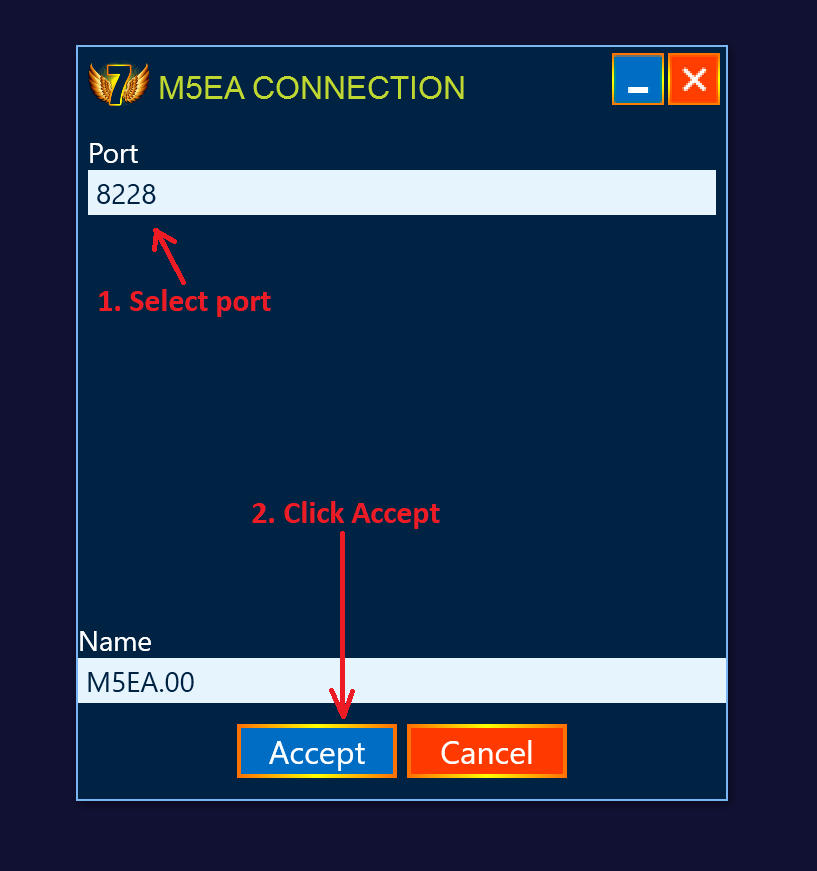
Select the port on which the connection with the broker terminal will be established. For different broker terminals, different ports must be selected.
Setting up the Expert Advisor in the broker terminal
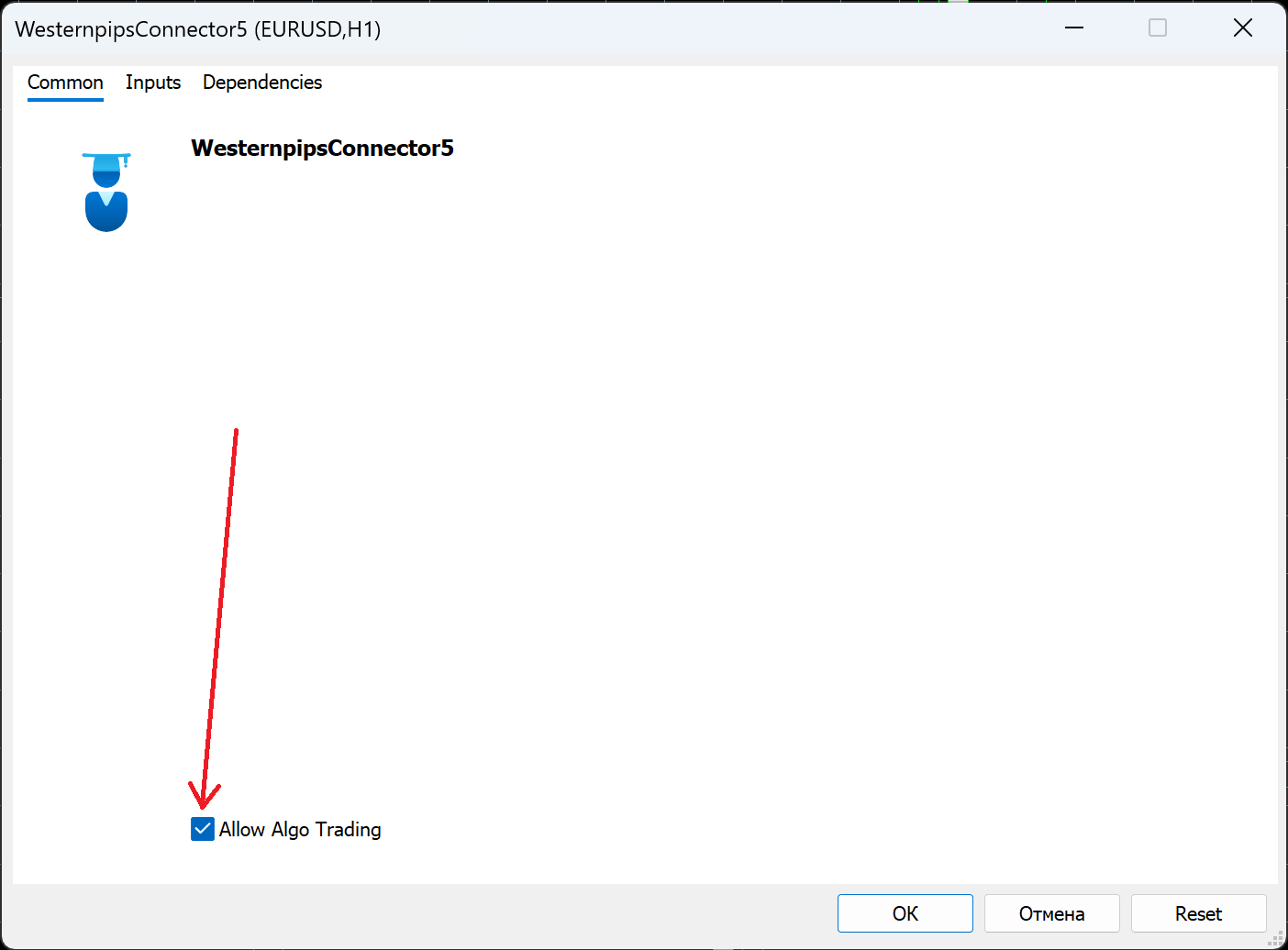
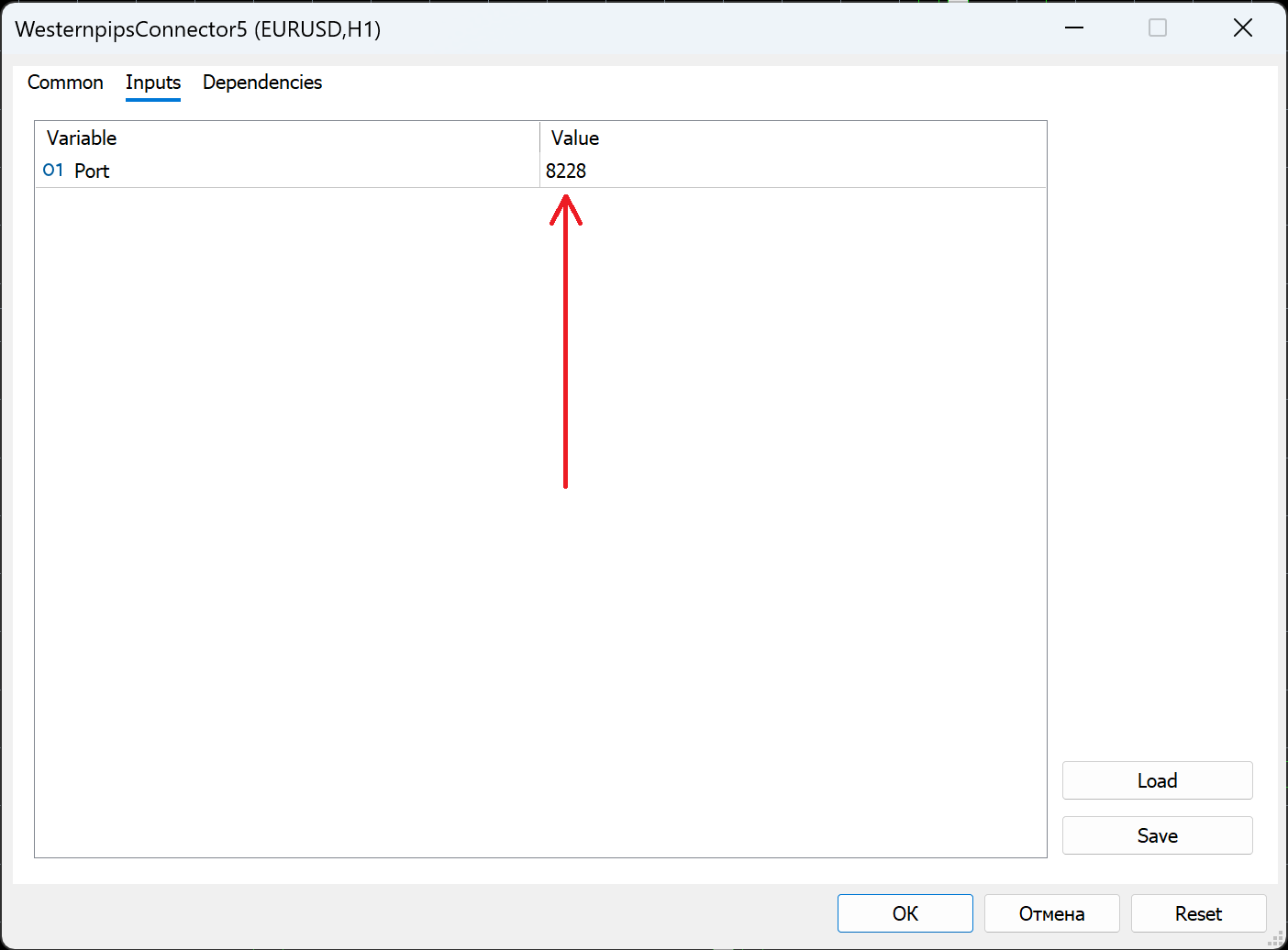
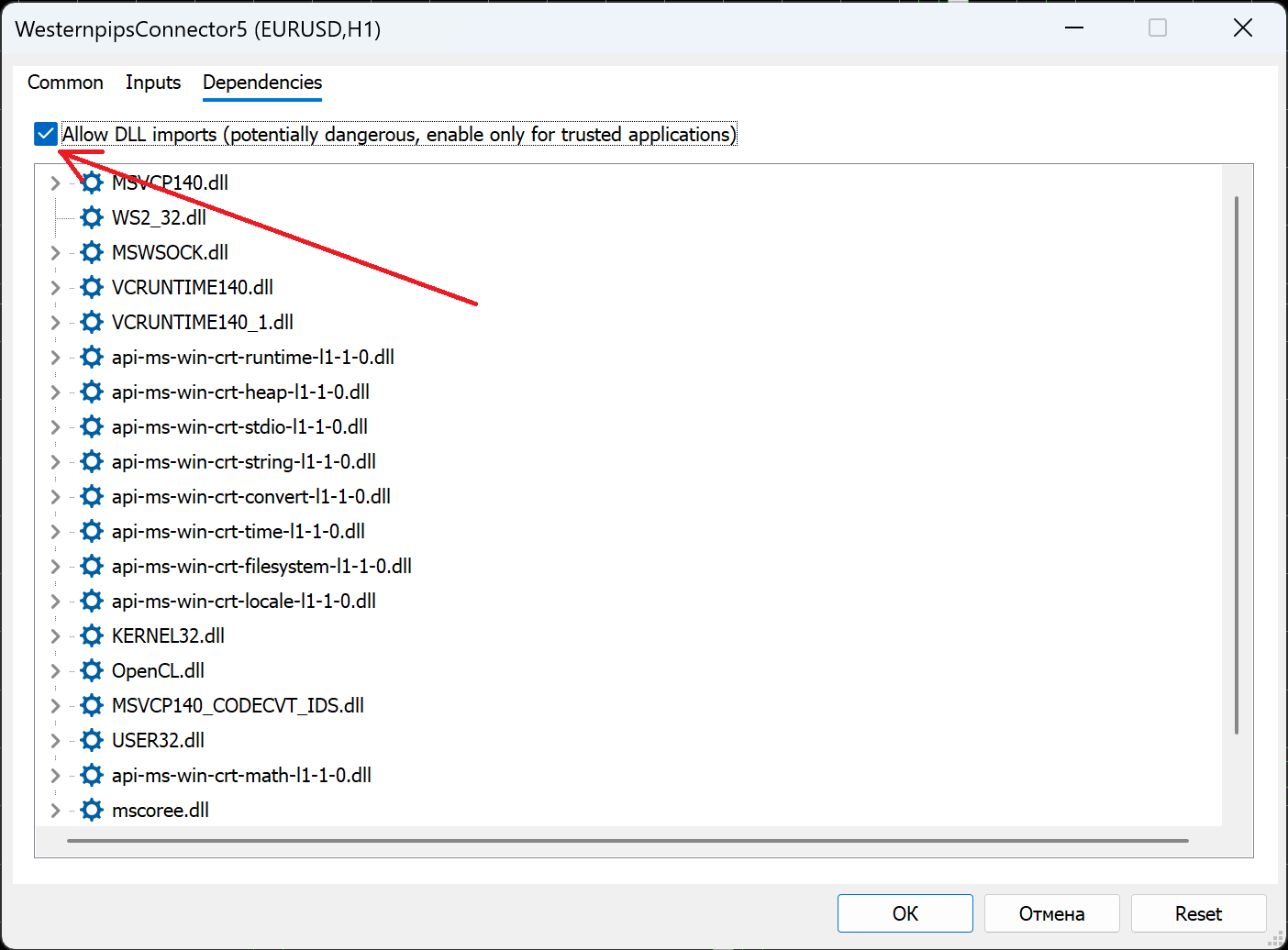
Go to your broker terminal and add the WesternpipsConnector Expert Advisor to the chart of the symbol on which trading will be performed. In the Expert Advisor settings, select the same port that you specified in the Westernpips Private 7 connector settings. Be sure to make sure that you have 2 checkboxes set: AutoTrading is enabled and DLL imports are allowed.
Checking the operation
Select the previously added connector in the providers list. Start the work. If you have done everything correctly, quotes will start coming to Westernpips Private 7. During operation, we strongly recommend minimizing the broker terminal window.