Westernpips DocsWesternpips Docs
  • Home
  • FAQ
  • Documentation
  • Forums
  • Home
  • FAQ
  • Documentation
  • Forums
  • Crypto Trader
    • Crypto Scanner - 1 Leg
    • Crypto Scanner - 2 Leg
    • Crypto Table
  • Getting Started
    • Web Portal my.westernpips.com
      • Web Portal Password Recovery
      • How to Buy Westernpips Products?
    • Products Installation
    • Prerequisites
      • .NET Desktop Runtime Installation
      • ASP.NET Core Runtime Installation
      • Microsoft Redistributable Installation
    • System Requirements
    • Installation Troubleshooting
  • Westernpips Golden Tools 3.5.7
    • Downloading
    • First Run
    • Installing a Westernpips Products Using WGT
    • Working with Installed Products
    • WGT Update
  • Westernpips Private 7
    • How to Check Which Quote Feed Is Faster
    • Installing and First Run
    • License Activation and Login
    • Change License IP, Add new IP
    • User Interface
      • Main Window
      • Dashboard
        • Options
        • Strategies
        • Connections
        • Schedulers
    • Trades Discovery, Check Orders Duration
    • WESTERNPIPS PRIVATE 7 ALGOS
      • OneLeg
        • OneLeg: Before You Start
        • OneLeg First Setup, Step by Step
        • OneLeg Key Parameters with an XAUUSD Example
        • OneLeg Troubleshooting
      • Two Leg Simple Hedge
      • Two Leg Lock
      • Multi Leg Spread
      • One Leg Multi
        • One Leg Multi First Setup and BackTester, Step by Step
        • One Leg Multi XAUUSD Example: Set, Trades and Backtest
        • One Leg Multi Troubleshooting
      • OneLegHidden
      • Two Leg Standard
      • Remote
      • Copier
      • Clicker in WesternPips Private 7
      • Session Control — Quick Guide
      • Exucution Control — Quick Guide
      • Slippage Control - Fast Guide
      • Edit Provider Window Settings
        • Edit Provider: Fast and Signal Providers
        • Edit Provider: Slow Trading Account Settings
        • Edit Provider: Backtest Provider Settings
      • BackTester
      • Setting up a connection with the Broker Terminal via the EA connector
    • Connectors
      • Common Settings and Operation
        • FIX Connection Settings
        • FIX Logs
      • Trading and Fast Sources Connectors
        • 24Exchange Connector
        • Active Financial API Connector
        • Binance Connector
        • Bitfinex Connector
        • CBOE FIX Connector
        • Celer FIX Connector
        • CFH FIX Connector
        • CTrader FIX Connector
        • DukasCopy FIX Connector
        • DxFeed FIX Connector
        • Euronext FIX Connector
        • Exante FIX Connector
        • FastMatch ITCH Connector
        • FlexTrade FIX Connector
        • Fortex FIX Connector
        • FXCM FIX Connector
        • FxPig FIX Connector
        • GCEX FIX Connector
        • Gold-i Matrix FIX Connector
        • Integral FIX Connector
        • LMAX API Connector
        • LMAX FIX Connector
        • MaxxTrader FIX Connector
        • MT EA Connector
        • M4 Server Connector
        • M5 Server Connector
        • OGM FIX Connector
        • OKX Connector
        • OneZero FIX Connector
        • PrimeXM FIX Connector
        • Remote Connector
        • Rithmic Connector
        • RoE FIX Connector
        • Saxo FIX Connector
        • SolidFX FIX Connector
        • Spotex FIX Connector
        • TraderMade FIX Connector
        • Universal Connector
        • Universal Fast Connector
        • XenFin FIX Connector
        • XTRD FIX Connector
  • Westernpips Webcliker
    • System Requirements
    • Installer
    • Agent
    • UI Settings
    • UI Logs
    • Start/Stop
    • Connections
    • Trade platforms
      • CMC Markets
      • M5 Web
      • M4 Web
      • TRADE NATION
      • Exness Web
      • Universal cliker
      • IG Trading Platform
      • MEX / MultiBank
      • ByBit
      • EXANTE
      • IQ Option
      • Plus500
      • Quotex
    • Risk Warning
  • Glossary
    • Latency Arbitrage
    • Fast Price Feed
    • Execution Latency
    • Slippage
    • FIX API
    • Requote
    • Forex Arbitrage
    • Toxic Flow
    • Last Look
    • B-Book
    • Forex VPS
    • Brokers That Allow Arbitrage
    • Low Latency

Edit Provider: Backtest Provider Settings

1 views 0

In the BackTester, a provider is not a live connection but a recorded file of prices (.ticks). You choose the file, and for the trading account you also enter how fast and at what price your broker really fills orders. These numbers decide whether the backtest looks like real trading or is too optimistic.

Edit Provider guides: Overview · Fast and Signal providers · Slow trading account · Backtest provider
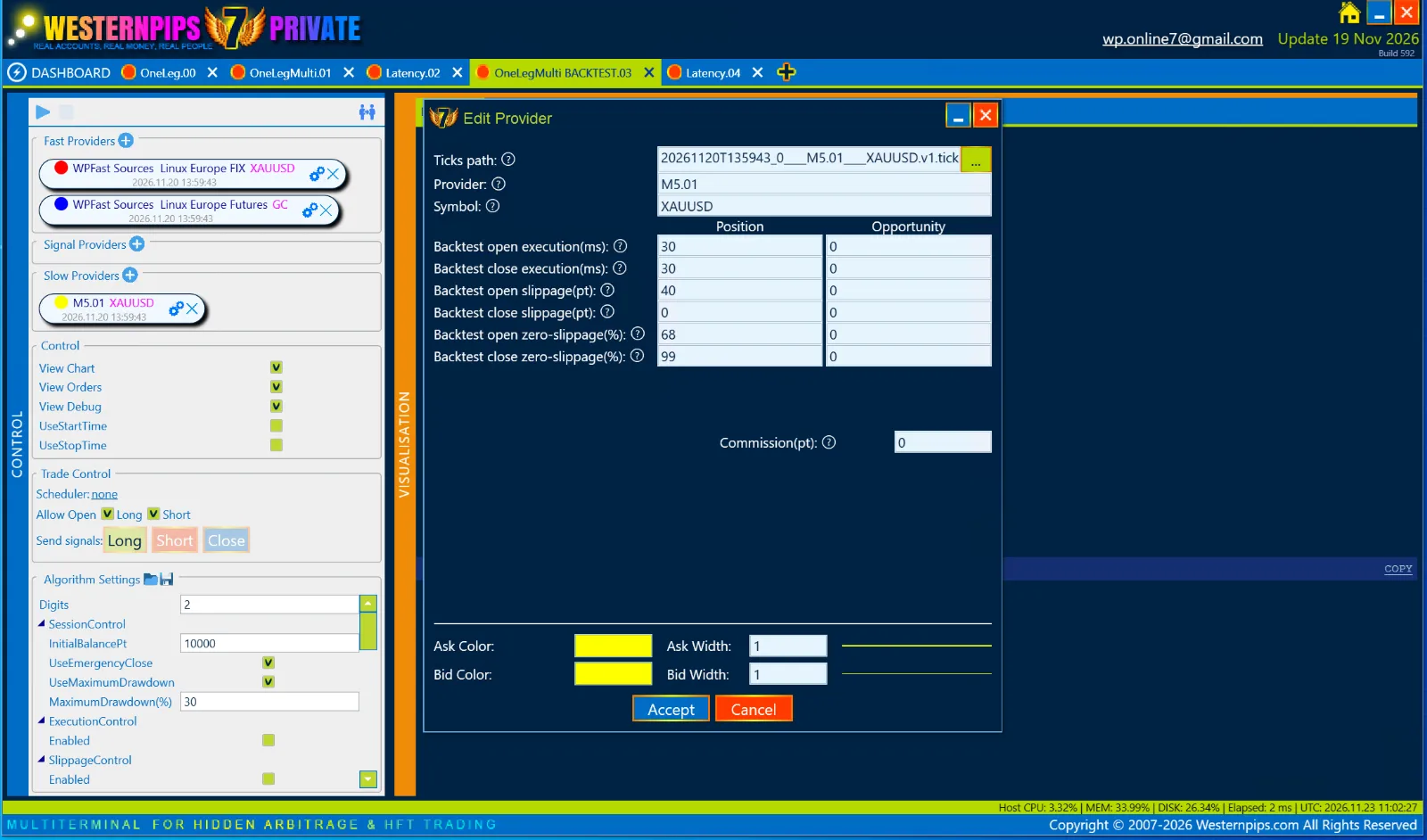
Edit Provider in a backtest tab: Ticks path to a recorded XAUUSD file and the Backtest execution, slippage and zero-slippage fields for the slow provider
Backtest settings of the trading account, filled with values measured on live trades.

Quick setup in 4 steps

  1. For every provider of the backtest tab, press “…” next to Ticks path and choose its recorded file. Provider and Symbol fill in by themselves.
  2. Use files from the same recording for all providers: they start with the same date and time.
  3. In the slow (trading) provider only, fill the six Backtest fields in the Position column with your broker’s real execution figures (see below).
  4. Press Accept and run the backtest.

Where the .ticks files come from

You record them yourself: turn on Save Trace to File in a live strategy tab, and the program saves the prices of every provider. The files are in the .traces folder of the program. A name like 20261120T135943_0____M5.01____XAUUSD.v1.ticks means: recording start time, provider number, provider name, symbol. Number 0 is the trading account, 1 and above are fast feeds, 10 is the signal provider. Step-by-step: One Leg Multi first setup and BackTester.

The six execution fields in plain words

Field What it means Example (live XAUUSD)
Backtest open execution(ms) How long your broker takes to open a trade. The backtest waits this long and takes the price at that moment. 30
Backtest close execution(ms) The same for closing. 30
Backtest open slippage(pt) The worst extra price loss on opening. Each trade gets a random value from 0 up to this number. 40
Backtest close slippage(pt) The same for closing. Limit, TakeProfit and virtual closes get no slippage. 0
Backtest open zero-slippage(%) How many entries out of 100 fill exactly at the requested price. 68
Backtest close zero-slippage(%) The same for closes. 99

The example values were measured for one broker and one symbol. Your broker’s values will be different: measure them yourself.

  • Position and Opportunity columns: fill Position. Opportunity is used only for special strategy actions; if both are filled, the larger value is used.
  • Enter the values in the trading (slow) provider. The same fields in fast and signal providers do not affect the result.
  • Commission(pt) is also used in the backtest profit. Fill policy and order types are hidden: in a backtest every order is filled like a market order with the delay and slippage above.

How to get your own numbers

  1. Trade the minimum lot on your real account until you have at least a few dozen trades.
  2. Open the Orders tab: it shows the average execution time and slippage for opening and closing.
  3. Count how many fills had zero slippage (export the Orders tab to CSV for this).
  4. Enter these numbers in the slow provider of the backtest tab.

Why realistic numbers matter: an example

Same recorded session Trades Result Per trade
Backtest, all fields 0 1,050 +34,145 pt 32.5 pt
Backtest, measured values 1,089 +26,347 pt 24.2 pt
Live trading 1,082 +26,200 pt 24.2 pt

With zeros the backtest looked about 30% better than reality. With measured values it matched live trading. More in the XAUUSD example.

Common problems

What you see Why What to do
No trades in the backtest A provider has no file, files are from different recordings, or opening is not allowed in the strategy. Choose a file for every provider from one recording and check Allow Open.
Every order shows 0 ms and 0 slippage The values were entered in a fast provider or left at 0. Enter them in the slow provider.
Backtest much better than live Delay and slippage are lower than at your broker. Use numbers measured on your live trades.
Provider or Symbol empty after choosing a file The file was renamed. Use the original file name or type Provider and Symbol yourself.

Related guides

  • BackTester
  • One Leg Multi first setup and BackTester
  • Edit Provider: slow trading account settings
  • Edit Provider: fast and signal providers

Risk warning. Trading Forex, CFDs and cryptocurrencies with leverage carries a high risk of losing money. Backtest results do not guarantee live results: a backtest cannot show how a broker changes its execution in reaction to your trading. Test on a demo account first. Read the full risk warning.

Was this helpful?

Yes  No
Related Articles
  • Low Latency
  • Brokers That Allow Arbitrage
  • Forex VPS
  • B-Book
  • Last Look
  • Toxic Flow
Previously
Edit Provider: Slow Trading Account Settings
Up Next
BackTester
  • Copyright 2026 Westernpips.com. All Rights Reserved.

LiveInternet counter